Change Password
To ensure your account security, we recommend regularly updating your login password. BatChat account password modification is currently only supported on the mobile APP.
Modification Process
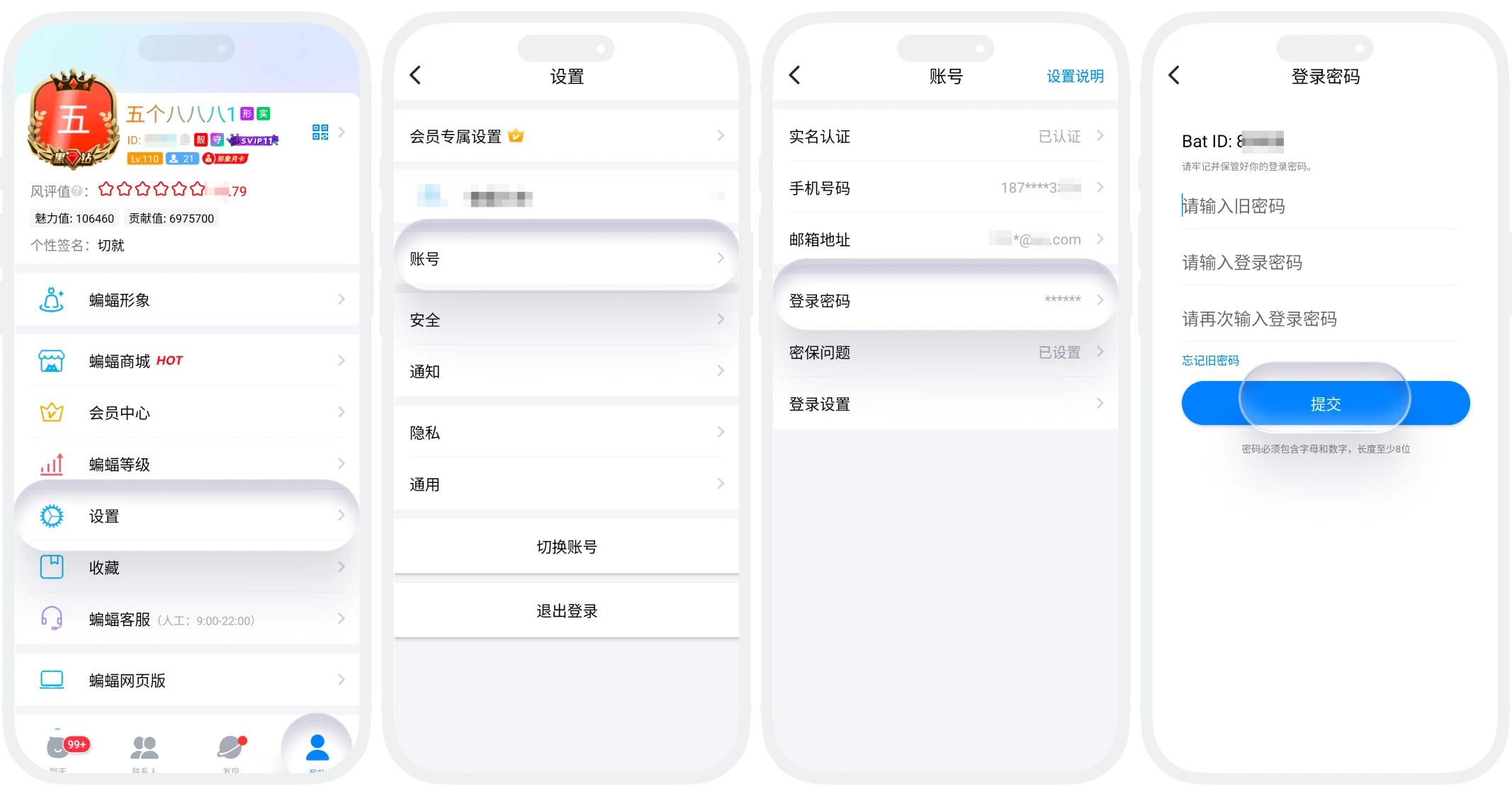
- Open the BatChat APP, go to "My" - "Settings" - "Account", and enter the "Login Password" page;
- You need to enter the correct old password and the new password you want to set, click "Submit", and the login password will be modified;
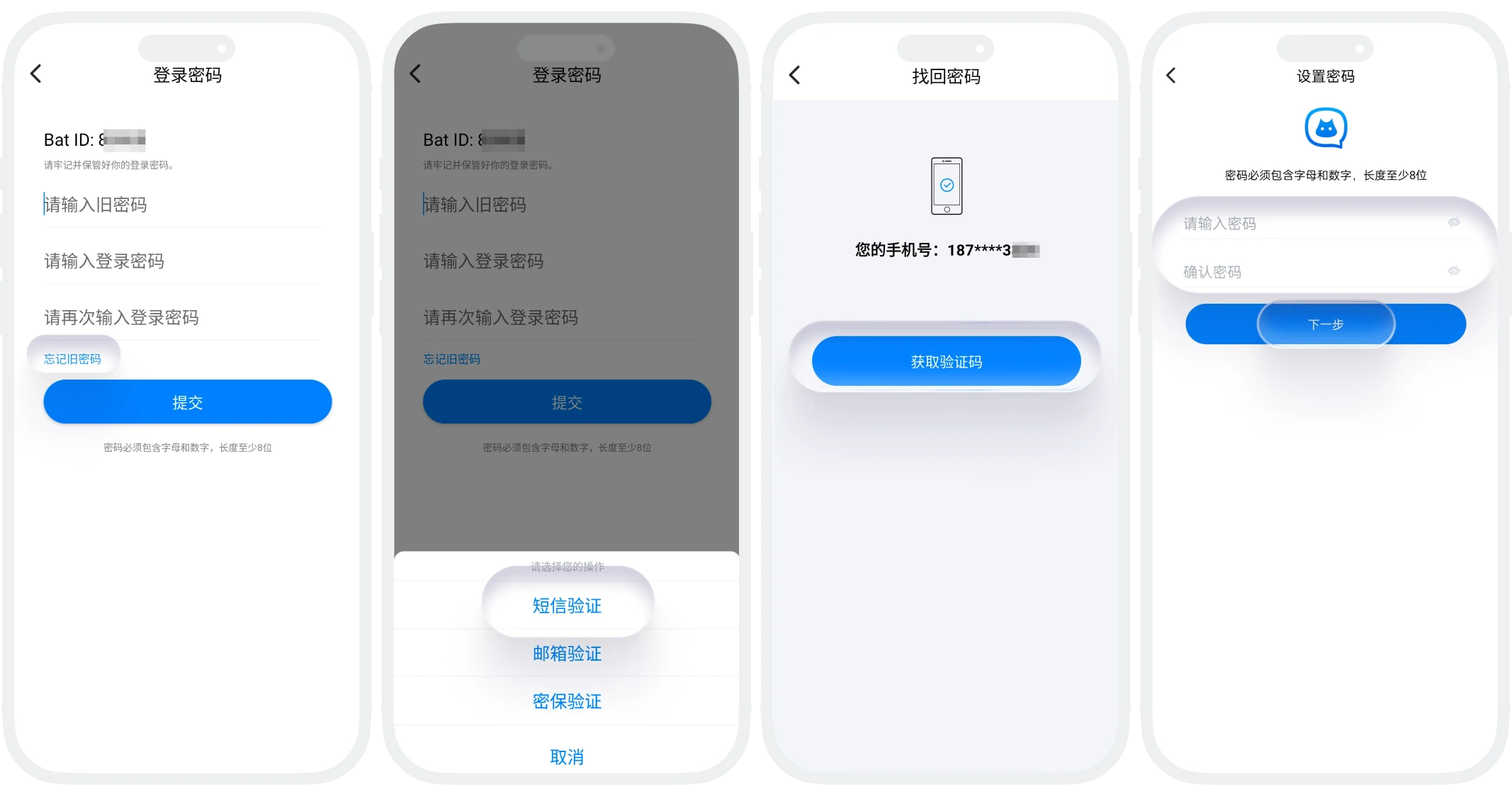
- If you forget the old password, please click "Forgot Old Password" and select a verification method for identity verification:
- SMS or Email Verification: Enter the mobile number bound to your BatChat account or the verification code received on your mobile number. After verification, you can set a new password;
- Security Question Verification: Select any two of your set security questions and answer them correctly. After verification, you can set a new password;

Friendly Reminders:
- BatChat passwords must contain letters and numbers, with a minimum length of 8 characters. It is recommended to use combinations of uppercase and lowercase letters, numbers, and special symbols, avoiding simple or repetitive password patterns;
- To enhance security, please do not use the same password on multiple platforms, and update passwords regularly.
Was this page helpful?
