Bind/Change Email
Binding an email is an important way to improve BatChat account security. It can serve as:
- A backup method for account security verification;
- One of the ways to recover your account;
- One of the new device login verification methods.
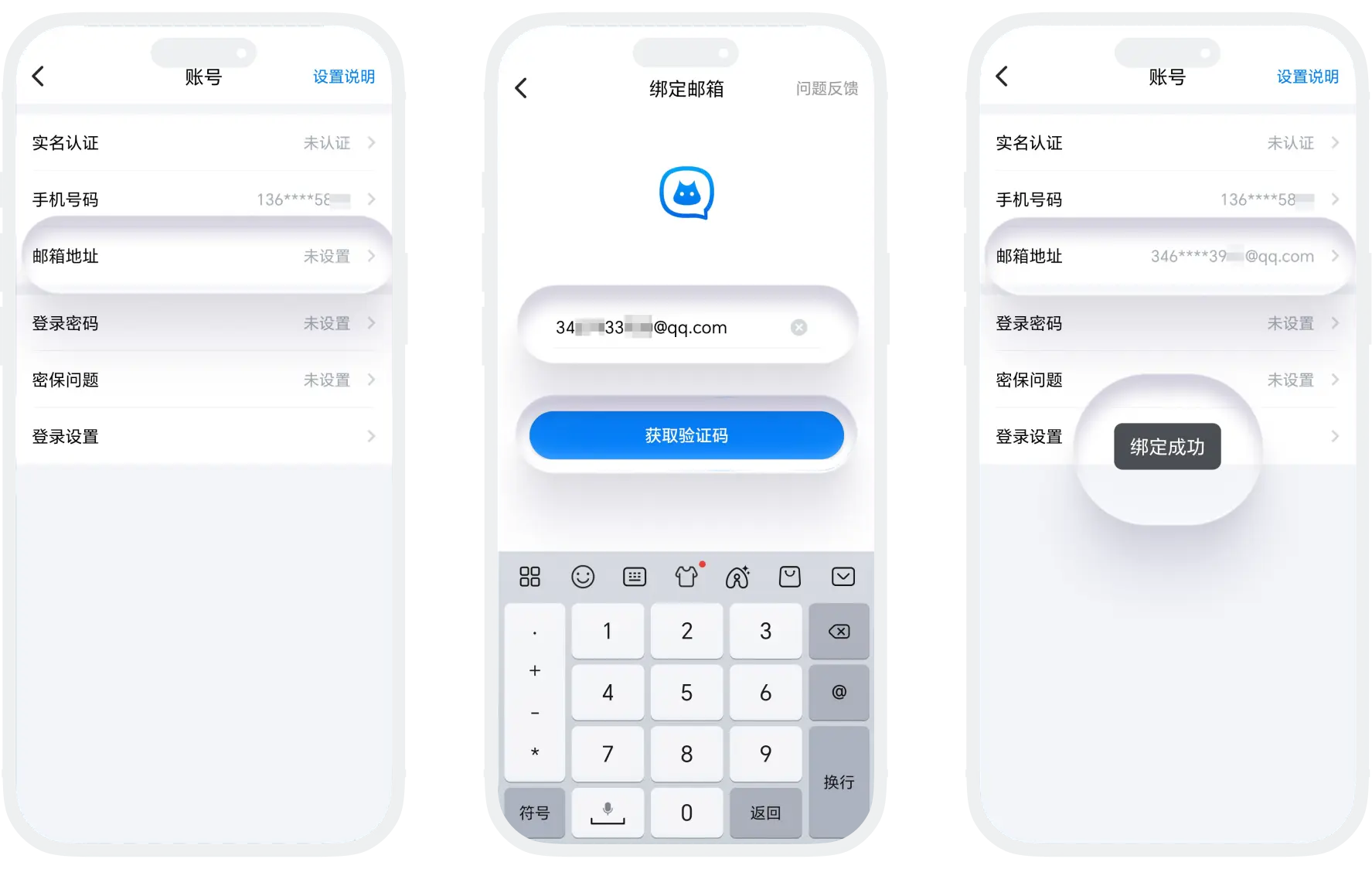
Email Binding Process (for new users or unbound users)
- Open the BatChat APP, go to "My" - "Account", find the "Bind Email" option and click to enter;
- Enter the email address you want to bind and click the "Send Verification Code" button;
- Log in to your email, check the received verification code, and enter the verification code in the APP to complete binding.
Email Change Process (for already bound users)
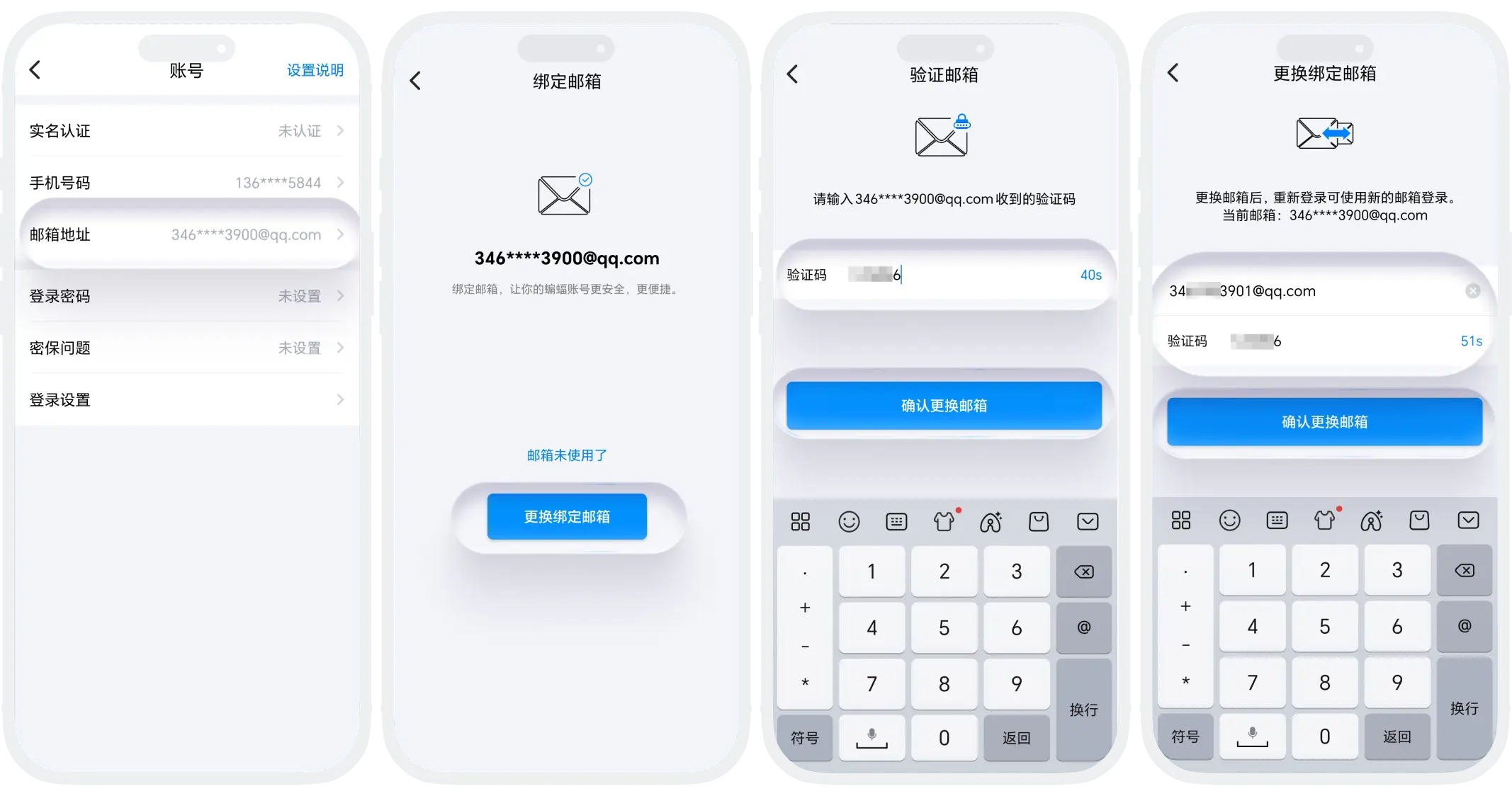
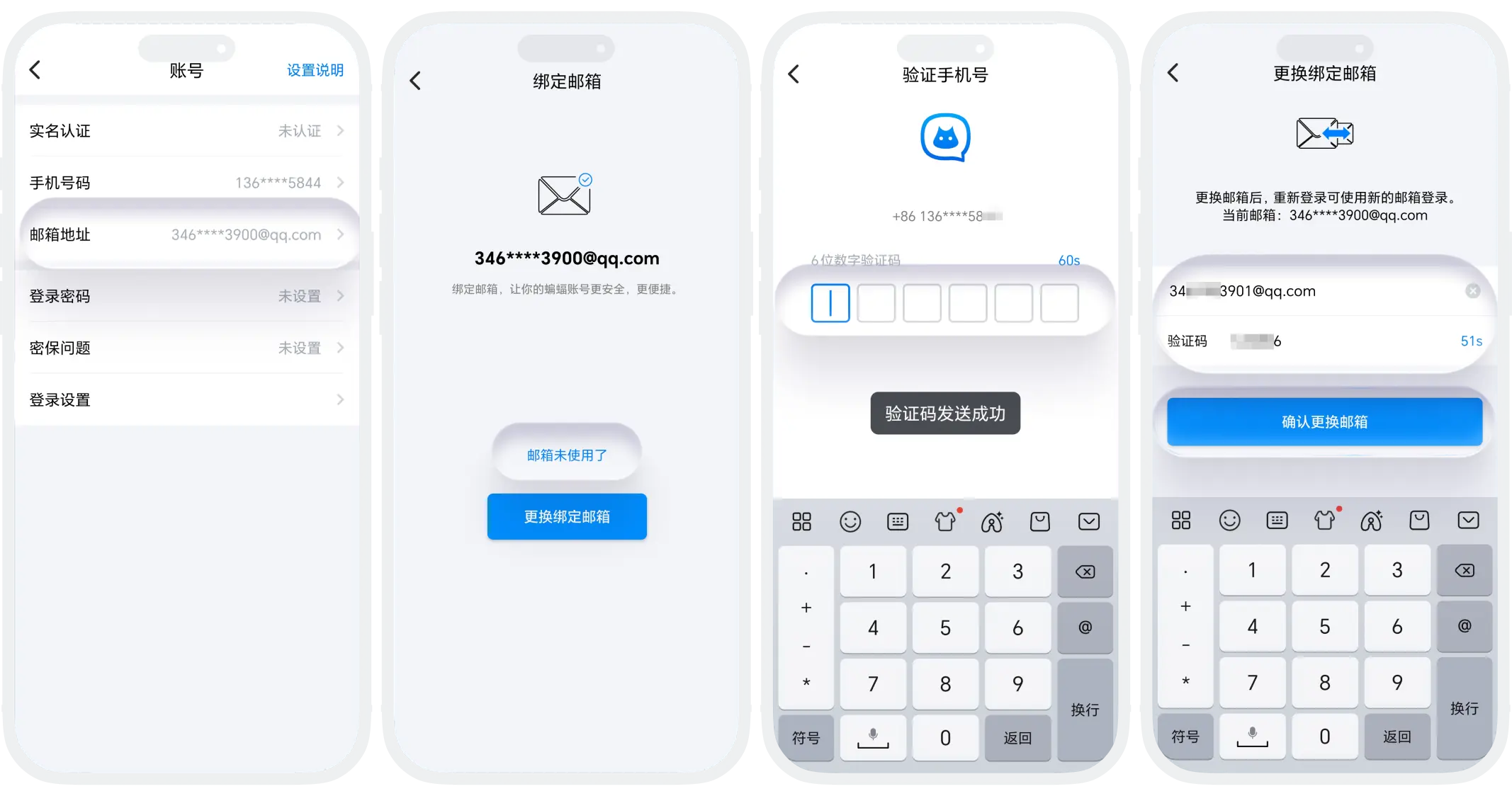
- Go to "My" - "Account", find the "Bind Email" option and click to enter;
- If you can still access the currently bound email normally, click "Change Bound Email", the system will send a verification code to the currently bound email, log in to the email to view and enter the verification code, then enter the new email address and complete verification to complete the change;
- If you cannot access the currently bound email normally, click "Email No Longer in Use", the system will send a verification code to the bound mobile number, enter the SMS verification code to verify identity, then enter the new email address and complete verification to complete the change;

Account Security Recommendations
- Bind email immediately: If you haven't bound yet, it is recommended to complete binding immediately;
- Prioritize binding commonly used emails: such as QQ Mail, 163 Mail, and other commonly used and stable emails;
- Regularly check binding status: Regularly confirm whether the bound email is functioning normally.
FAQ
Currently, one BatChat account can only bind one email.
When the system detects that the current device performing the binding operation is not your registered device, you need to enter the verification code received by your bound mobile number for identity verification to ensure your account security.
