Device Management
The device management feature provides you with comprehensive login device monitoring and management capabilities. Through this feature, you can view current and historical login device details, manage device login permissions, and ensure account security. Each BatChat account allows login on up to 5 devices. Exceeding this limit will prevent login on new devices.
Device Management Page Instructions
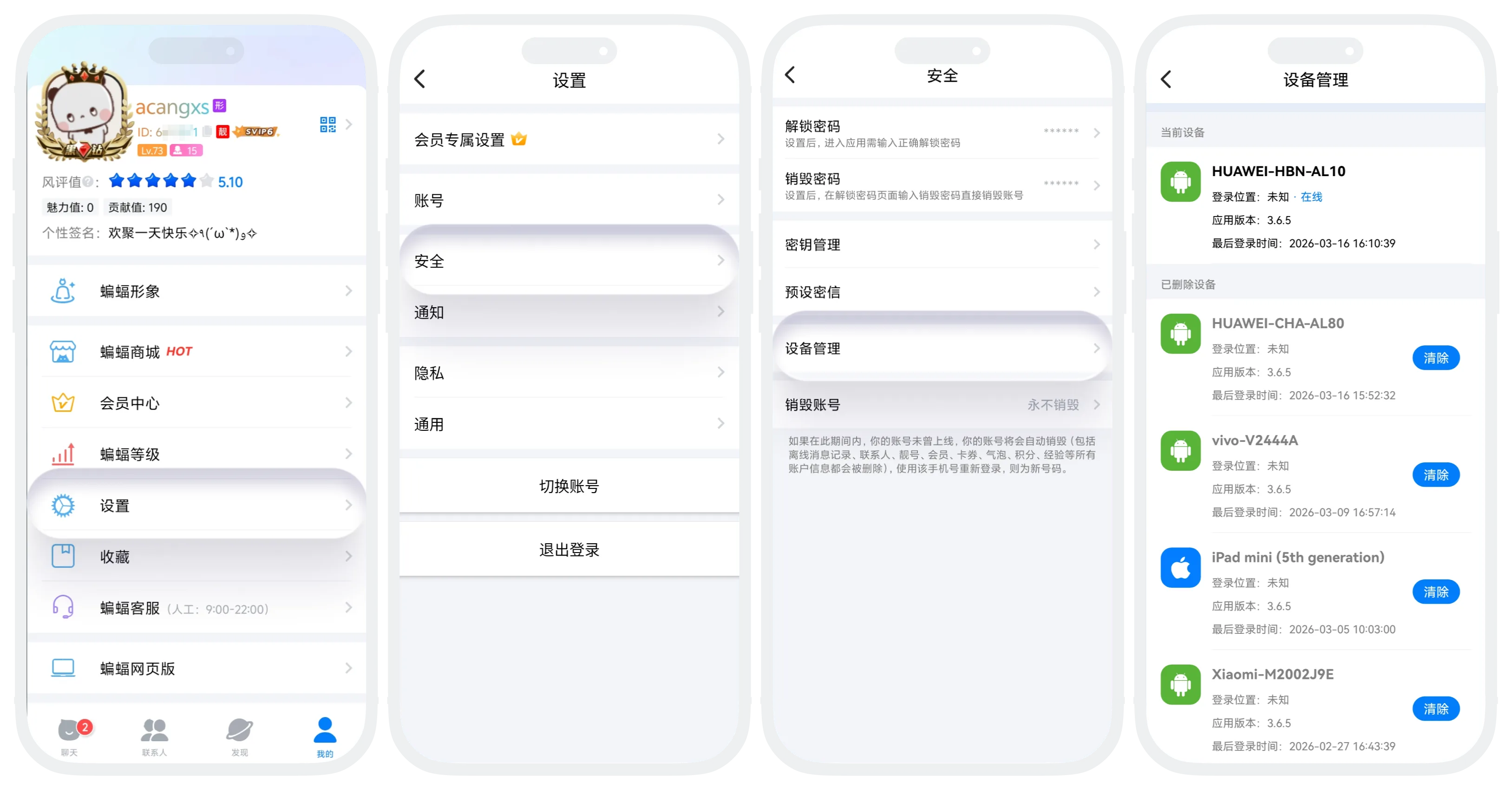
- In "My" - "Settings" - "Security" - "Device Management", you can view information of all devices currently logged in to your account;
- At the top of the device management page, the system will clearly identify the device you are currently using, and display device model, login location, online status, app version, last login time, and other information;
- Below the current device, information of other logged-in devices will be displayed. Click "Delete" to force logout from that device;
- Deleted devices will be displayed in "Deleted Devices". Deleted devices will still occupy the logged-in device count.
Manage Device Login Permissions
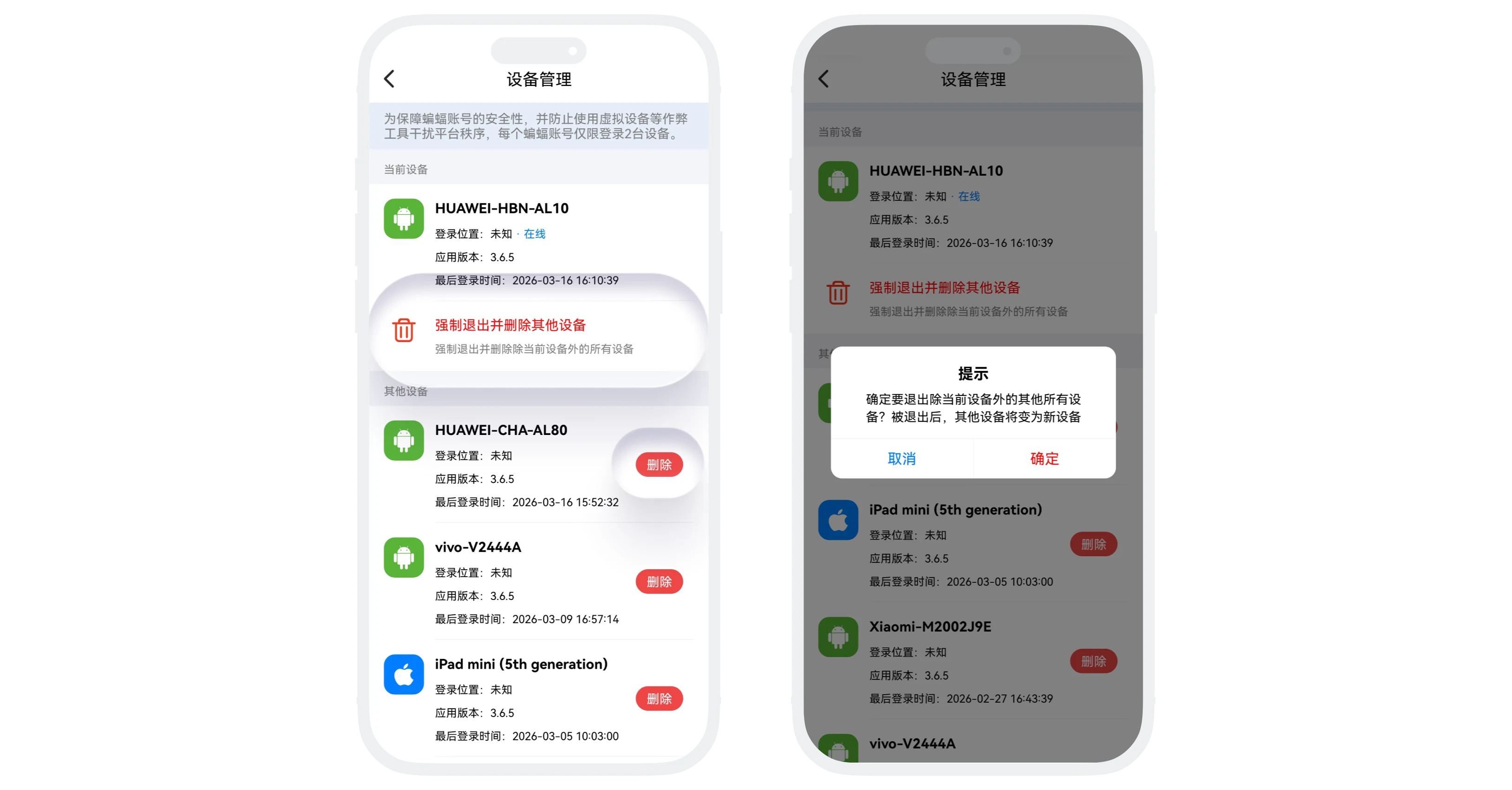
- Single Removal: Find the target device in the device list, click "Delete" on the right side of that device to force logout from that device;
- Batch Removal: At the top of the device list, click "Force Logout and Delete Other Devices" to immediately logout from all other devices except the current device.
FAQ
Each BatChat account can log in on up to 5 devices. When you try to log in on a 6th device, the system will reject the login.
No. Deleting a device only forces the account to logout from that device, but the device is still counted as a logged-in device.
Was this page helpful?
