Unlock Password
The app unlock password feature provides you with an additional layer of privacy protection, ensuring that only you can access the BatChat application. This feature supports multiple unlock methods and allows you to customize the lock screen time according to your usage habits, effectively preventing unauthorized access to your app and data.
Unlock Password Setting Process
Enable/Disable Unlock Password
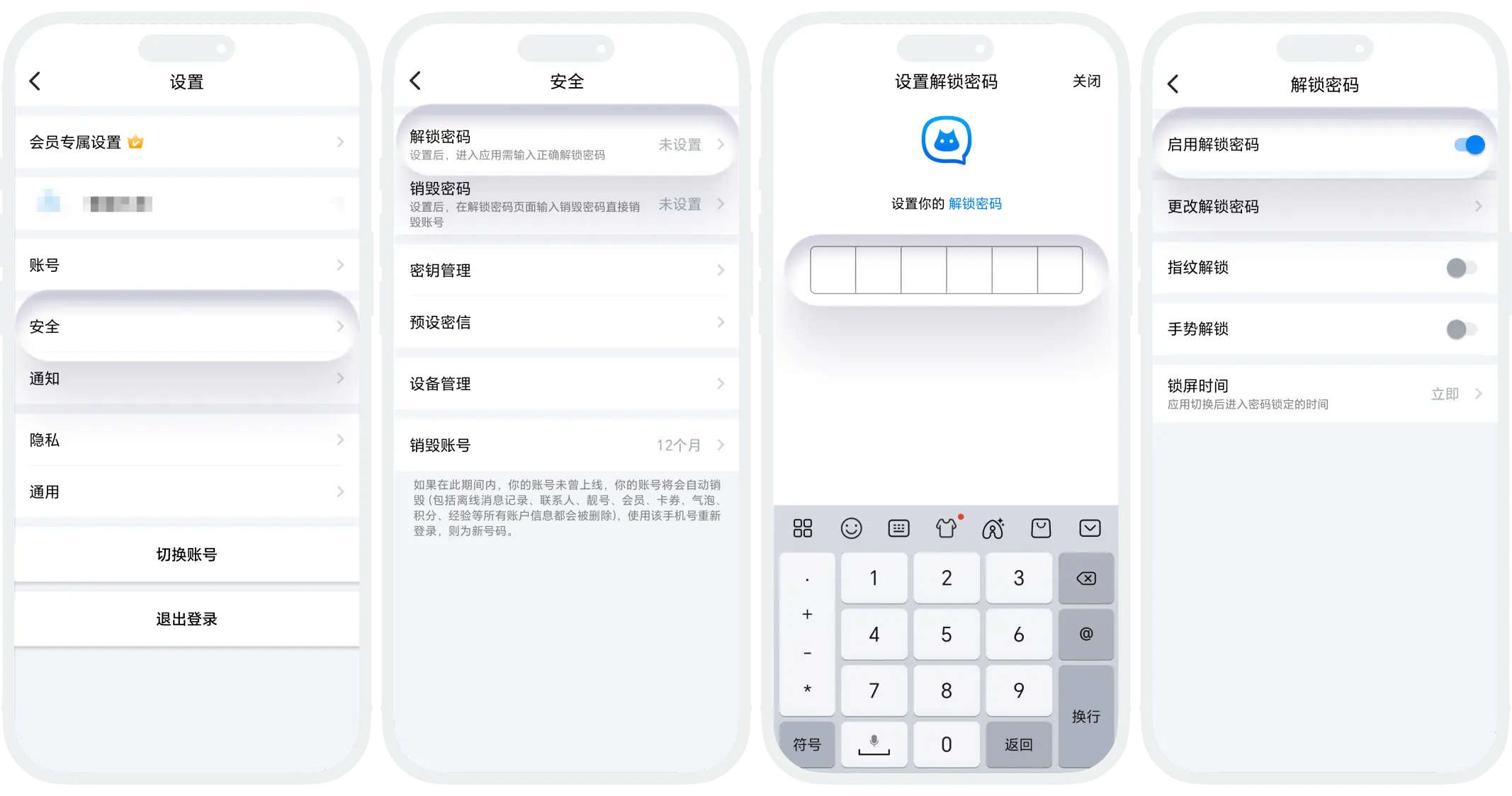
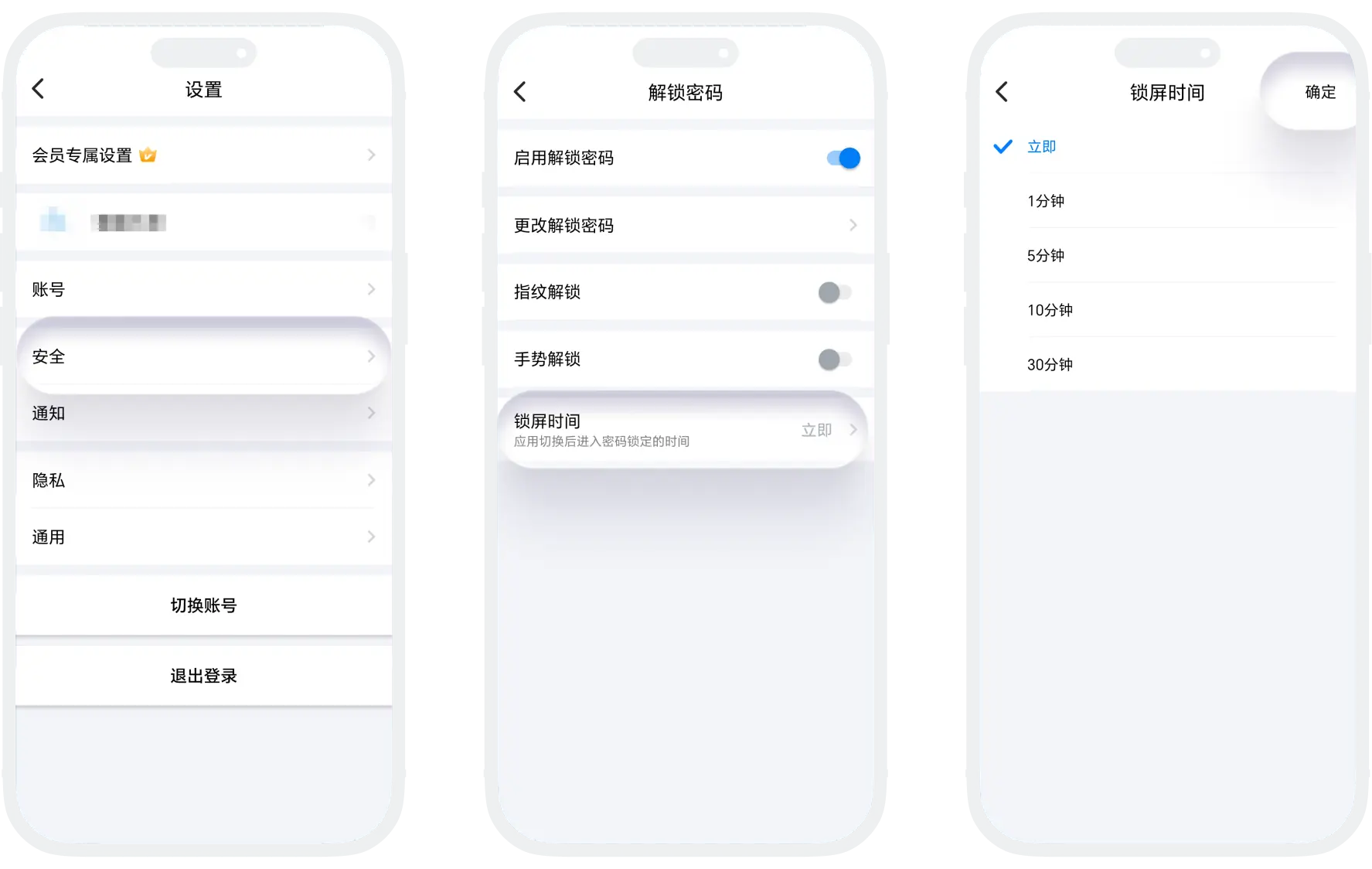
- Go to "My" - "Settings" - "Security" - "Unlock Password";
- For first-time setting of unlock method, you need to set an unlock password. Please enter a 6-digit unlock password and enter it again;
- After successful setting, enter the unlock password again to indicate that you have enabled the unlock password feature. The next time you enter the BatChat APP, you will need to enter the unlock password;
- You can disable the unlock password later in "My" - "Settings" - "Security" - "Unlock Password".
Unlock Method Settings
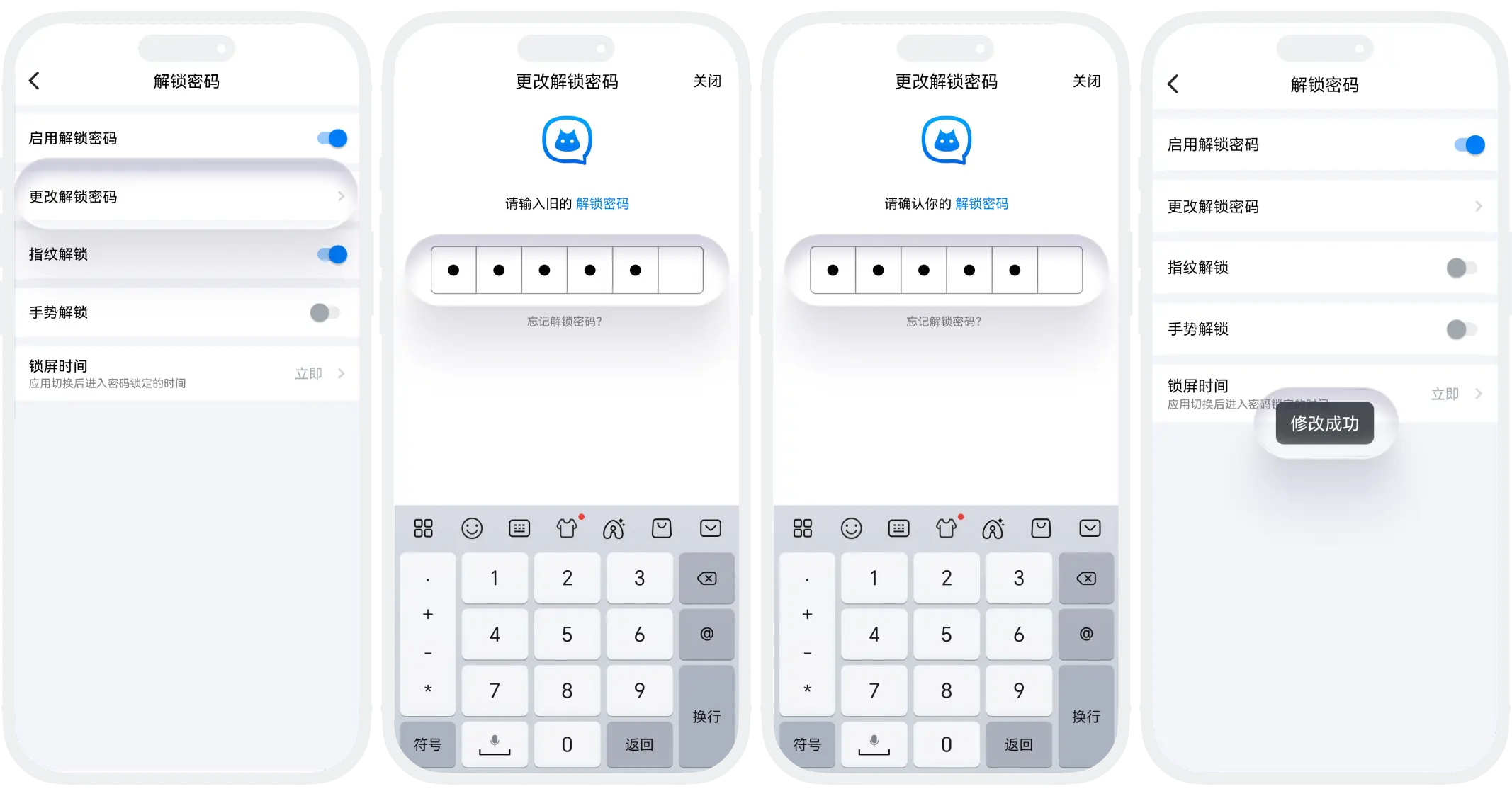
- Password Unlock:
- Enable Method: You need to set an unlock password when first enabling the unlock password feature;
- Modify Unlock Password: Click "Change Unlock Password" on the unlock password settings page, enter the old unlock password (if forgotten, you can verify identity through password questions), then enter the new unlock password and confirm to modify the unlock password;
- Fingerprint/Face Unlock:
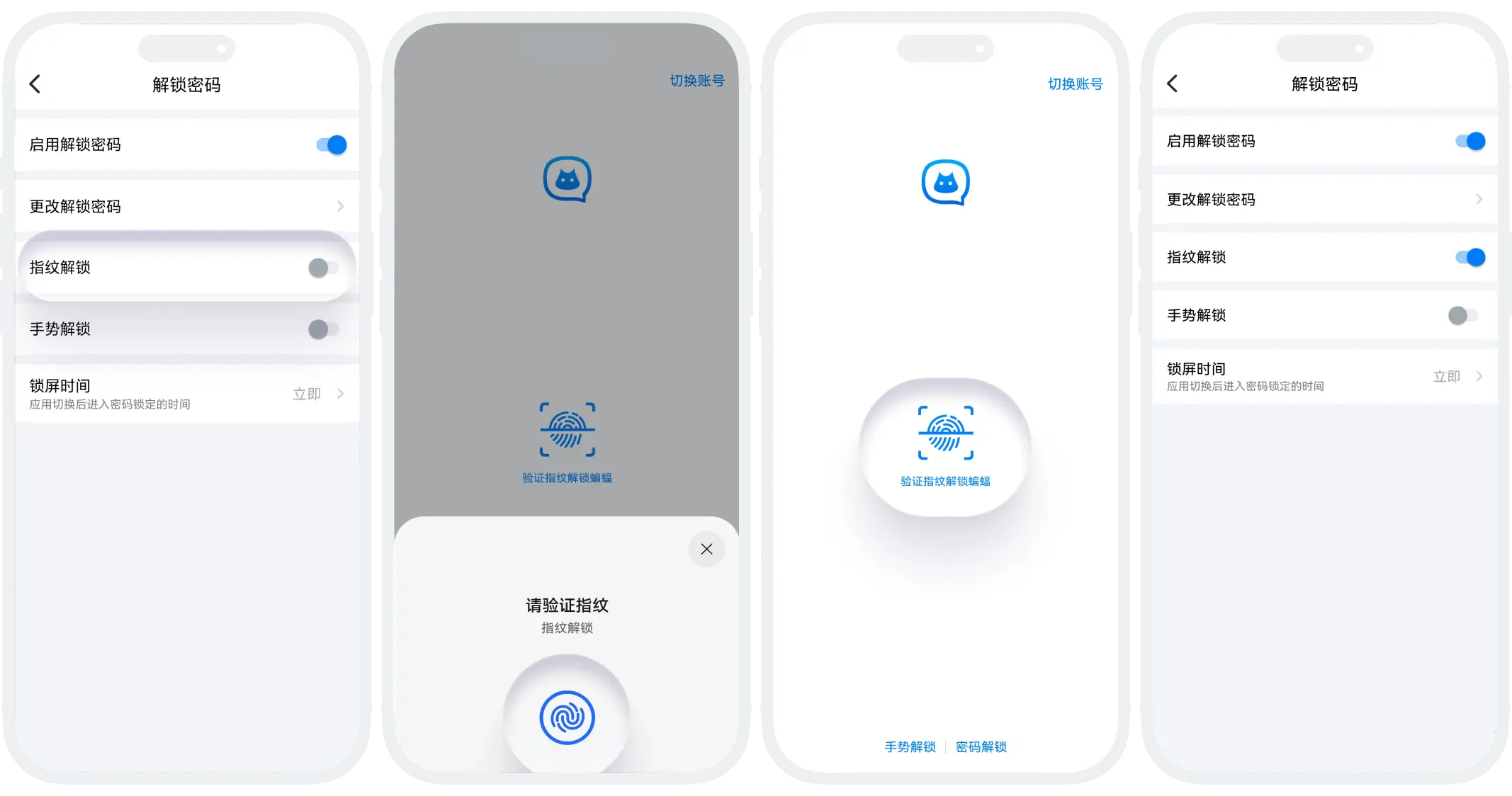
- Supported Devices: Smartphones with fingerprint/face recognition functions;
- Setting Conditions: Fingerprint/face has been enrolled in system settings;
- Enable Method: Turn on the "Fingerprint Unlock"/"Face Unlock" switch. After the app locks, use the enrolled fingerprint/face to unlock directly;
- Pattern Unlock:
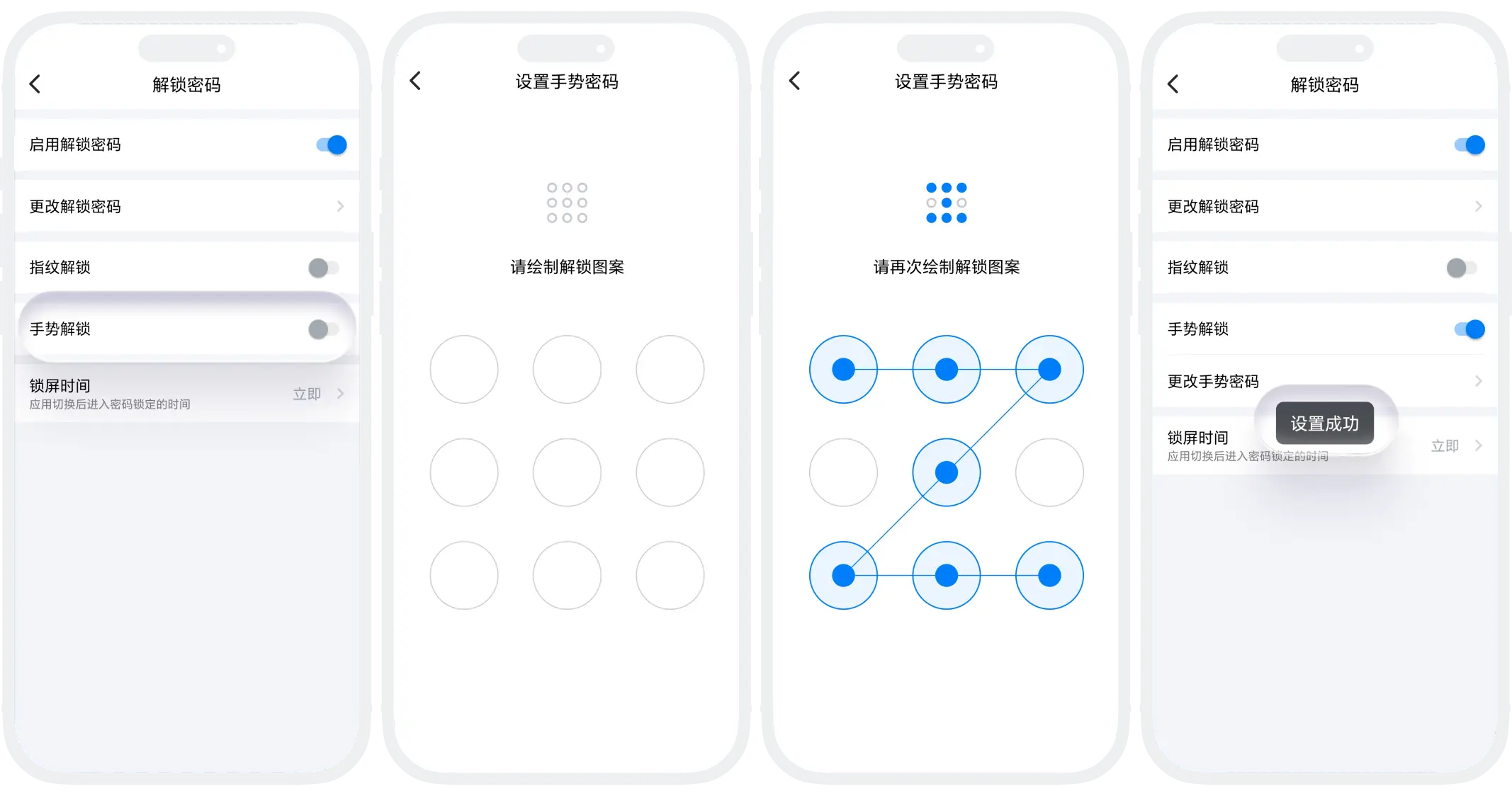
- Unlock Pattern: 3×3 dot matrix connection gesture;
- Enable Method: Turn on the "Pattern Unlock" switch. When first enabling pattern unlock, you need to draw the unlock pattern (connect at least 4 dots, draw twice to confirm);
- Change Pattern Password: Enter the "Change Pattern Password" option, draw the new pattern (repeat twice to confirm), and save the settings;
Lock Screen Time Configuration
The lock screen time determines how long after the app switches to the background it will automatically trigger password lock protection. You can set it according to actual security needs. Options: Immediately, 1 minute, 5 minutes, 10 minutes, 30 minutes.
Multiple Unlock Method Combination
When fingerprint, pattern, and password unlock are enabled simultaneously, the system will prioritize fingerprint unlock. You can switch to other unlock methods at the bottom of the page.
FAQ
Yes. The system supports multiple unlock methods coexisting. When unlocking, fingerprint recognition will be used first. You can switch to other unlock methods at the bottom of the page.
Yes. The unlock password is bound to your account. The unlock password remains valid when changing devices.
