Resource Management
The 'Resource Management' function helps you intelligently manage local resources of the BatChat avatar module, including automatic download, manual update, cache cleanup, etc. Through reasonable settings, you can ensure a smooth experience while effectively controlling data consumption and storage space usage.
Function Entry
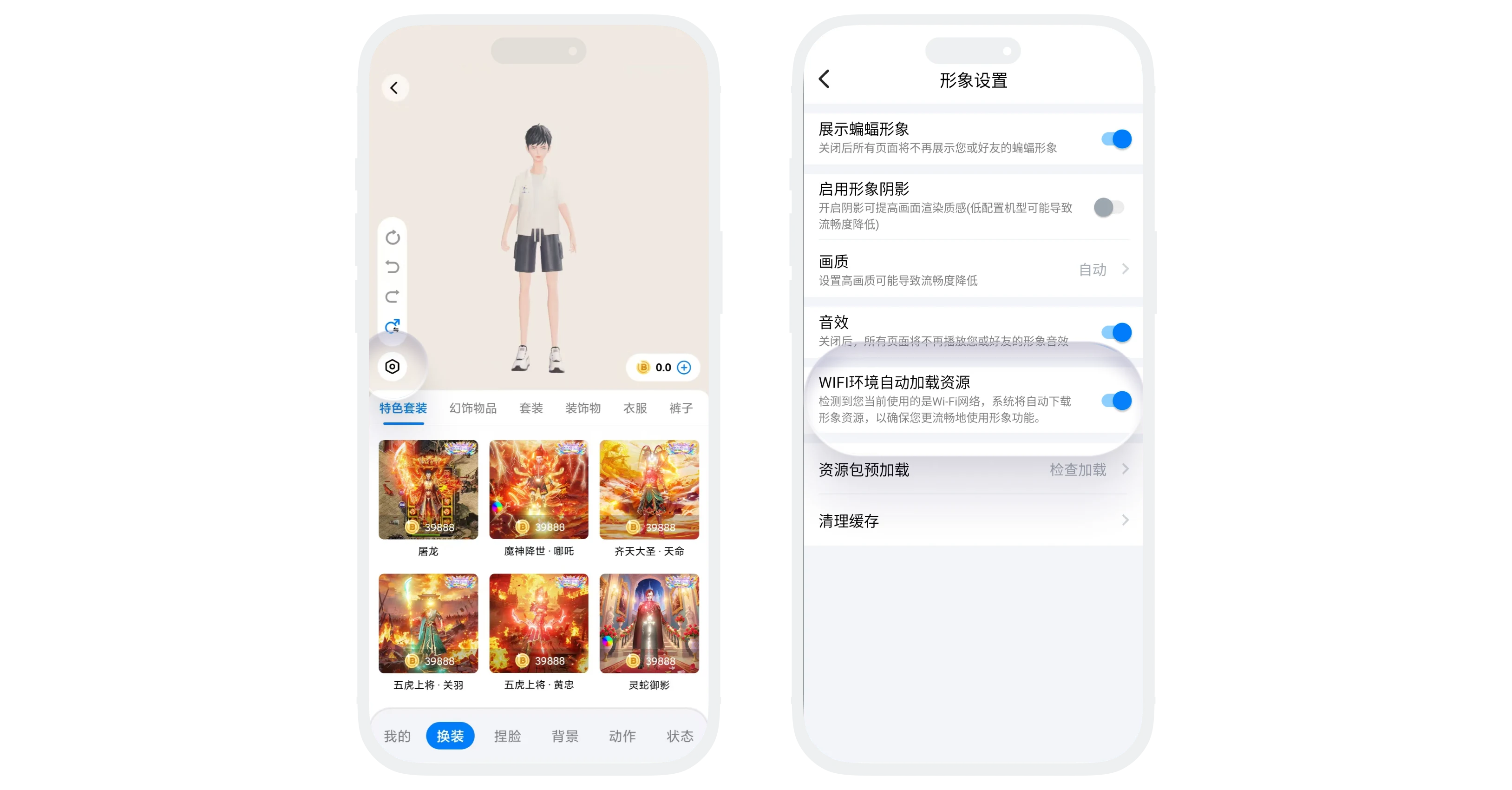
- Entry 1: Enter 'My' - 'BatChat Avatar' - 'Dress Up', click the 'Settings' icon in the lower left corner;
- Entry 2: Enter 'My' - 'Settings' - 'General Settings' - 'Avatar Settings';
Auto Load Resources in WiFi Environment
- After 'Auto Load Resources in WiFi Environment' is enabled, when your device is connected to a WiFi network, the system will automatically download avatar-related resource packages in the background to ensure you get the smoothest experience when using avatar functions;
- Operation Process: On the 'Avatar Settings' page, find the 'Auto Load Resources in WiFi Environment' option and turn on the switch;
- After enabling, in WiFi environment, the system will silently download the latest avatar resources. The download is performed in the background and will not affect your normal use of the App.
Resource Package Preload
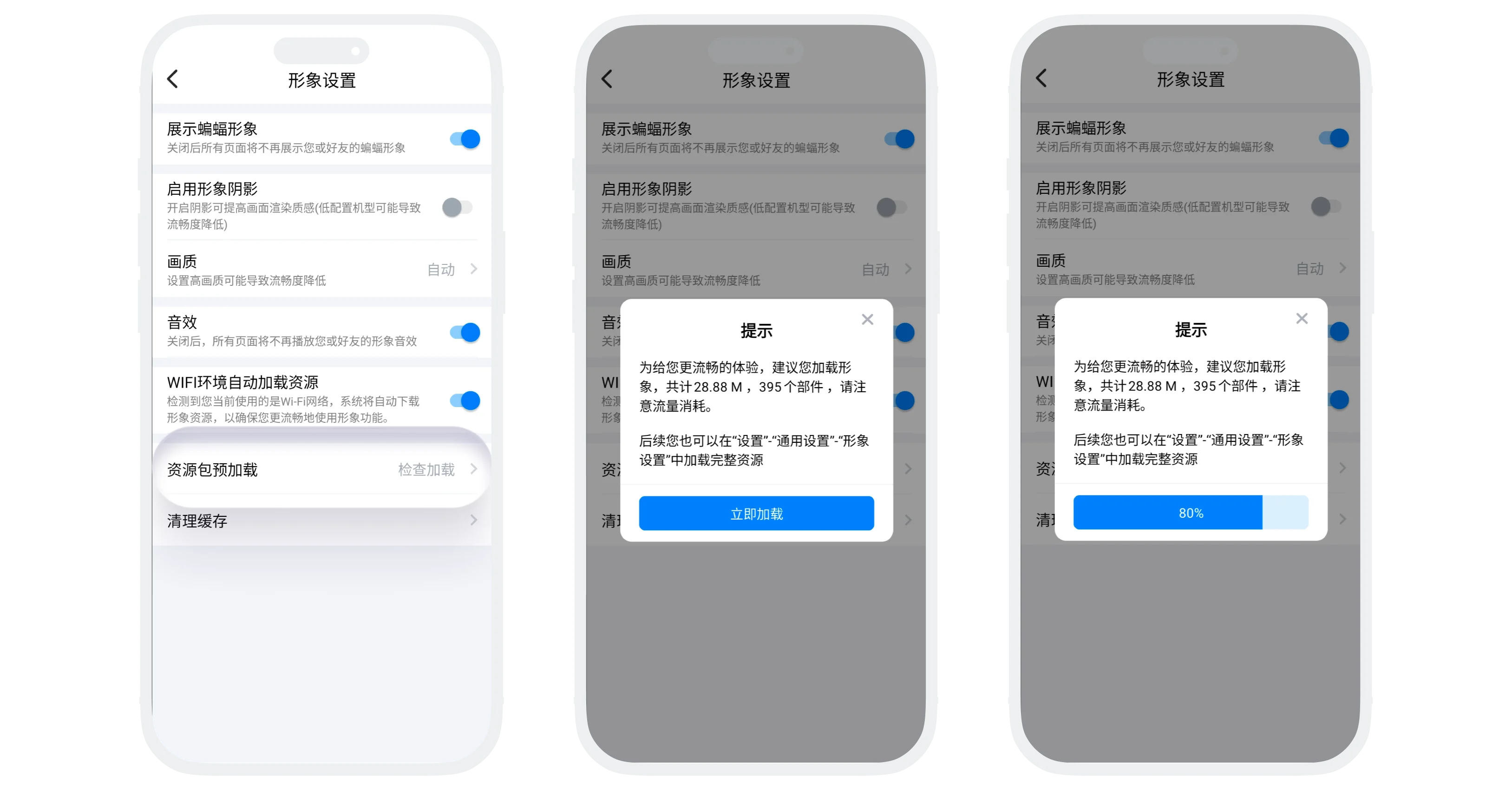
- 'Resource Package Preload' provides a function to manually check and download pending avatar resources. When you feel that avatar loading is slow or some resources are not displayed, you can click here to actively update and load;
- Operation Process:
- On the 'Avatar Settings' page, find the 'Resource Preload' option and click to start detection;
- If there are pending resources, the system will display the resource quantity and size. Click 'Load Now' to start downloading and display the download progress;
- After download is complete, it will prompt download completion, and you can continue using the App.
Resource Package Preload
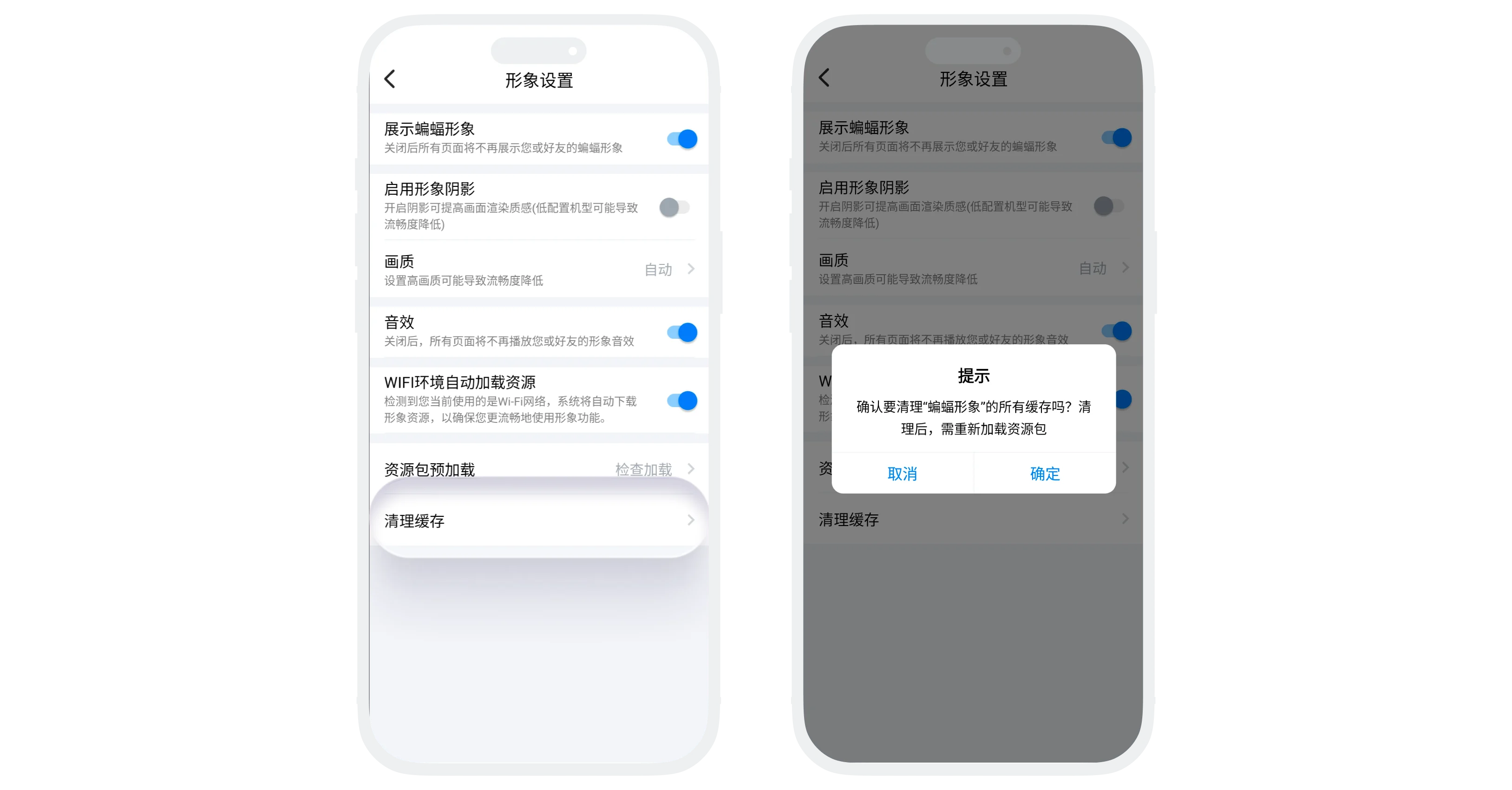
- 'Clear Cache' can clear all local cache data of the avatar module with one click. After clearing, when you use avatar-related functions again, you need to redownload resources.
- Operation Process: On the 'Avatar Settings' page, find the 'Clear Cache' option, click and confirm clearing, the system will immediately start clearing;
- Clearing Scope: Downloaded avatar models, dressing resources and other temporary files. Account data (purchased dressing, outfit plans, personal settings, chat history and other module data) are not affected.
FAQ
No. This function only downloads resources in WiFi environment and will not consume your mobile data traffic.
No. Clearing cache only deletes local temporary files. The dressing you have purchased belongs to account data and will not be cleared.
When entering related pages for the first time, you need to redownload resources, which may have brief loading delays. It returns to normal after download is complete.
Was this page helpful?
