Disable BatChat Avatar
If you do not want to use avatar functions due to personal preference, or if the App is lagging due to phone memory, running speed and other reasons, you can disable avatar display with one click. After disabling, all avatar-related functions will be unavailable.
Setting Process
- Function Entry:
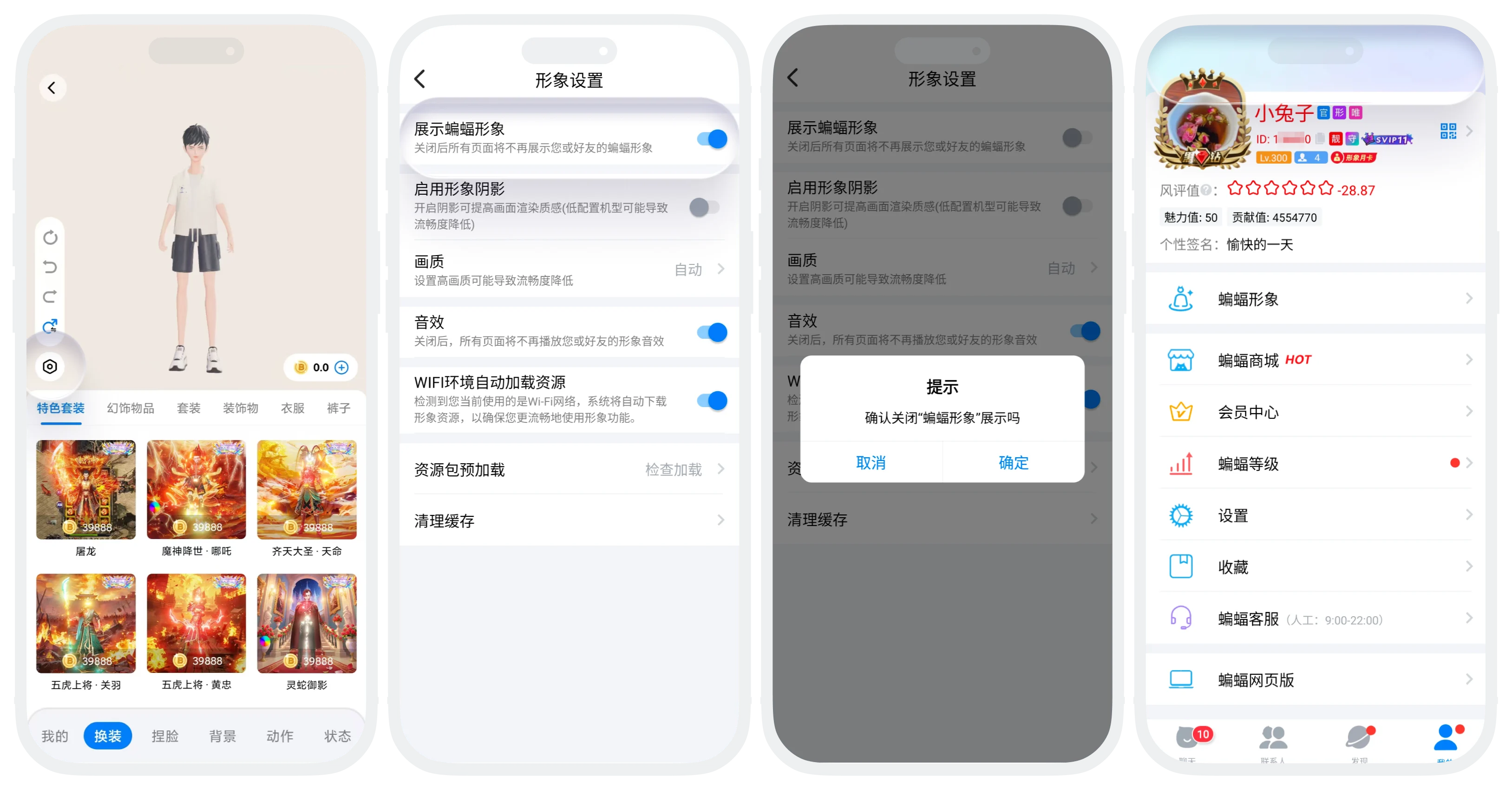
- Entry 1: Enter 'My' - 'BatChat Avatar' - 'Dress Up', click the 'Settings' icon in the lower left corner, find the 'Display BatChat Avatar' switch;
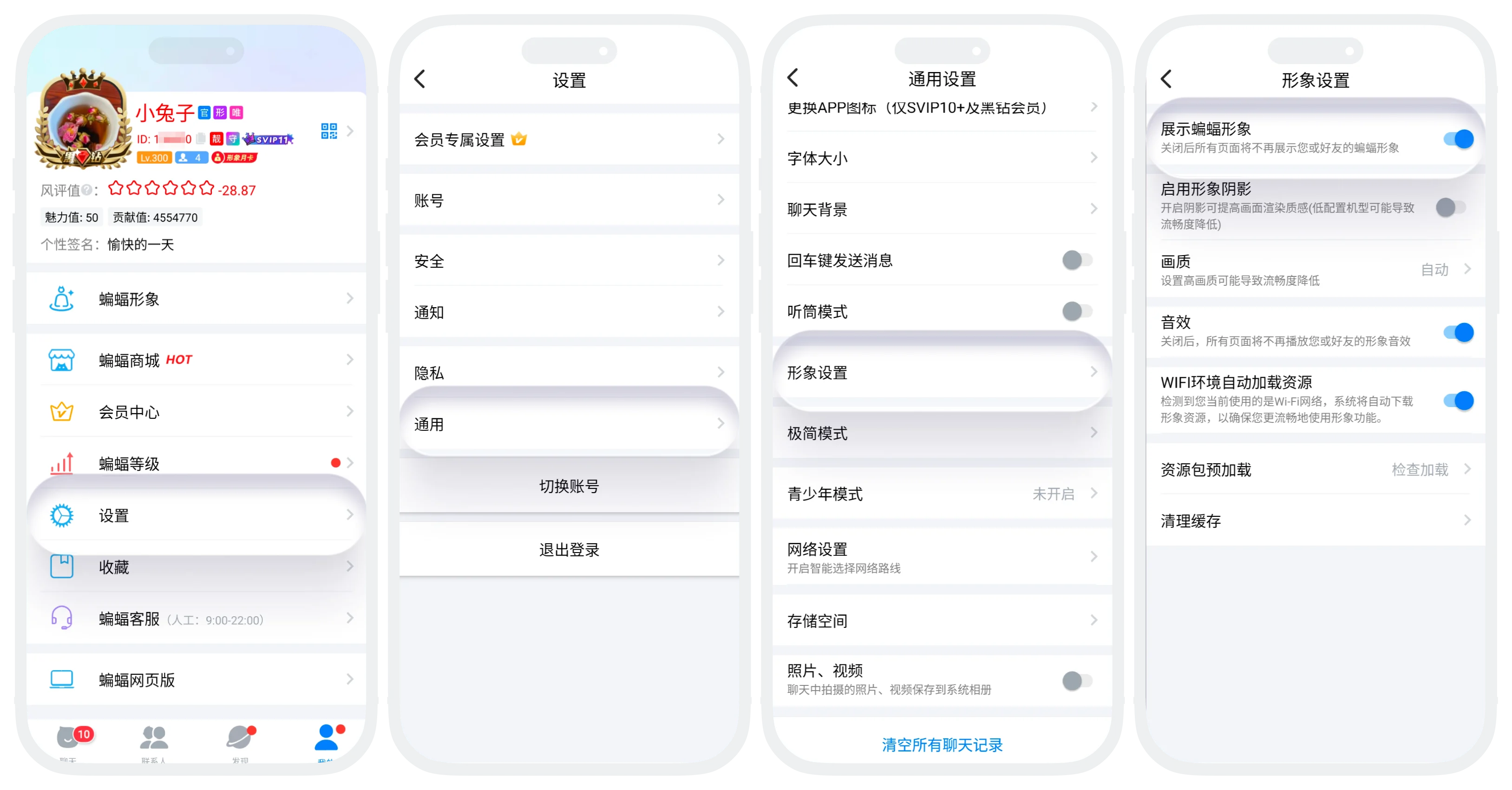
- Entry 2: Enter 'My' - 'Settings' - 'General Settings' - 'Avatar Settings' - find the 'Display BatChat Avatar' switch;
- Click the switch button on the right to turn it off and confirm. All your avatar-related functions will be immediately disabled;
- After disabling, if you want to re-enable BatChat Avatar, enter 'My' - 'Settings' - 'General Settings' - 'Avatar Settings' again and turn on 'Display BatChat Avatar'.
Effect Description After Disabling
- All avatar-related functions are unavailable, including but not limited to: dressing function, recommended plaza, setting idle quote, sending Big Shot Arrival. The avatar area on the personal profile page no longer displays dynamic 3D avatar;
- Note: When others visit your profile page, they will still see your avatar before disabling;

Disabling avatar display will not affect the XP acceleration benefits of the avatar monthly card. You can still enjoy the bonus effect during the validity period.
FAQ
Will not be lost. All purchased dressing, charm value, contribution value, outfit plans, face sculpting parameters and other data are completely retained and can continue to be used after re-enabling.
Yes. When others visit your profile page, they will still see the avatar you last saved before disabling.
Yes. Disabling the avatar only hides the avatar display on your device and does not affect the tipping function.
