Avatar Shadow/Quality Settings
You can flexibly adjust avatar shadow and quality levels according to device performance and personal preferences, finding the best balance between image quality and running smoothness. Low configuration devices are recommended to appropriately lower settings for a smoother experience.
Setting Process
- Function Entry:
- Entry 1: Enter 'My' - 'BatChat Avatar' - 'Dress Up', click the 'Settings' icon in the lower left corner;
- Entry 2: Enter 'My' - 'Settings' - 'General Settings' - 'Avatar Settings';
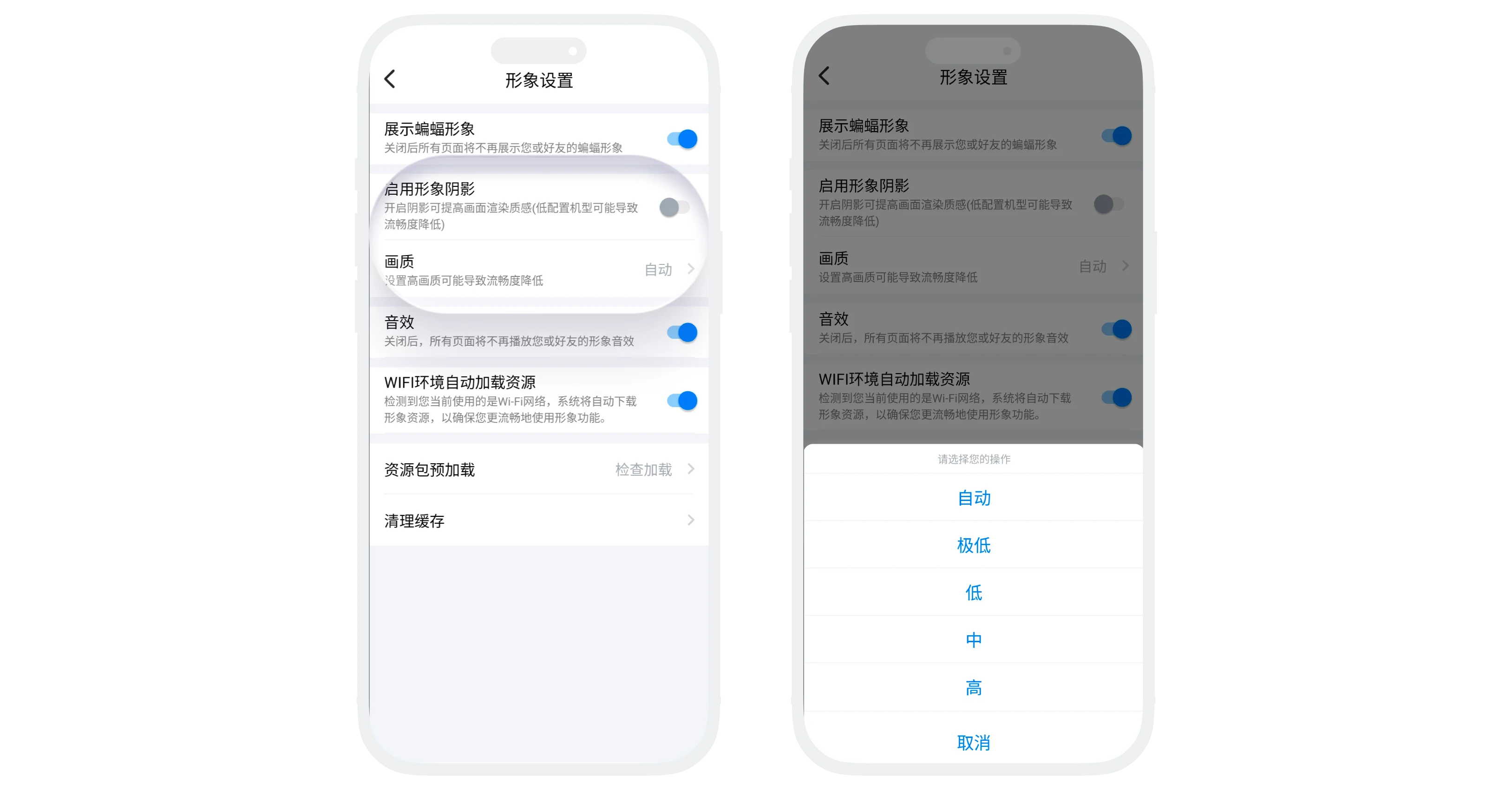
- Enable Avatar Shadow: Find the 'Enable Avatar Shadow' option and turn on the switch;
- Set Avatar Quality: Click 'Quality', select the target quality (Auto/Very Low/Low/Medium/High) in the popup list;
Setting Suggestions
- Select according to device performance. Enabling shadows or setting high quality may cause heating and lag on low configuration devices;
- It is recommended to set quality to 'Auto', the system will automatically select the most suitable quality according to device performance.
FAQ
Disabling shadows mainly affects the three-dimensional sense, but the avatar's own model, texture, actions, etc. are not affected. Most users can still get satisfactory visual effects after disabling.
'Disable BatChat Avatar' is more power-saving because it completely disables the 3D rendering module. Lowering quality only reduces rendering load, but the avatar is still running.
No. All display settings take effect immediately. After adjustment, return to the avatar page to see the changes.
