Dress Up Avatar
'BatChat Avatar' is a 3D virtual avatar personalized dressing system provided by BatChat for users. You can freely customize your own exclusive virtual avatar in this module, including gender, appearance, clothing, background, action poses, etc., creating a unique digital identity. The dressed-up avatar will be widely used in personal profile pages, chat scenarios, avatar plazas and other locations, making your social interactions more personalized and interesting.
Main Function Description
Create New Dress Up
- Enter 'My' - 'BatChat Avatar', the system will automatically generate a default 3D virtual avatar;
- You can click the gender switch button in the lower left corner to set the gender tone of the avatar according to personal preference. Different genders correspond to different base models and dressing libraries;
- Notes:
- Gender settings will affect subsequent optional clothing, makeup and other dressing content, but can be switched and adjusted at any time;
- Dressing for different genders needs to be saved and purchased independently, not interchangeable.
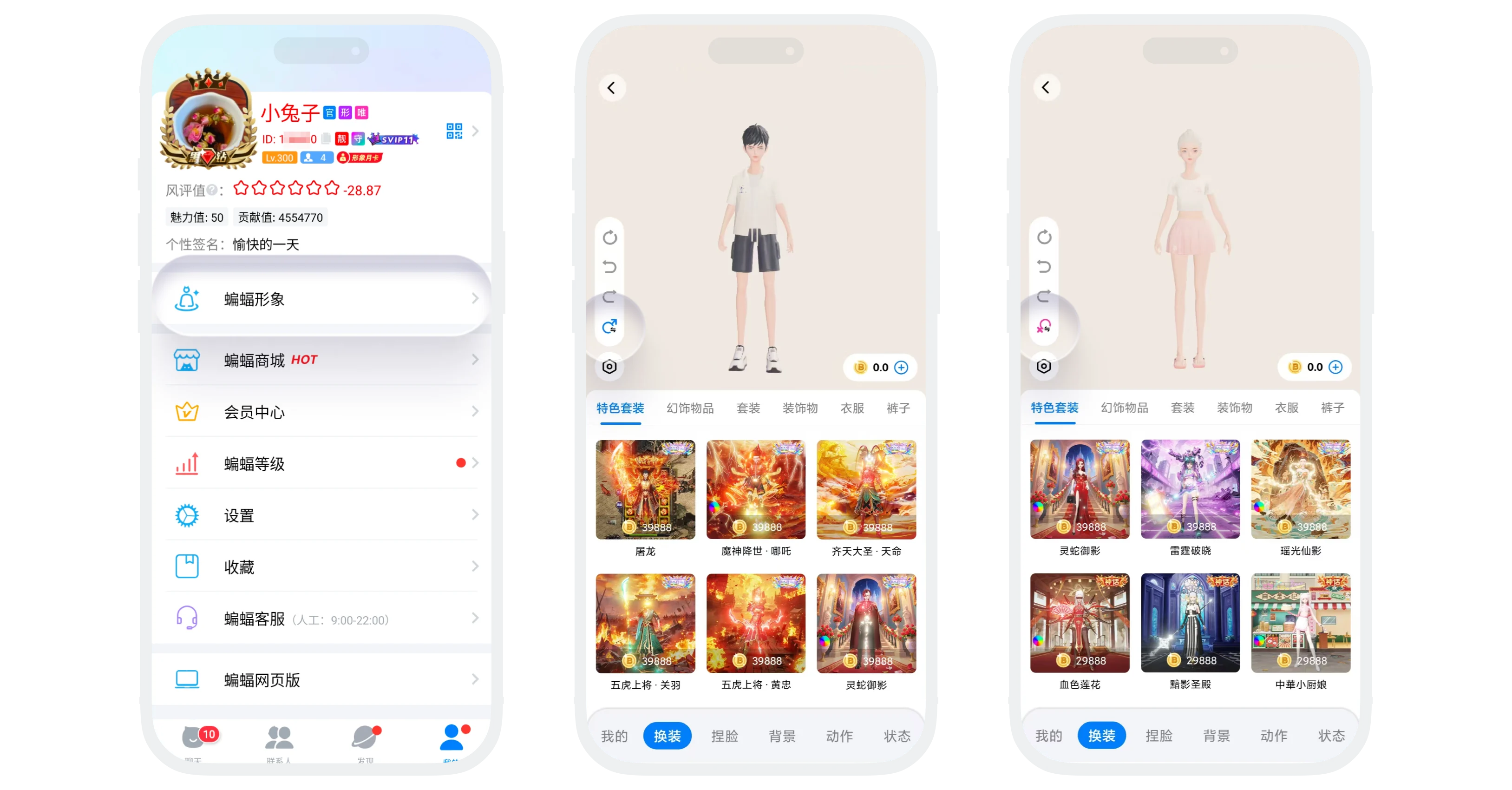
Dressing System
- Dressing categories:
| Dressing Type | Detailed Category | Description |
|---|---|---|
| Clothing | Featured sets, regular sets, tops, bottoms, accessories, shoes and socks, etc. | Can freely match tops and bottoms or choose sets |
| Accessories | Hats, glasses, handheld items, back accessories, face accessories, etc. | Rich detail matching |
| Face Sculpting | Hairstyle, makeup, skin tone | Support free adjustment of facial makeup effects |
| Background | Featured backgrounds, premium backgrounds | Set exclusive display background for avatar |
| Action | Featured actions, public actions | Rich action library makes avatar more vivid |
| Status | Ancient style, modern | Scene matching avatar actions to show personal status |
- Under any dressing category, click the dressing or face sculpting part you are interested in, you can preview the effect of this dressing on your avatar in real-time (Note: When trying on conflicting categories, the system will automatically remove conflicting parts for you).
- Purchase and wear:
- Owned dressing: Click to wear, click 'Save' in the upper right corner to save the dressing, no need to repurchase;
- Unowned dressing: The system will automatically add to shopping cart, you can save the dressing after successful purchase.
Shopping Cart and Purchase
- When trying on, click the desired dressing, the system will automatically add to shopping cart;
- You can continue to browse other dressing, all tried-on unowned dressing are temporarily stored in the shopping cart;
- After completing the matching, click the 'Shopping Cart' icon in the upper right corner to view the purchase list;
- After confirming the purchase, select the payment method to complete the payment;
- After successful payment, this dressing is automatically unlocked, click 'Save' to save your current wearing status.
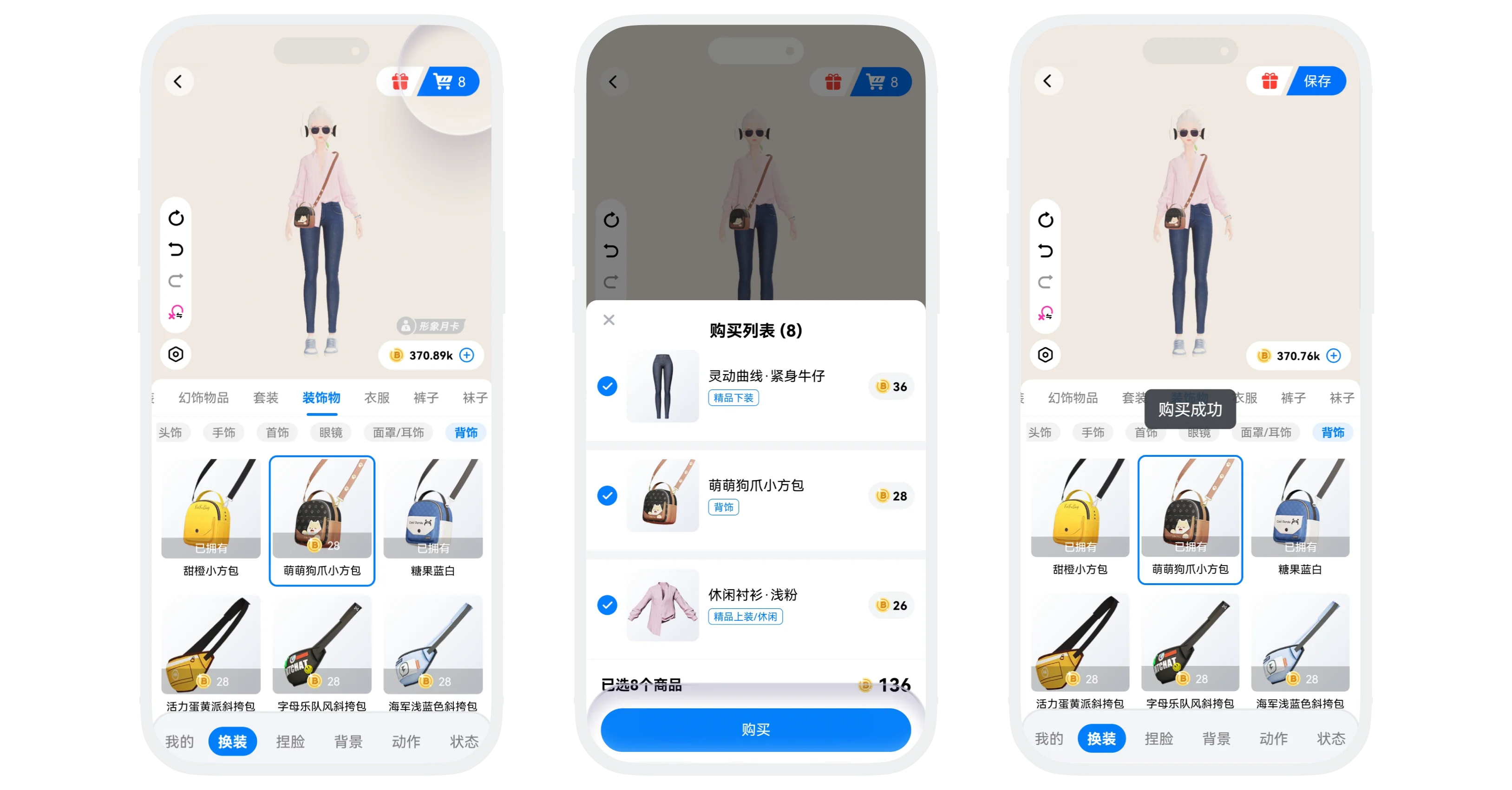

Payment instructions:
- Support balance payment, WeChat Pay, Alipay;
- iOS devices: Dressing that supports balance payment will directly use balance payment by default.
My Outfits
- Can save the matched complete look for quick switching in the future;
- Save prerequisite: All dressing currently worn must be purchased and owned (cannot save in try-on status), can be saved as an outfit;
- Operation process:
- Complete a satisfactory matching (clothing, makeup, hairstyle, etc. are all set);
- Click 'My' at the bottom of the page, enter 'My Outfits' page;
- Click the '+Save Outfit' button on the page, and this outfit will be automatically saved to the 'My Outfits' list;
- Apply outfit:
- Enter 'My Outfits' page;
- Click any outfit card, the system will automatically wear all dressing in this outfit for you;
- Save limit: Can save up to 9 outfits, after exceeding you need to delete old outfits to save new outfits, long press the outfit card to delete.
