Delete Message
The BatChat platform provides multi-level, multi-method chat message deletion functions to meet your different needs from single message cleanup to comprehensive data management. Whether it's daily organization, freeing up storage space, or protecting privacy and security, you can find suitable operation methods.
Deletion Method Overview
| Deletion Method | Operation Method | Deletion Range |
|---|---|---|
| Single Message Delete | Long press single message operation | Selected single message |
| Multiple Messages Delete | Long press message to enter multi-select mode | Batch selected multiple messages |
| Auto Scheduled Cleanup | Message scheduled cleanup settings | Automatically clean up read messages according to set cycle |
| Single Session Clear | Current session all records | Current session all records |
| Message List Batch Delete | Message list edit mode | Chat records of multiple sessions |
| Global Storage Cleanup | Settings - General - Storage Space Management | All chat records |
Note: All of the above deletion methods only delete chat records on your device, the other party's device still retains them, and cannot be recovered after deletion.
Single Message Delete
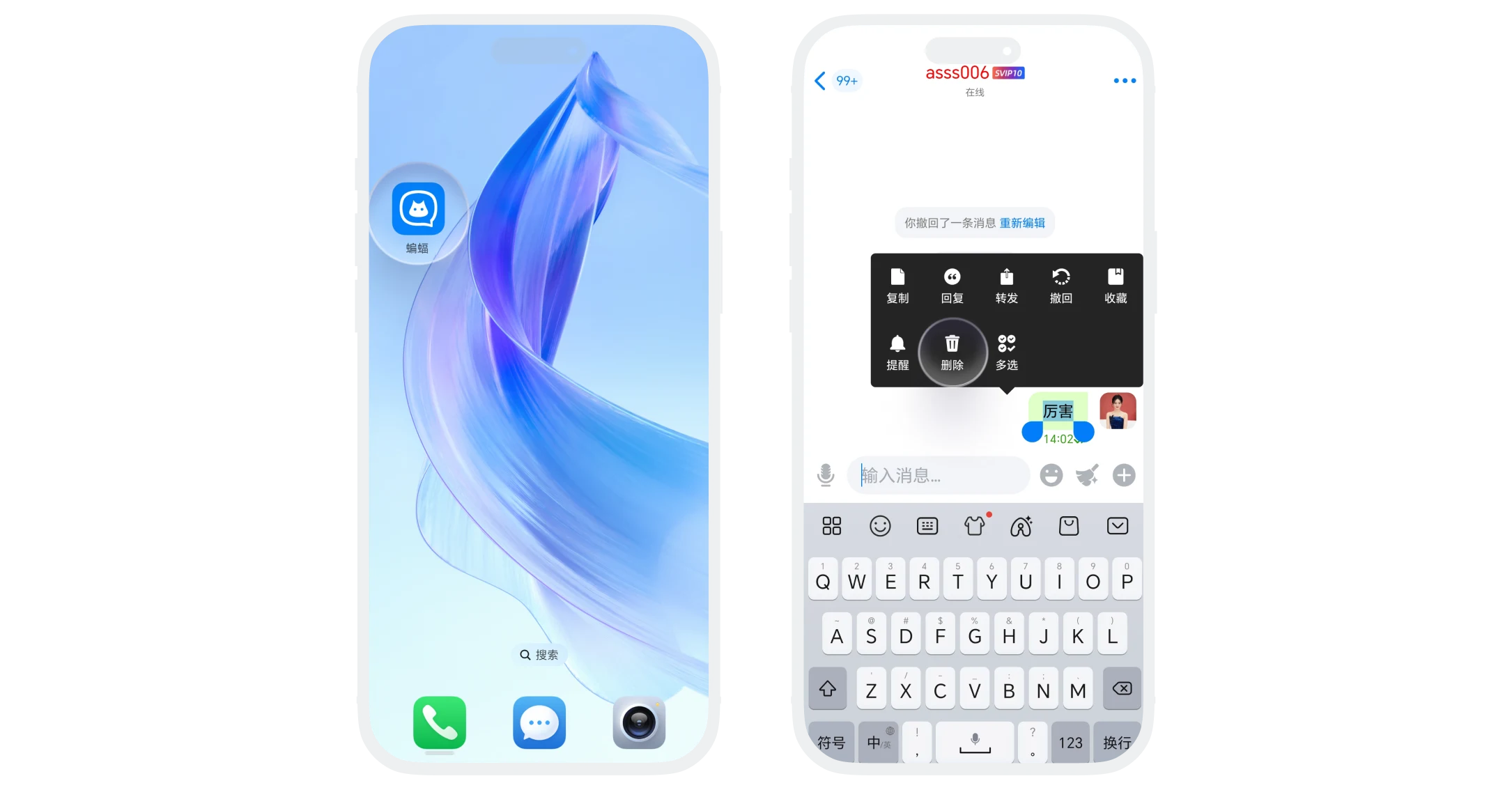
Enter the chat interface, find the message to delete, long press the message, click 'Delete'.
Multiple Messages Delete
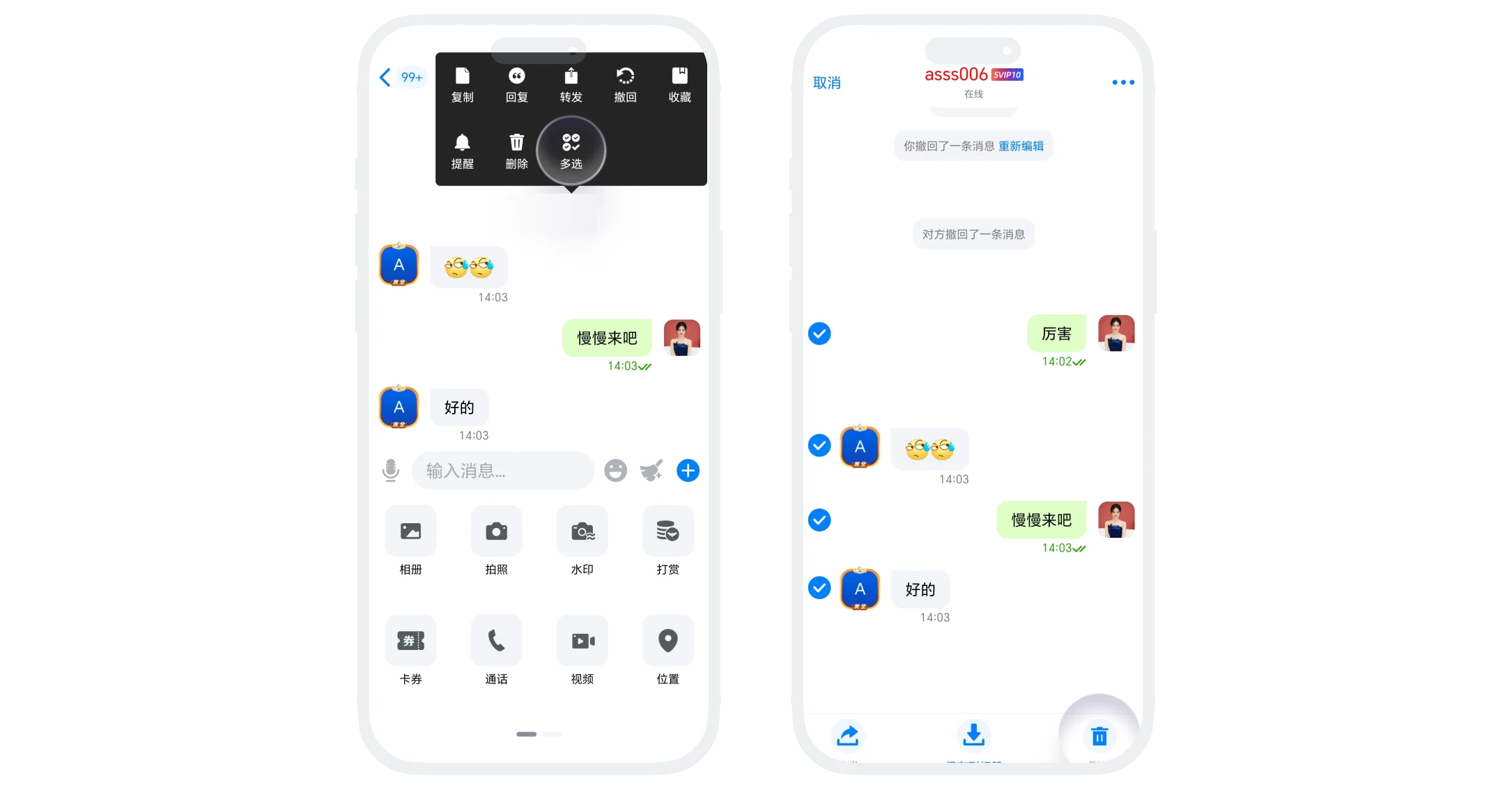
- Long press any message, the operation menu pops up, click 'Multi-select' to enter batch selection mode;
- Check the messages to delete, click the 'Delete' button at the bottom.
Auto Scheduled Cleanup
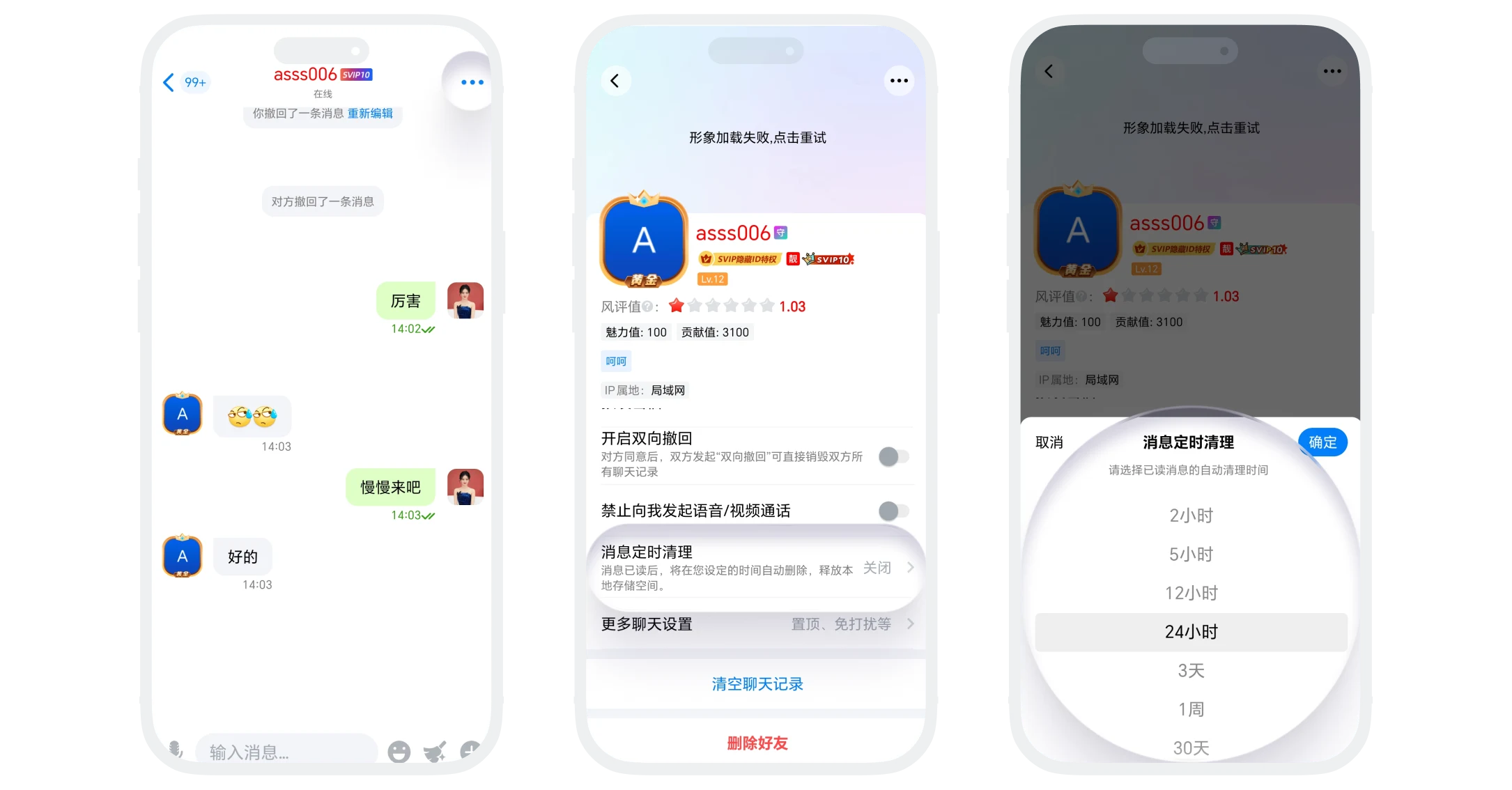
- Click 'More' in the upper right corner of the chat page, click 'Message Scheduled Cleanup', set automatic cleanup time according to your usage scenario;
- Cleanup Mechanism: From the time automatic cleanup is enabled, automatically clean up read messages according to the set cycle.
Single Session Clear
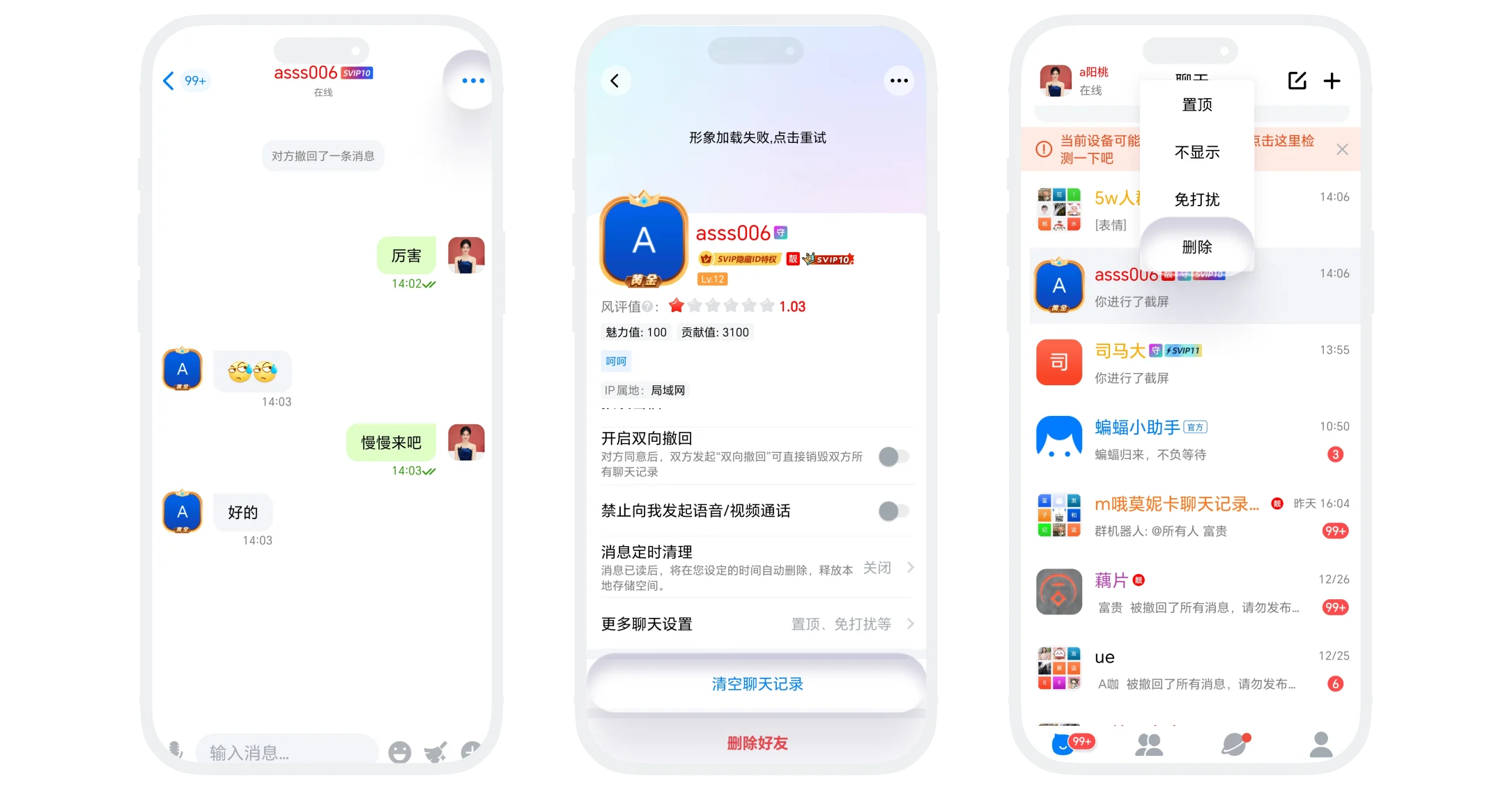
- Method One: Click 'More' in the upper right corner of the chat page, click 'Clear Chat History' at the bottom of the page;
- Method Two: Long press (or swipe) the message to clear in the message list, click 'Delete'.
Message List Batch Delete
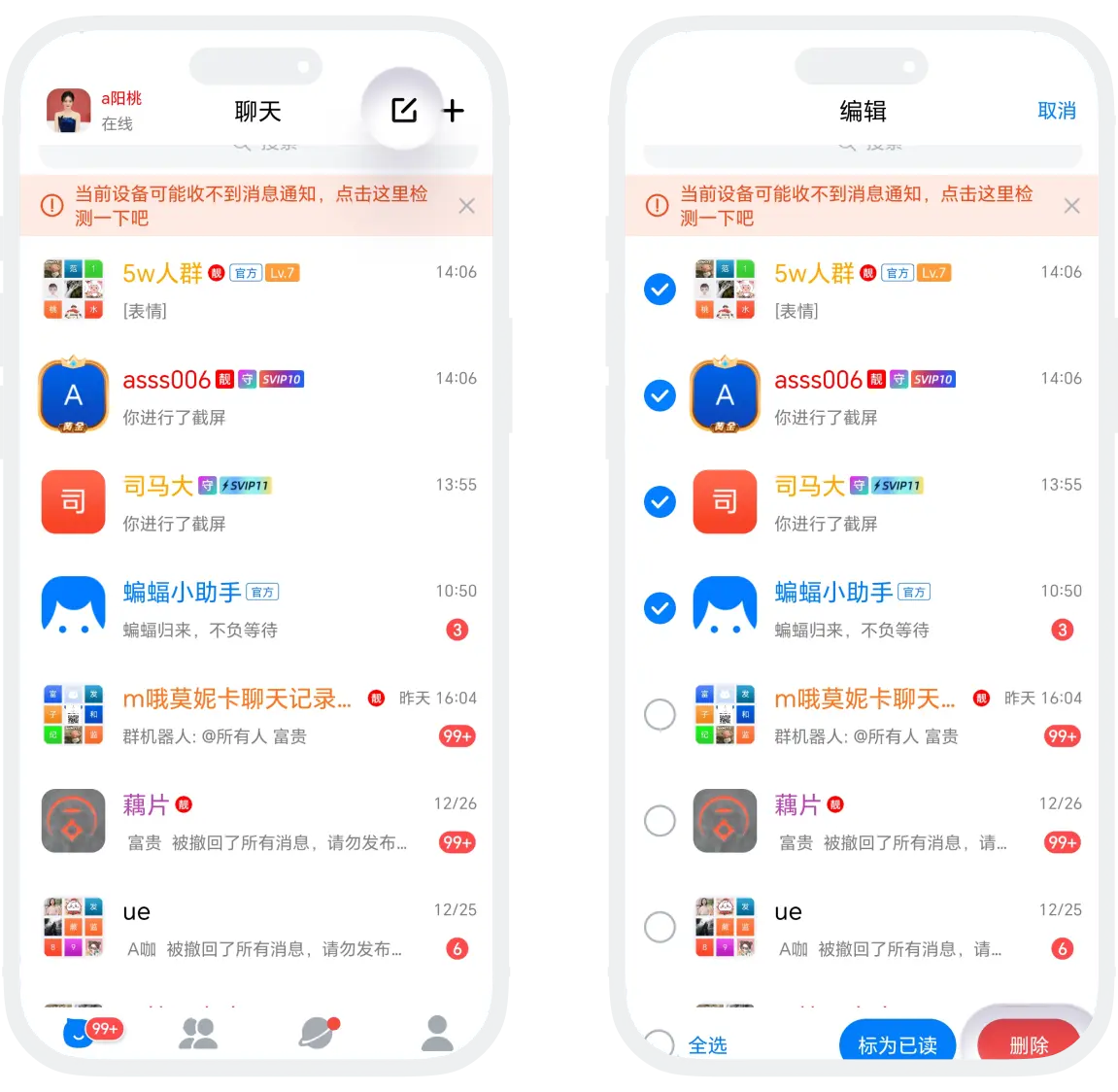
- Click 'More' in the upper right corner of the message list, click 'Edit' to enter edit mode;
- Check the sessions to clean, select 'Delete'.
Global Storage Cleanup
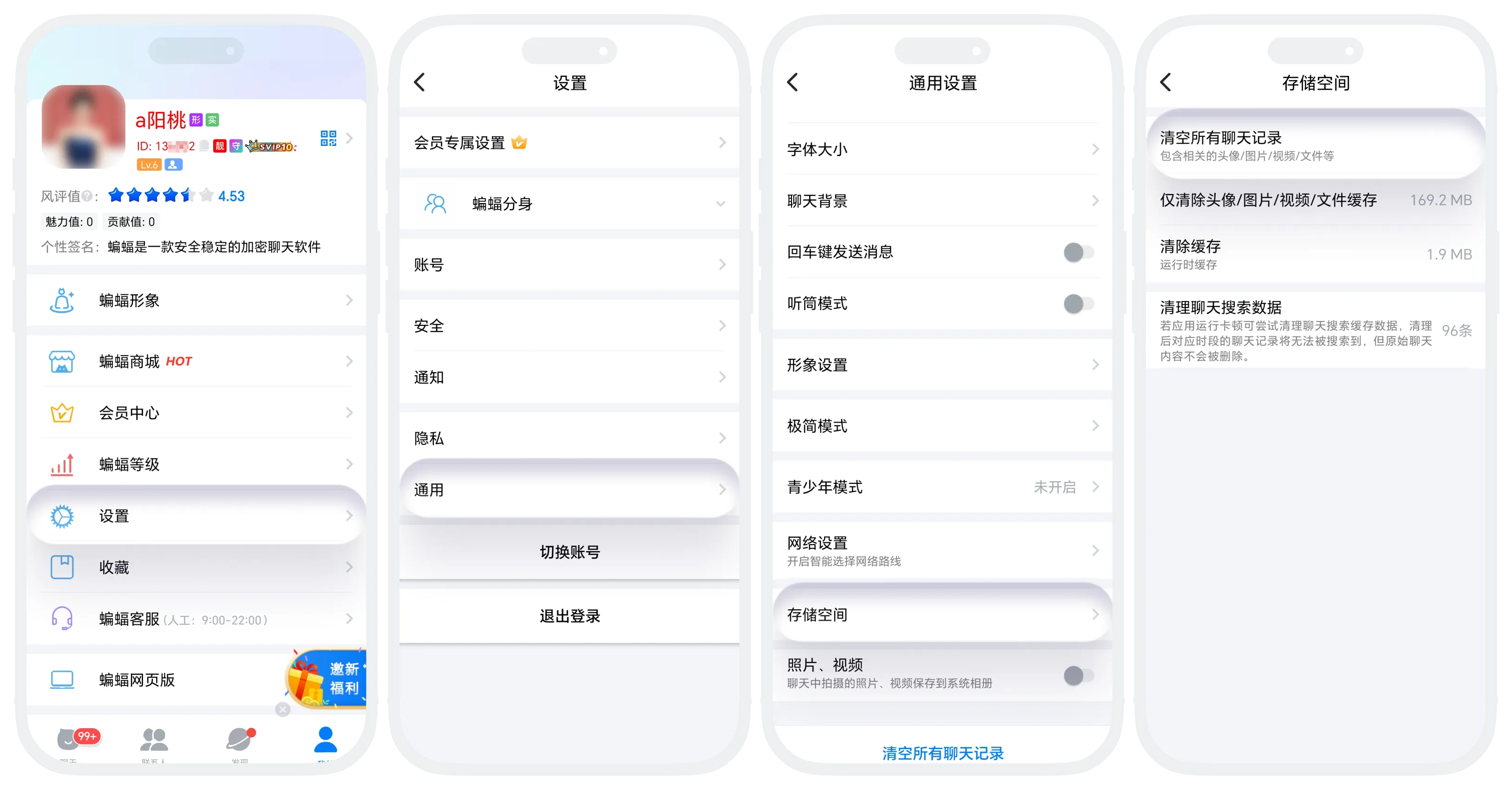
- Enter 'My' - 'Settings' - 'Storage Space';
- Can choose:
- Clear All Chat History: Delete all chat records, including chat records, images, videos, files, etc.;
- Only Clear Avatar/Image/Video/File Cache: Clean up media files such as images, videos, files, retain text chat records;
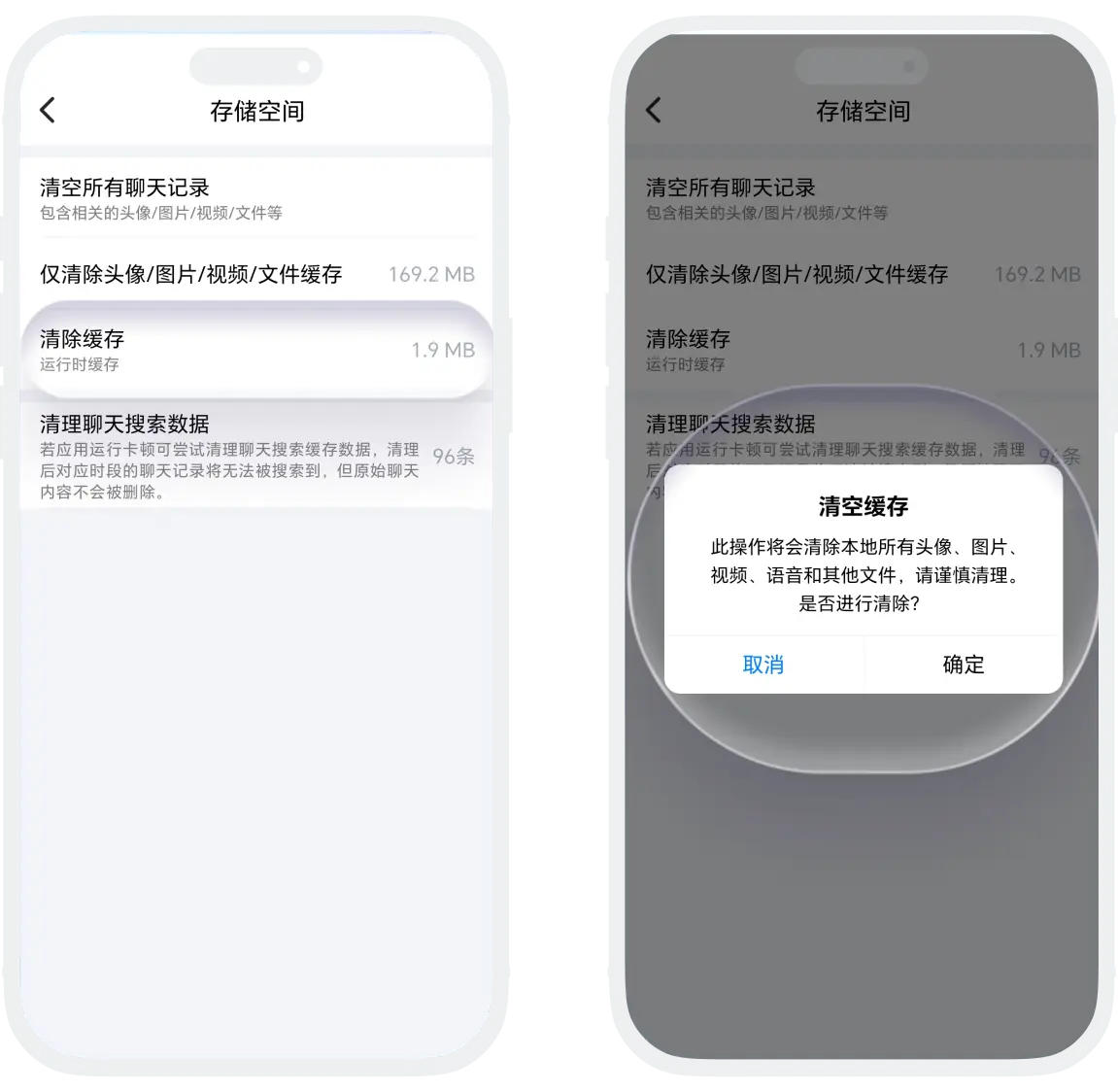
- Clear Cache: Temporary files generated by app operation, does not affect chat records and personal data;
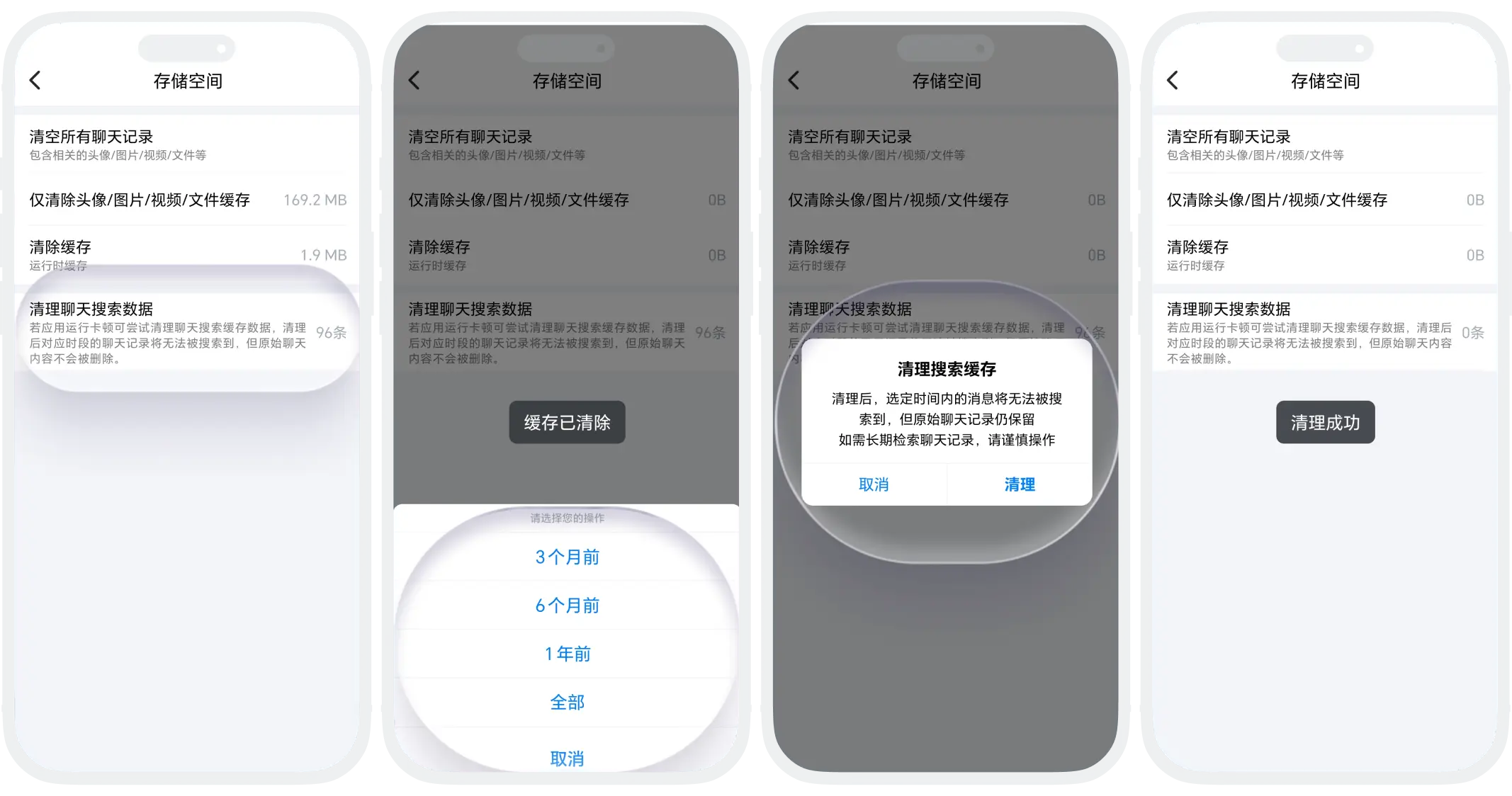
- Clean Chat Search Data: Optimize search performance, solve lag, original chat content is not affected.
Was this page helpful?
