Long Press Message Actions
By long pressing any chat message on the chat page, you can activate a multi-function operation menu to perform various processing on messages such as copy, reply, forward, recall, favorite, etc. This can help you improve the efficiency and flexibility of message management.
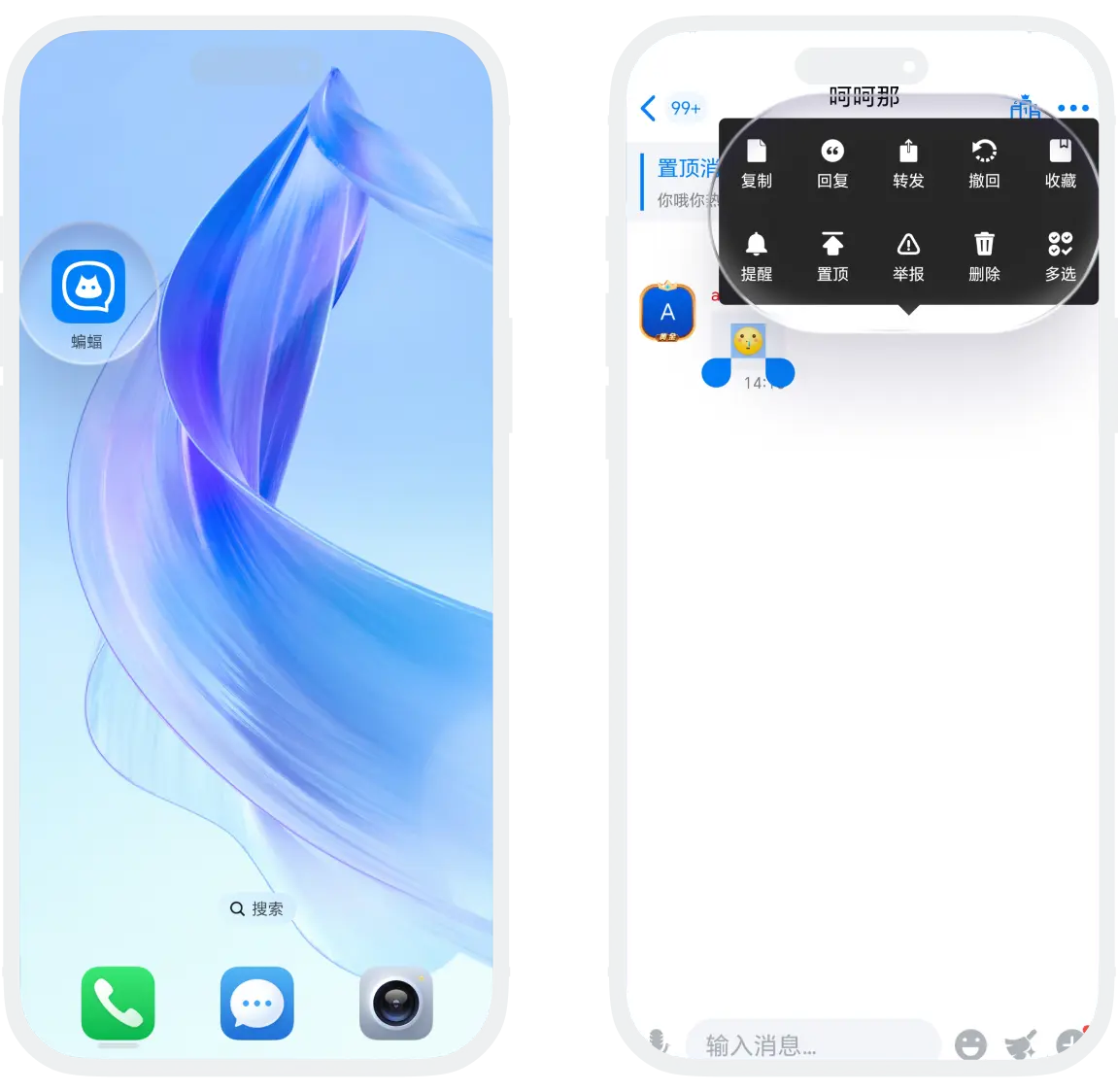
Detailed Operation Instructions
- Copy: Quickly copy message content to phone clipboard, you can select copy range by sliding the pointer.
- Reply: Directly reply to a specific message, establishing a conversation reference relationship, so the other party clearly knows which message you are replying to.
- Forward: Quickly forward message content to other contacts or groups
- Single Forward: Long press the message to forward, click 'Forward';
- Forward Separately: Long press any message, click 'Multi-select', check the messages to forward, click 'Forward', select forward separately, selected messages will be forwarded independently to the recipient;
- Combined Forward: Long press any message, click 'Multi-select', check the messages to forward, click 'Forward', select combined forward, selected messages will be merged into one message and sent to the recipient, this method helps maintain conversation continuity.
- Recall:
- Revoke sent messages within a limited time, most message types support recall. After recall, the other party will see 'Message recalled' prompt and cannot view the original message content;
- In addition to single recall, VIP users can also quickly recall all messages from both parties through the Two-way Recall function.
- Favorite: Quickly favorite message content, can view the favorites list for easy subsequent viewing.
- Reminder:
- Set reminders for important messages. After setting, you can quickly view all reminder messages for the current session at the top of the chat page. You can also set reminder times for important messages, and when the reminder time arrives, you will receive a notification through the BatChat assistant;
- For detailed operation process, please see Message Reminder.
- Delete: Delete this message from chat history (this function only deletes messages on your own device, does not affect messages on the other party's device).
- Multi-select: Enter batch selection mode, can operate multiple messages simultaneously
- Forward: Used for forwarding multiple messages at once, can choose 'Forward Separately' or 'Combined Forward';
- Save to Album: Used for batch saving images, videos and other files to phone album;
- Delete: Used for batch deleting multiple messages.
- Voice Message Specific Operations:
- Earpiece Play/Speaker Play: Can choose earpiece play or speaker play, default is speaker play;
- Convert to Text: Convert voice message to text, suitable for obtaining voice content when it's inconvenient to play voice messages.
FAQ
This prompt indicates that your favorite space capacity is full. It is recommended that you: clean up favorites content in My - Favorites, or directly purchase favorite space expansion capacity.
No. To protect the transparency and security of conversations between both parties, forwarding combined messages will clearly prompt both parties and cannot be turned off.
