Chat Folders
The chat folders function helps you classify and manage chat sessions, making the message list clearer and more organized. You can create exclusive folders based on different scenarios (such as work, family, friends, interest groups, etc.), quickly switch views, and improve communication efficiency.
Create Chat Folder
- Click '+' in the upper right corner of the 'Message List' page - 'Chat Folders', click 'Create Chat Folder' at the bottom;
- Set the folder name, select the chats to add to this folder (supports selecting single chats, group chats), click 'Confirm';
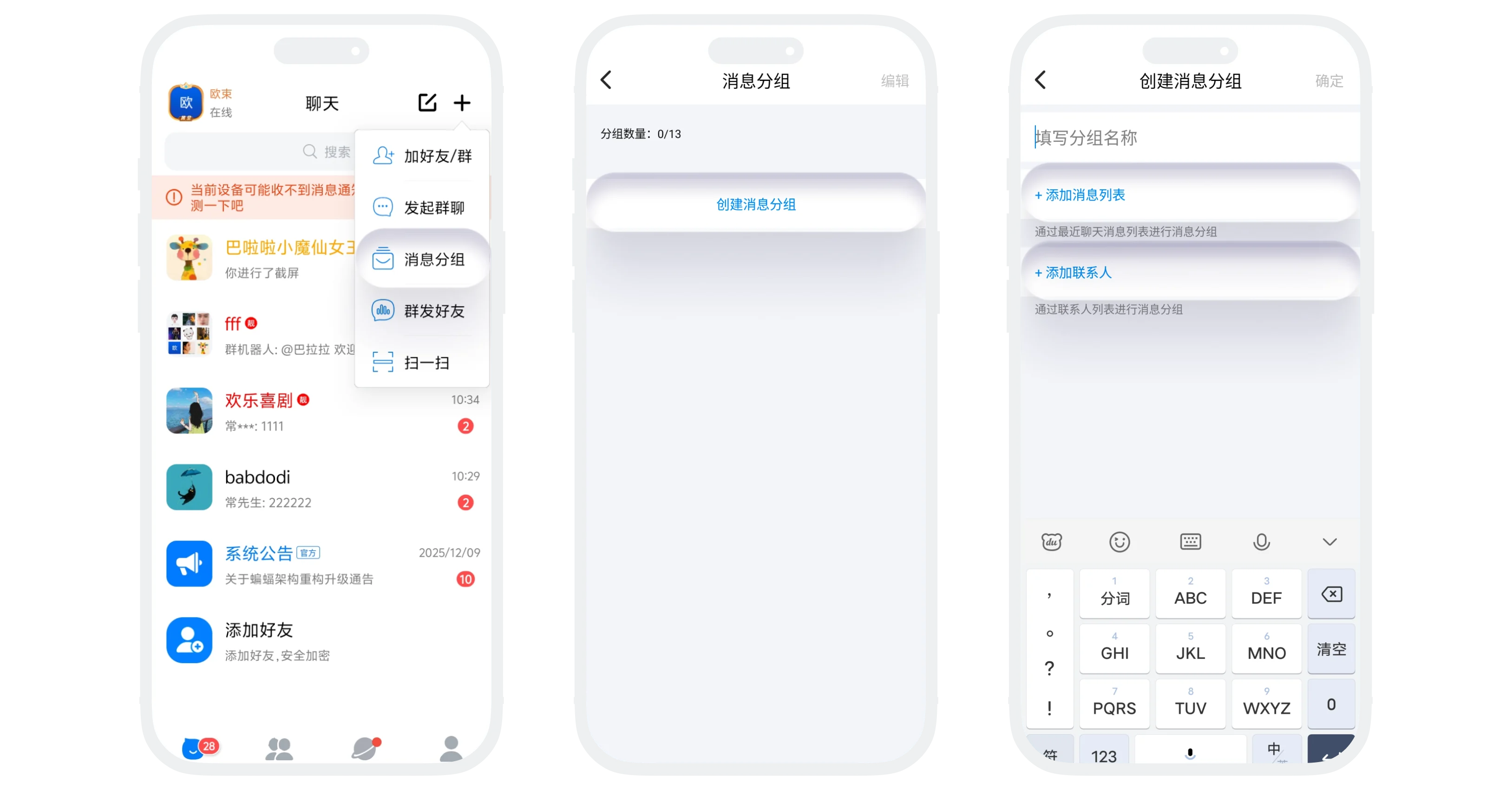
- Different membership levels can create different numbers of chat folders, see the table below:
| User Level | Folder Limit |
|---|---|
| Regular User | 5 |
| VIP | 6 |
| SVIP1-3 | 7 |
| SVIP4-6 | 8 |
| SVIP7-9 | 9 |
| SVIP10 | 11 |
| SVIP11 | 13 |
| Gold/Platinum/Diamond Member | 10 |
| Gold Diamond Member | 12 |
| Black Diamond Member | 13 |
Edit Chat Folder
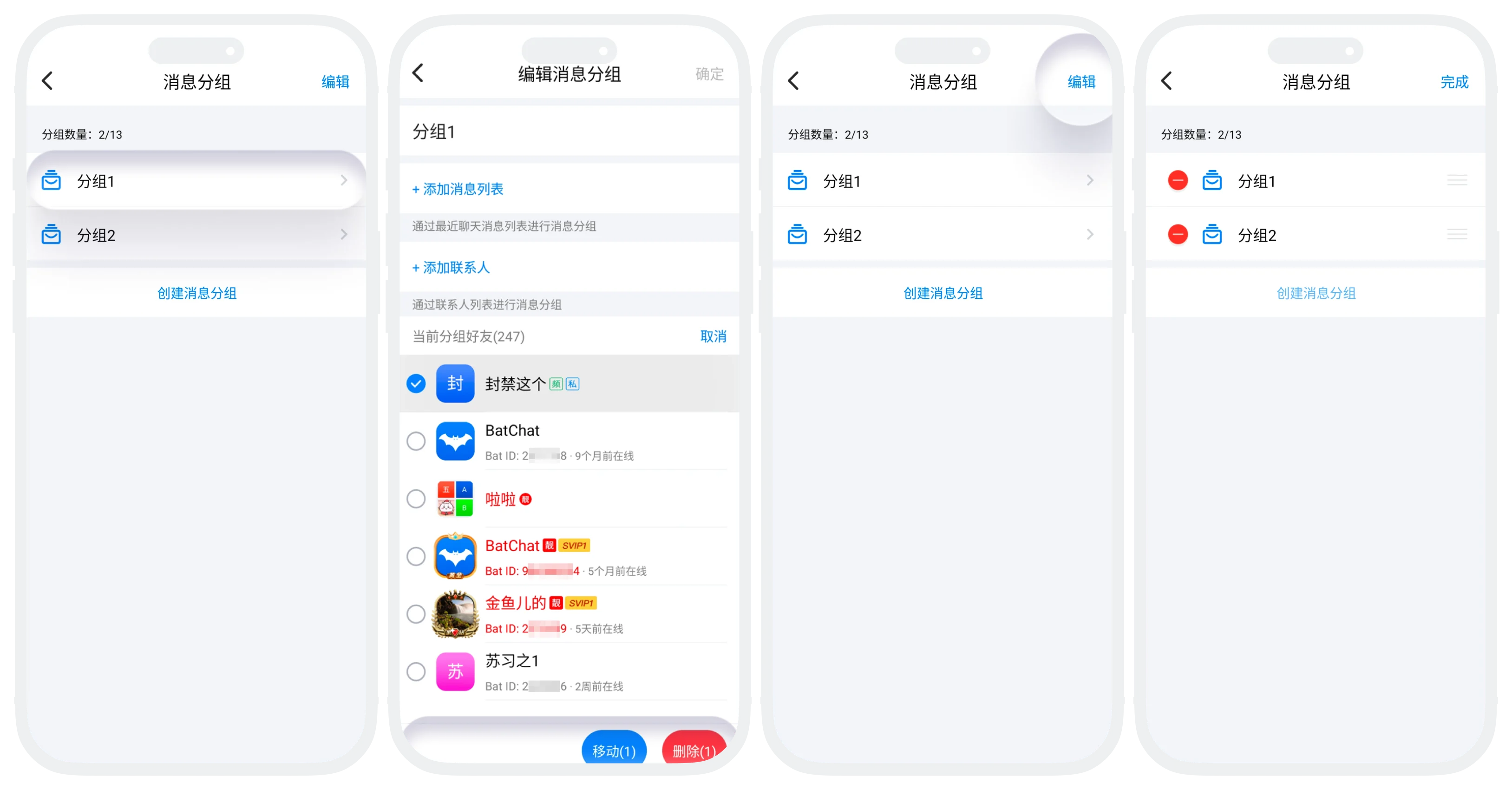
- Modify Folder Content: Click the folder to edit to enter the folder details page, can modify the folder name, add or remove chats under this folder;
- Delete Folder: Click 'Edit' in the upper right corner of the folder list, click the delete button to delete;
- Migrate Chats to Other Folders: Click to enter the folder details page, click the 'Batch Operation' button on the right side of the current folder friend, check the chats to migrate, click 'Move', select the folder to migrate to, click 'Confirm';
- Edit Folder Sorting: Click 'Edit' in the upper right corner of the folder list, long press the folder to adjust and drag to a new position, click 'Complete' to save the sorting;
FAQ
No. A chat session can only exist in one folder.
No. Deleting a folder only removes the classification label. Chat sessions are still retained in the default 'All Messages' list, and no chat records will be lost.
Was this page helpful?
