Audio and Video Calls
The audio and video call function provides users with a secure voice and video communication experience, supporting one-on-one call scenarios to meet various needs such as daily communication and remote interaction.
Initiate a Call
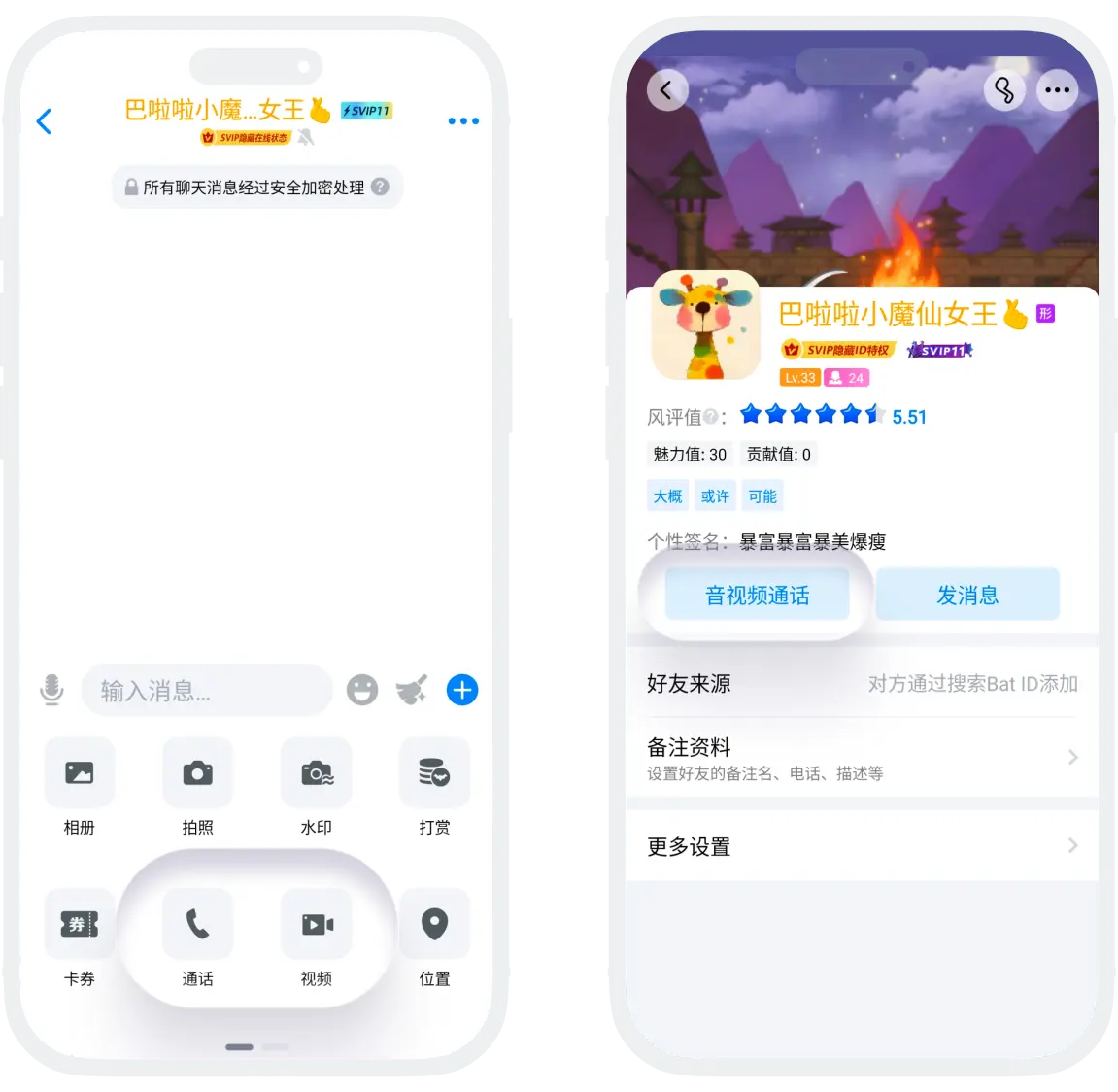
- Initiate from chat page: On the chat page with a friend, click '+' at the bottom of the page, select 'Voice Call' or 'Video Call';
- Initiate from contacts page: Enter the contacts list, find the target contact and enter their profile page, click the 'Voice Call' or 'Video Call' button;

Please note:
- Before initiating a call, please enable the phone's microphone permission and camera permission (for video calls). And ensure a stable network connection;
- Upgrade to VIP to enjoy a more stable and smooth exclusive call channel.
Operations Supported During Calls
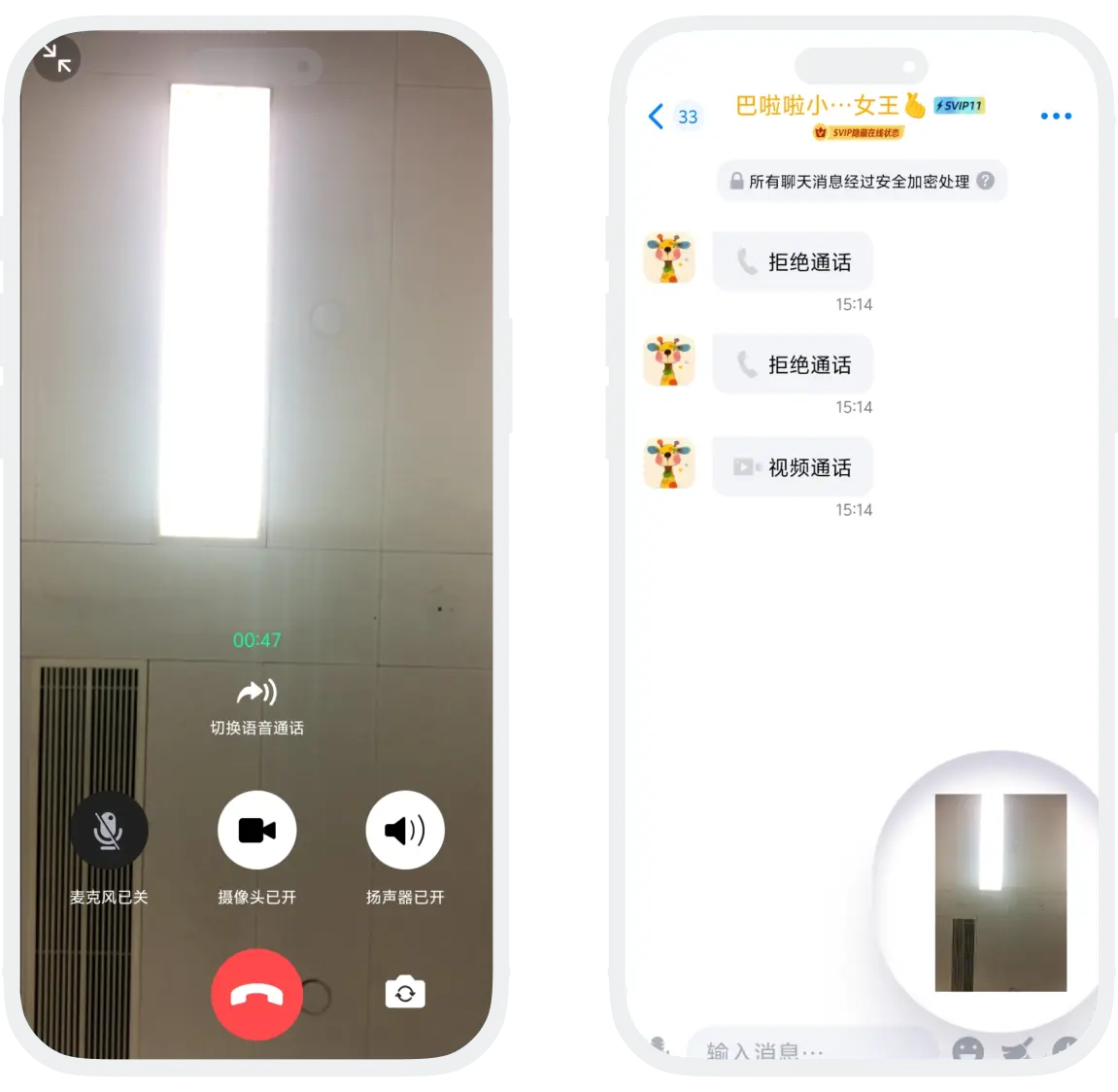
- Microphone Control: Click the microphone icon to mute or unmute your microphone;
- Audio Output Switch: Click the speaker icon to switch between earpiece mode, speaker mode, headphone mode, etc.;
- Minimize Window: Click the minimize icon in the upper right corner to collapse the chat page and maintain the call. Click the minimized floating ball to re-enter the call page (need to enable the floating window permission for the BatChat app in phone settings);
- Switch Video Call Page Layout: Click the small window screen to enlarge your own picture and reduce the other party's picture to switch the primary and secondary screens of the call;
- Video Call Front/Rear Camera Switch: Click the camera icon to switch;
FAQ
Check steps:
- Confirm microphone permission is enabled
- Check if the mute button was accidentally touched
- Try switching audio output method
- Restart the app or re-dial the call
- Check if the phone microphone is normal
Solutions:
- Switch to a more stable Wi-Fi network
- Close other applications that occupy network resources
- Lower the video resolution setting
- Try switching to voice call
- Check if device storage space is sufficient
Was this page helpful?
