Add Friend
The add friend feature is a core social function in chat apps, supporting initiating friend requests through multiple channels to establish one-on-one private chat relationships. The system provides flexible adding methods, optional verification message filling, membership level-related friend limit mechanisms, and clear failure reason prompts to help users efficiently and smoothly establish friend connections.
Ways to Initiate Friend Requests
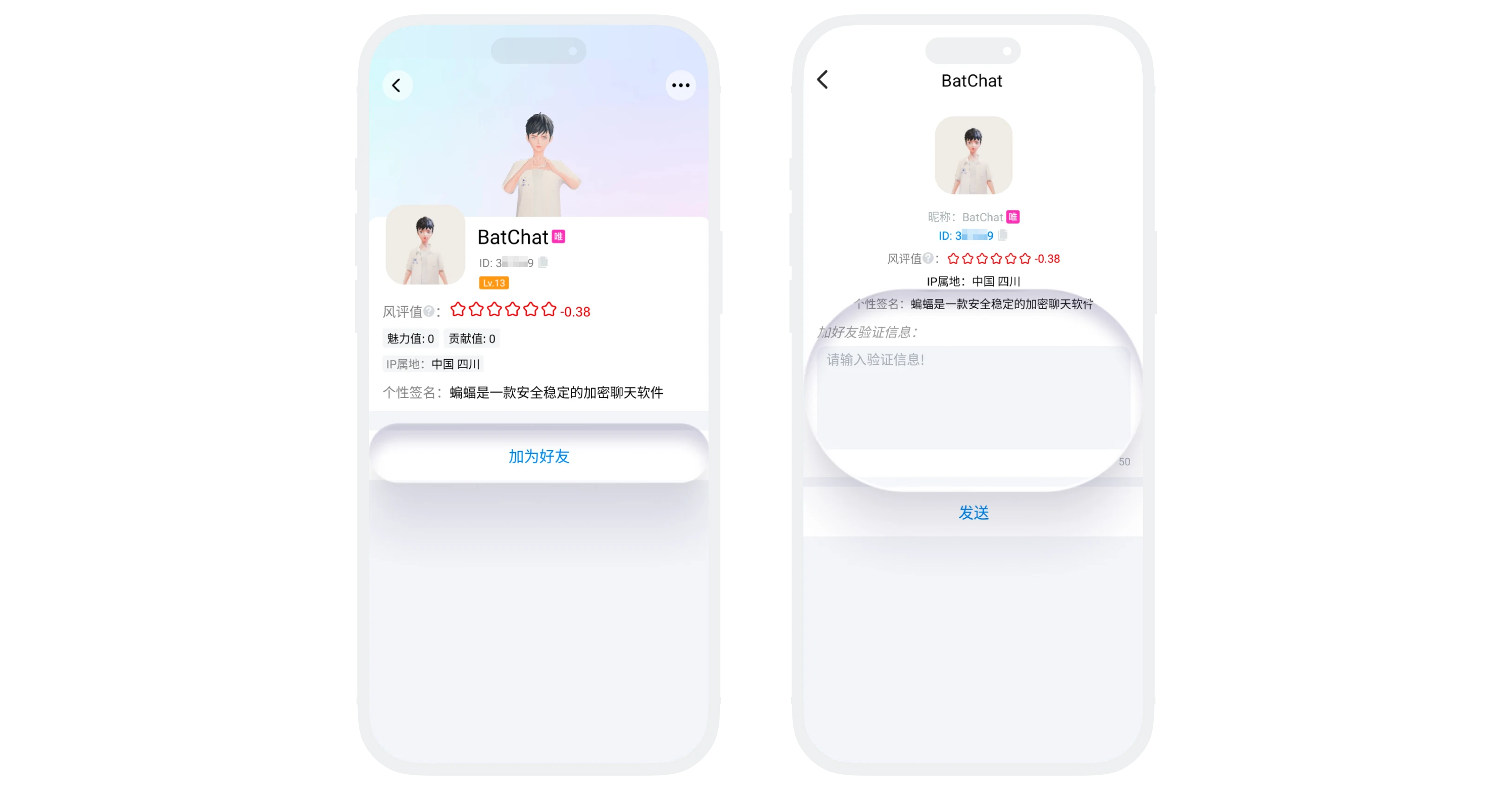
- Add by Clicking on User List
- Applicable Scope: In group member lists, leaderboards, and other user list pages;
- Operation Method: Click on the target user's avatar or nickname to enter their profile page, click the "Add Friend" button, fill in the verification message (optional), and send the request.
- Add by Search
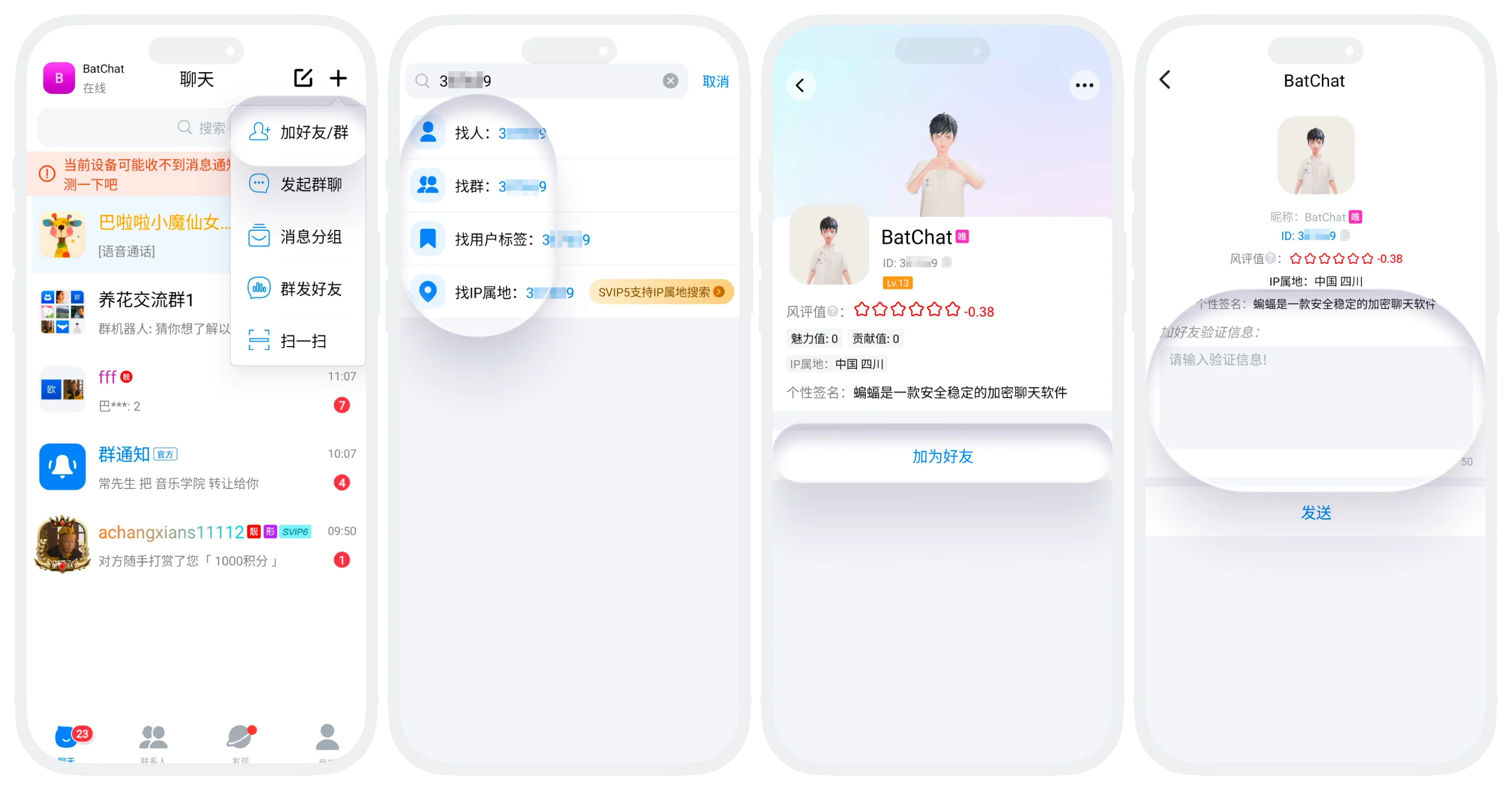
- Search Method: Supports searching by ID, nickname, mobile number, tags, etc.;
- Operation Method: Click "+" - "Add Friend/Group" on the message list, enter search content to search, click on the search result to enter their profile page, click the "Add Friend" button, fill in the verification message (optional), and send the request;
- Note: When search results are empty, please check if the input content is correct. It is also possible that the other party has closed the corresponding search method.
- Add by Scanning QR Code
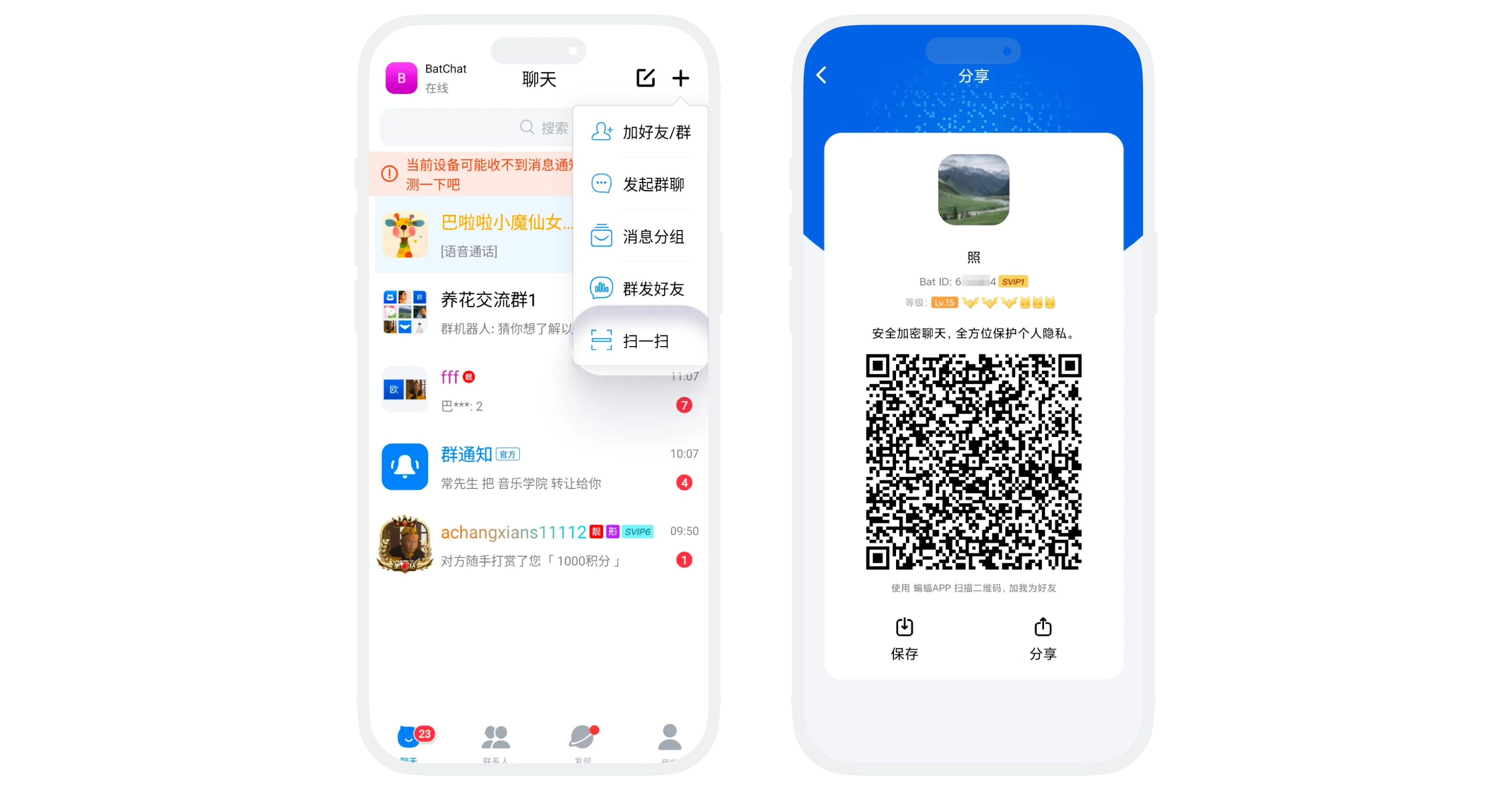
- Applicable Scope: Face-to-face adding, offline events, etc.;
- Operation Method: Click the "+" - "Scan" in the upper right corner of the App, aim at the other party's personal QR code to scan, click the "Add Friend" button, fill in the verification message (optional), and send the request.

Verification Message Instructions:
- Verification message is optional, text format, up to 50 characters;
- Filling in an appropriate verification message can increase the other party's pass rate.
View Initiated Friend Requests
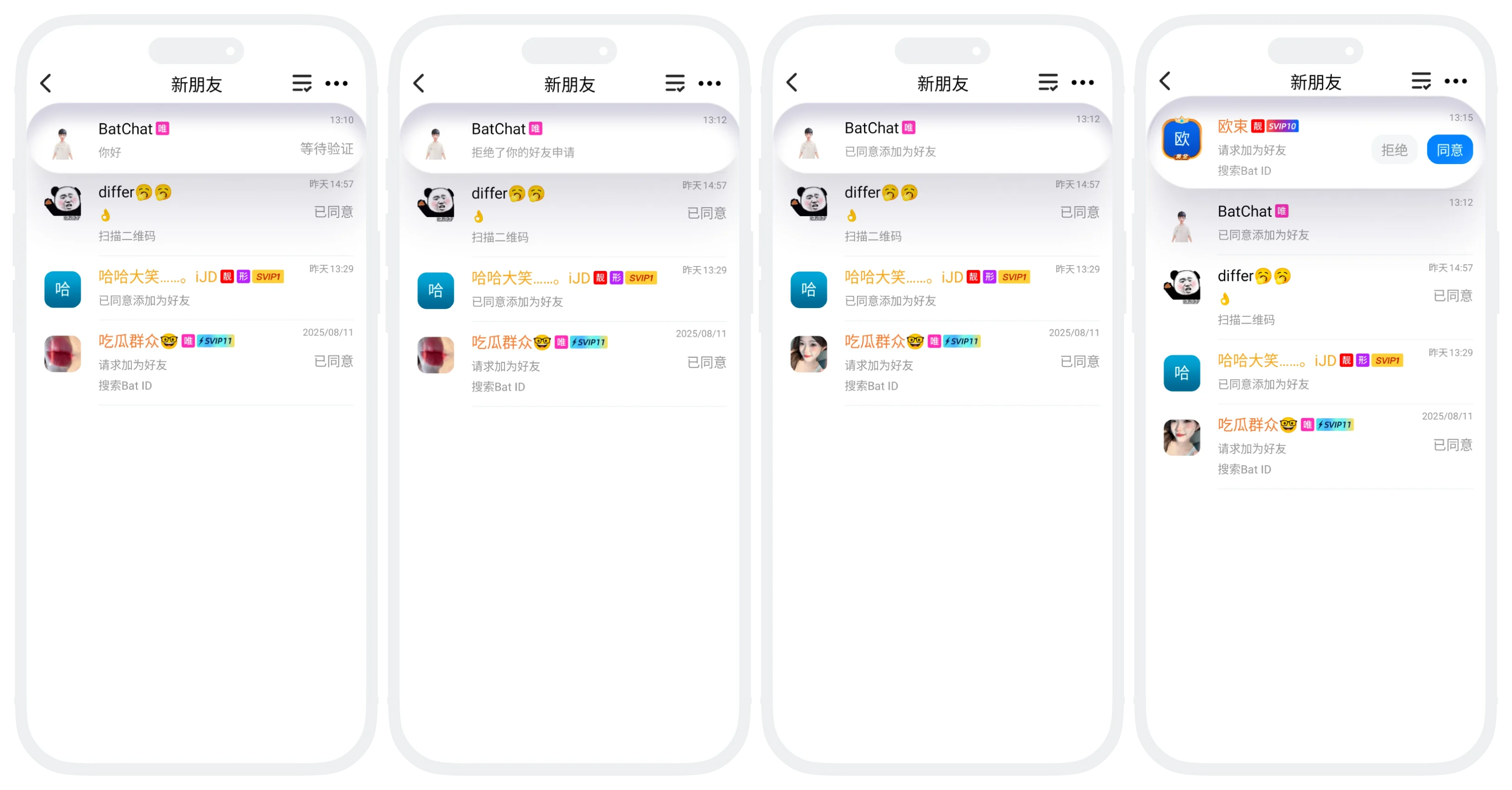
- After initiating friend requests through any of the above methods, you can view all initiated friend requests in "Contacts" - "New Friends" list;
- Request Status:
- Waiting for Verification: The other party has not yet processed your request;
- Accepted: The other party has accepted the request and become friends;
- Rejected: The other party has rejected your request;
- You can also accept or reject friend requests initiated by others to you in this list;
- Recommendation: Please be patient and do not repeatedly initiate requests in a short time. Frequent initiation in a short time may be regarded as abnormal behavior by the system, resulting in function restrictions.
Friend Adding Limit Rules
- Membership Level and Friend Limit Correspondence Table;
| Membership Level | Friend Limit |
|---|---|
| Regular User | 1000 |
| VIP | 2000 |
| SVIP1 | 3000 |
| SVIP2 | 3200 |
| SVIP3 | 3500 |
| SVIP4 | 3800 |
| SVIP5 | 4000 |
| SVIP6 | 4200 |
| SVIP7 | 4500 |
| SVIP8 | 4800 |
| SVIP9 | 5000 |
| SVIP10 | 7000 |
| SVIP11 | 9500 |
| Gold Member | 5500 |
| Platinum Member | 6000 |
| Diamond Member | 7000 |
| Gold Diamond Member | 8000 |
| Black Diamond Member | 9000 |
- After reaching the friend limit, you cannot add new friends. You need to clean up deleted or inactive friends before continuing to add;
- After membership upgrade, the friend limit is immediately updated without manual operation.
FAQ
Deleting a friend is a one-way operation. The other party still retains you in their friend list, but sending messages will prompt "Need to re-add".
Currently, bulk adding is not supported. You need to initiate requests one by one.
Yes. For details, see Manage Friend Requests.
Was this page helpful?
