Friend Groups
The friend grouping feature allows you to classify and manage friends through custom groups for quick filtering, searching, and batch operations. Supports creating multiple groups, and a single friend can belong to multiple groups, helping you efficiently organize social relationships.
Create Group Process
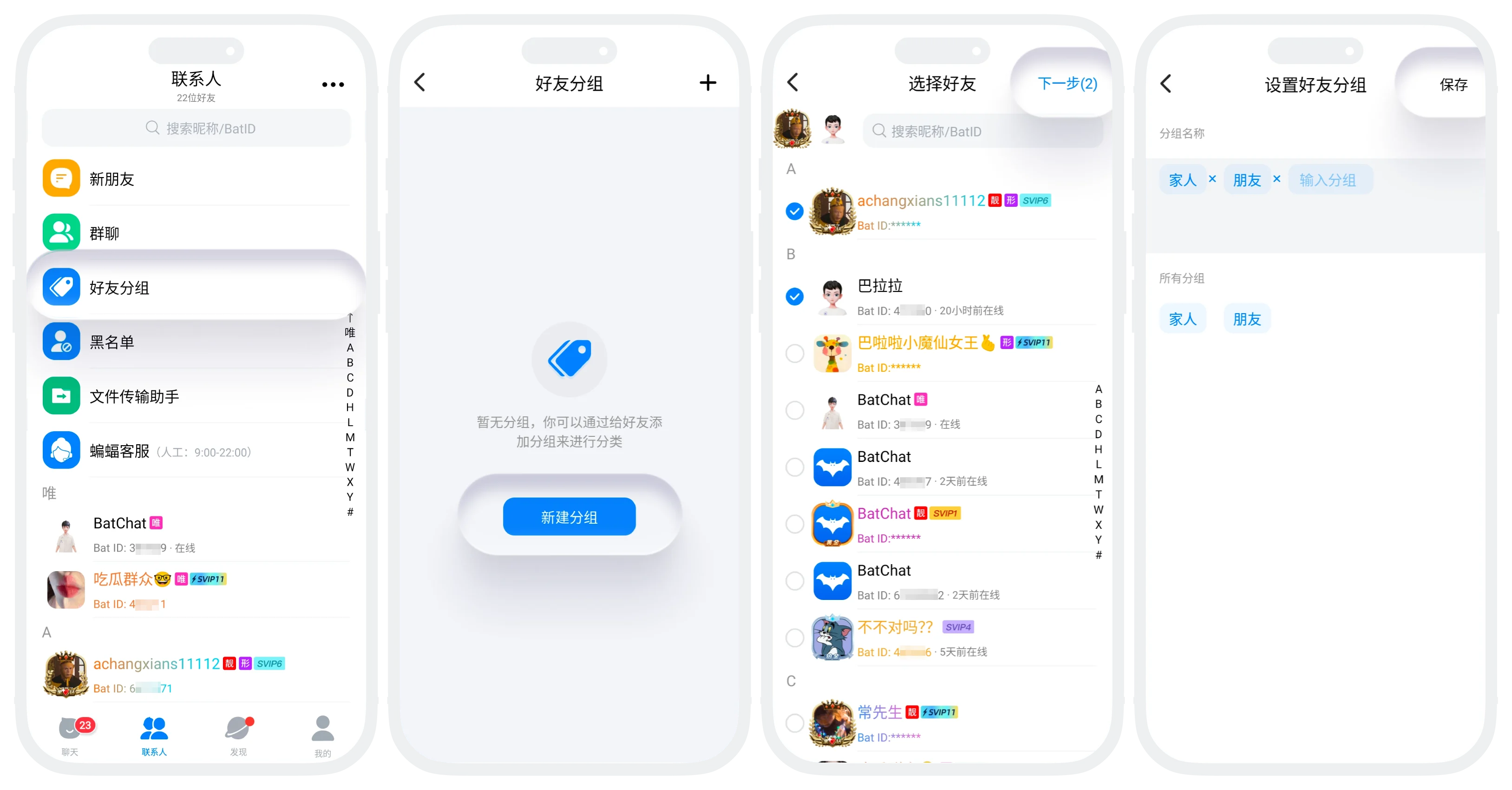
- Enter the contacts list, click "Friend Groups";
- Click "+", check the friends to add to this group (supports multiple selection);
- Click "Next", enter the group name (up to 8 characters, cannot duplicate existing group names);
- Click "Complete", the group is immediately created successfully.

Tip: You can create up to 100 friend groups.
Edit Existing Groups
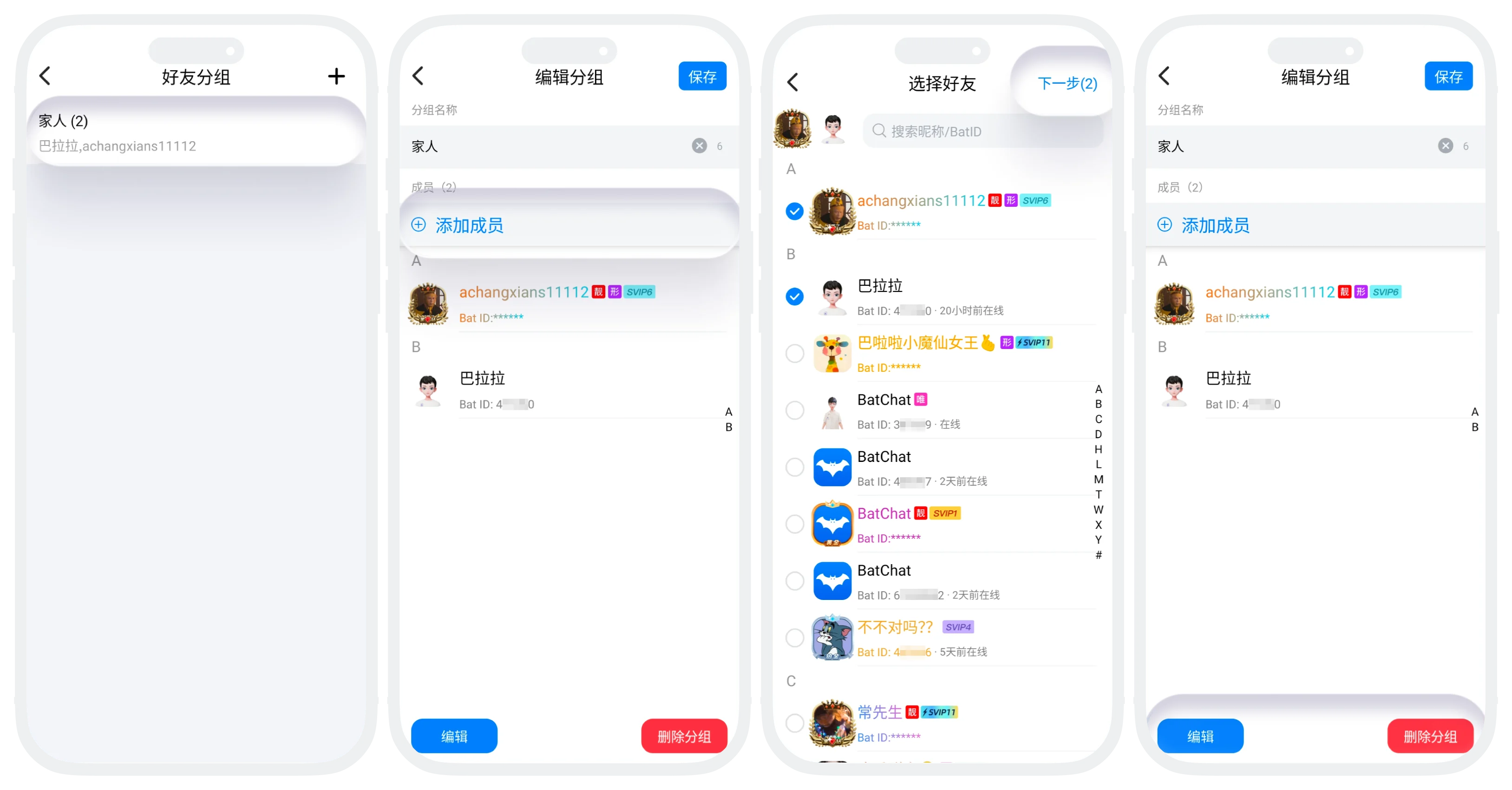
- Modify Name: Click to enter group details, modify the name and save;
- Add/Remove Members: Click to enter group details
- Add Members: Click "Add Members", select the friends to add, click "Next", return to the edit page, click "Save";
- Click to enter group details, click "Edit", click the delete button of the friend to delete, click "Save";
- Delete Group: Long press the group on the group management page, click "Delete" (only deletes the group, not the friends).
Friend Multi-Group Membership
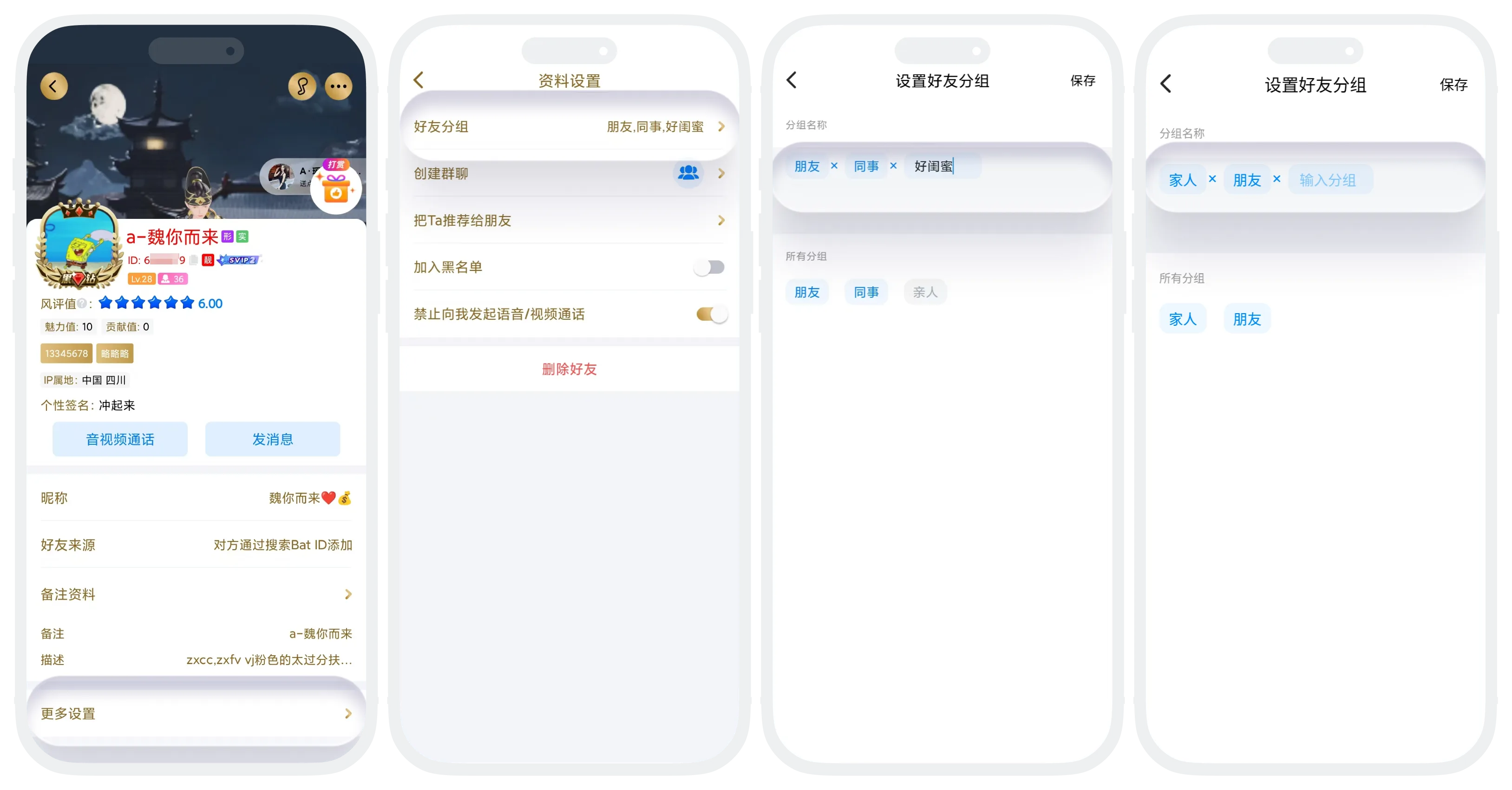
- The same friend can join multiple groups simultaneously. In "Friend Profile Page" - "More Settings" you can view all group tags they belong to;
- Batch Adjustment: In "Friend Profile Page" - "More Settings" - "Friend Groups" you can quickly manage the groups this friend belongs to
- Delete: Click the "×" of the group the friend is already in to quickly remove the friend from that group;
- Add New Group: Click other groups in "All Groups" to add the friend to this group. You can also click the "Enter Group" button, enter the group name to create a new group and add the friend to this group.
FAQ
No, the system will automatically deduplicate, and each friend will only receive one message.
No, as long as you log in with the same account, group information will be automatically synchronized.
Was this page helpful?
