Manage Friend Requests
The friend request management feature allows for comprehensive management and fine-grained permission settings of friend requests. Through this feature, you can view all friend request records, batch process requests, and set personalized adding conditions and methods to balance social openness and privacy protection needs.
Friend Request List Management
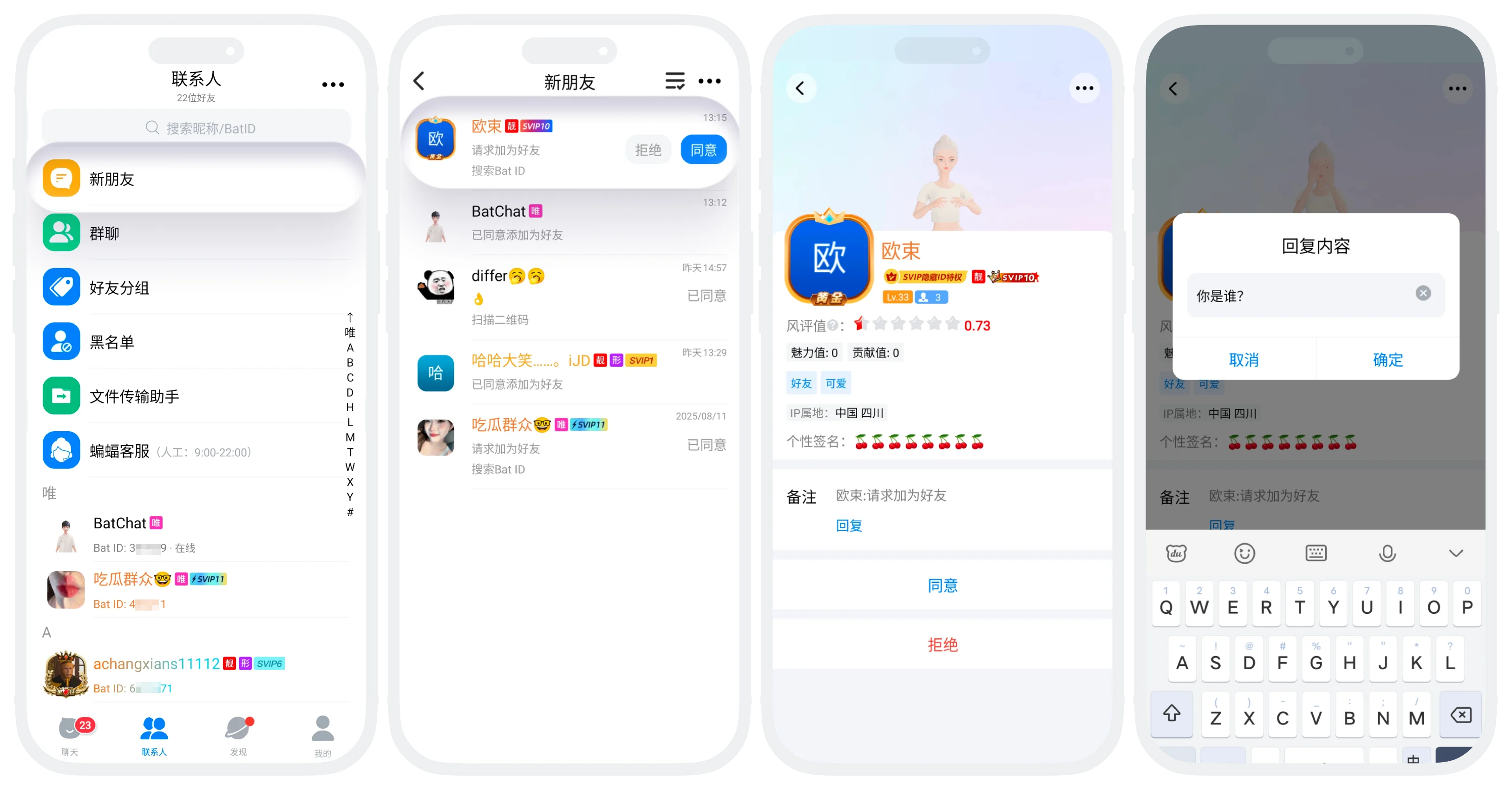
- Feature Entry: "Contacts List" - "New Friends";
- Display Data: Shows all friend request records, including those I initiated and those I received;
List Display Categories
-
Requests I Initiated
- Waiting for Verification: The other party has not yet processed your request;
- Accepted: The other party has accepted the request and become friends;
- Rejected: The other party has rejected your request;
-
Requests I Received
- Pending Requests: Shows friend requests initiated by others waiting for your processing
- Display Information: Applicant's avatar, nickname, verification message, application time, source channel, etc.
Processing Friend Requests
- Single Request Processing:
- Accept: Approve the other party's friend request and establish a friend relationship;
- Reject: Reject the other party's friend request, can fill in rejection reason (optional);
- View Profile: Click on the applicant's avatar to view their detailed profile;
- Reply to Verification Message: Click to enter the other party's profile page, click "Reply", can reply to the other party's verification message without adding them as a friend;
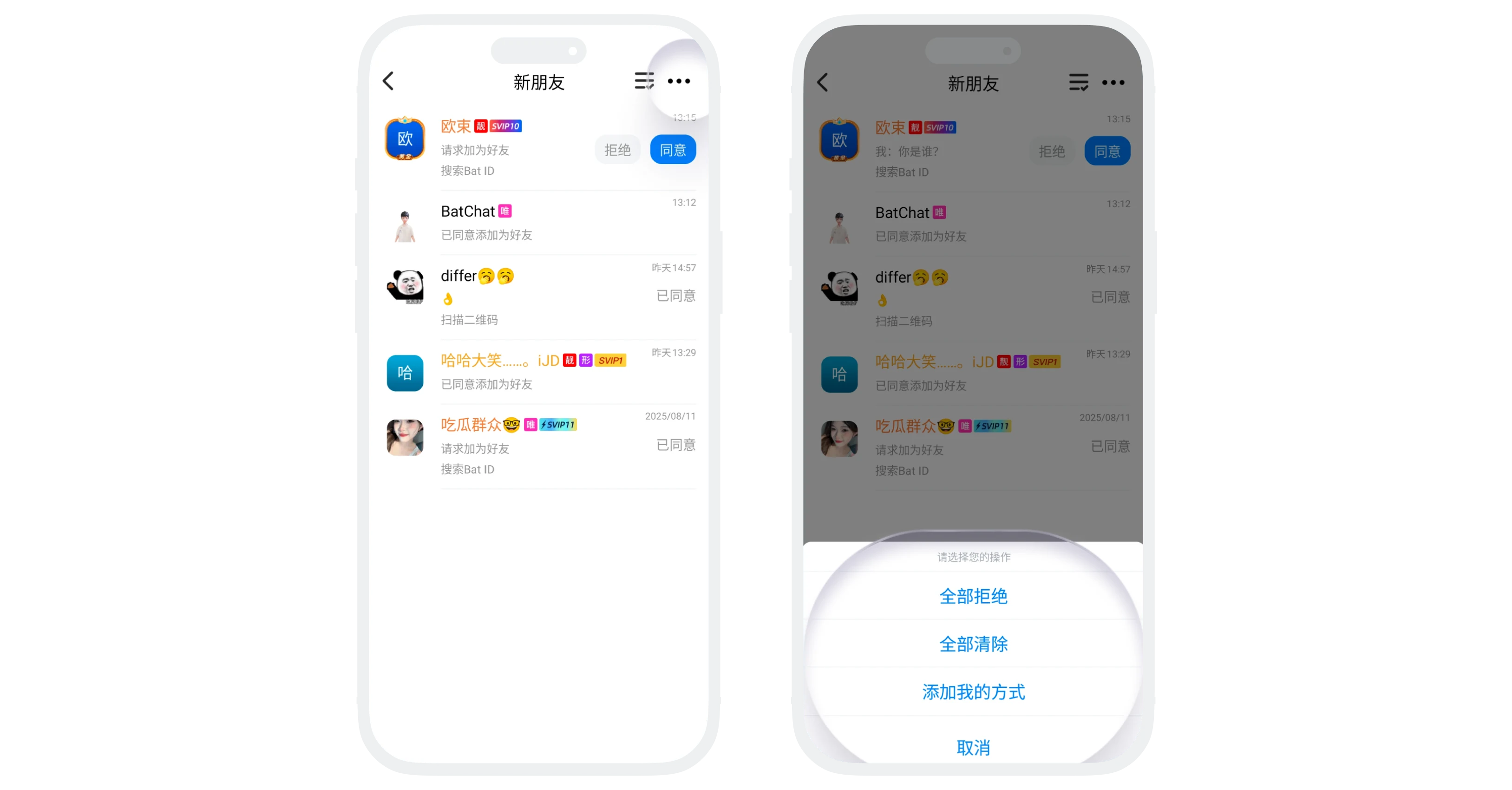
- Reject All Friend Requests: Click "More" in the upper right corner - "Reject All" to reject all friend requests with one click;
- Batch Delete Data (only deletes data, neither rejects nor accepts):
- Delete All: Click "More" in the upper right corner - "Clear All" to delete all friend request records;
- Batch Delete: Click "Batch Operation" in the upper right corner, select the request records to delete, click "Delete" to delete the selected request records.
Conditions for Adding Me Settings
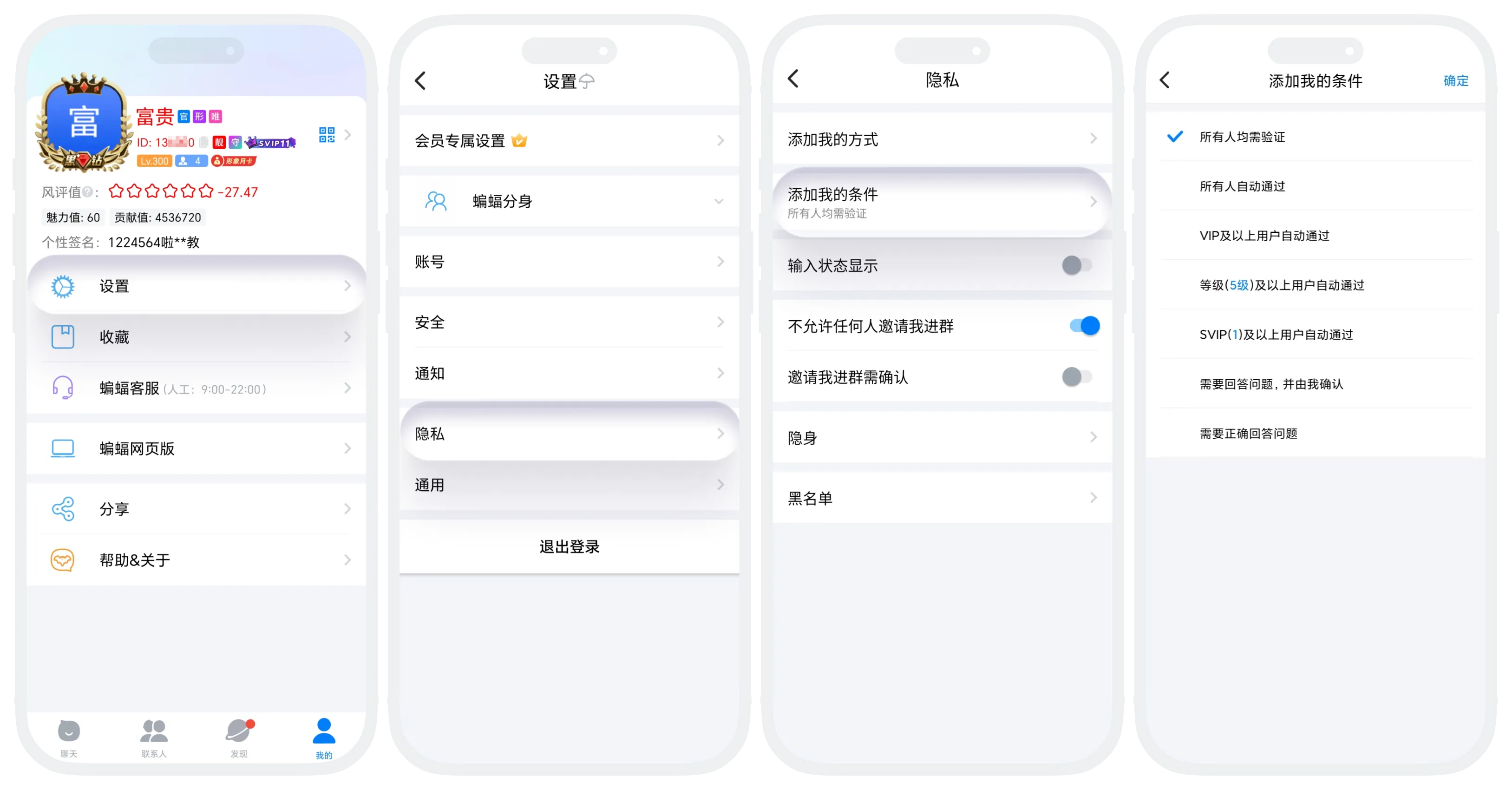
- Feature Description: Allows you to customize review rules when others apply to add you as a friend. You can set different auto-approval strategies or verification requirements based on the applicant's identity characteristics to achieve flexible and intelligent friend adding management;
- Settings Entry: "My" - "Settings" - "Privacy" - "Conditions for Adding Me";
- Effective Scope: Settings take effect immediately for all new requests;
- Condition Options Description:
| Condition Type | Description |
|---|---|
| All Require Verification | All adding requests require your manual approval |
| Auto-approve All | All adding requests are automatically approved without verification |
| Auto-approve VIP and Above | VIP and above member requests are automatically approved |
| Auto-approve Level X and Above | Users reaching the specified level are automatically approved |
| Auto-approve SVIP X and Above | Users reaching the specified SVIP level are automatically approved |
| Require Answering Question and My Confirmation | Applicants need to answer your preset question, but still require your manual confirmation |
| Require Correct Answer | Correct answers are automatically approved without confirmation |
Note: Friend requests that do not meet the auto-approval conditions still need to be manually processed by you in the "Contacts" - "New Friends" list.
Methods for Adding Me Settings
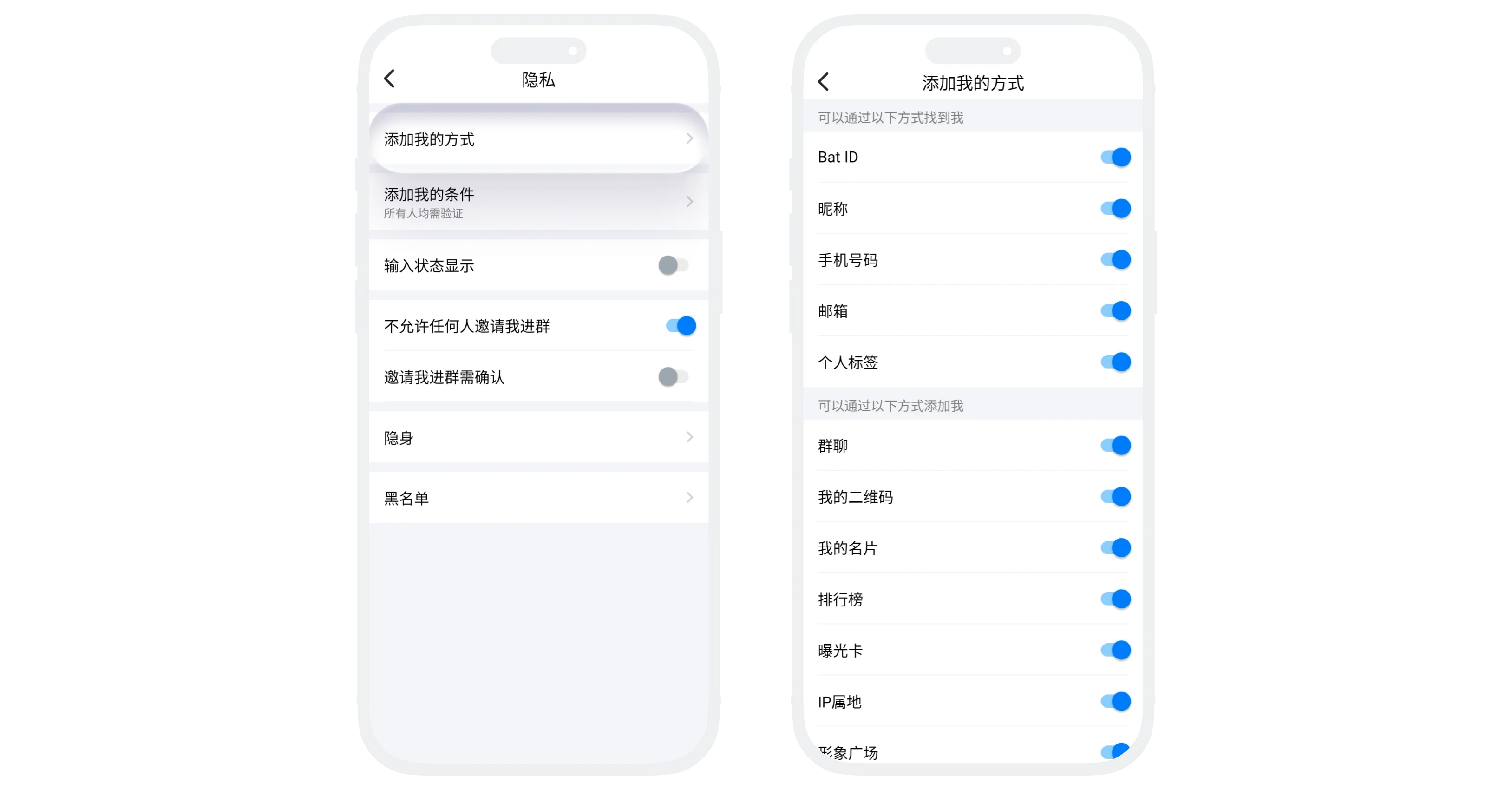
- Search Method Settings: Can independently control through which methods others can search for you. After closing an item, others cannot search for you through that method and add friends
- Bat ID: Search through your unique ID;
- Nickname: Search through nickname keywords;
- Mobile Number: Search through the bound mobile number;
- Email: Search through the bound email address;
- Tags: Search through your set tags;
- Application Source Page Settings: Control on which pages others can initiate friend requests to you. On closed pages, when others click "Add Friend", it will prompt "The other party has not enabled the corresponding add friend method"
- Group Chat: Whether adding is allowed in group member lists;
- My QR Code: Whether scanning QR code to initiate friend requests is allowed;
- My Card: Whether clicking my card to initiate friend requests is allowed;
- Leaderboard: Whether initiating friend requests is allowed in "Discover" - "Leaderboard";
- Exposure Card: Whether initiating friend requests is allowed in the exposure card area of "Discover" - "Leaderboard";
- IP Location: Whether initiating friend requests by searching IP location is allowed;
- Avatar Plaza: Whether initiating friend requests is allowed in "Discover" - "Avatar Plaza".
FAQ
You can go to "Settings" - "Privacy" - "Conditions for Adding Me", click the corresponding option, and re-modify the question and answer. The modification takes effect immediately for new requests.
Yes, automatically approved requests will also be displayed in the "Contacts" - "New Friends" list with the status "Auto-approved".
