Youth Mode
'Youth Mode' is a dedicated usage environment established to protect the healthy growth of minors. After enabling, the platform will automatically restrict some functions and services to create a safer and healthier online space. Parents or guardians can control the enabling and disabling of the mode through a password to ensure teenagers use the network reasonably.
Enable Youth Mode
First Time Enable Process
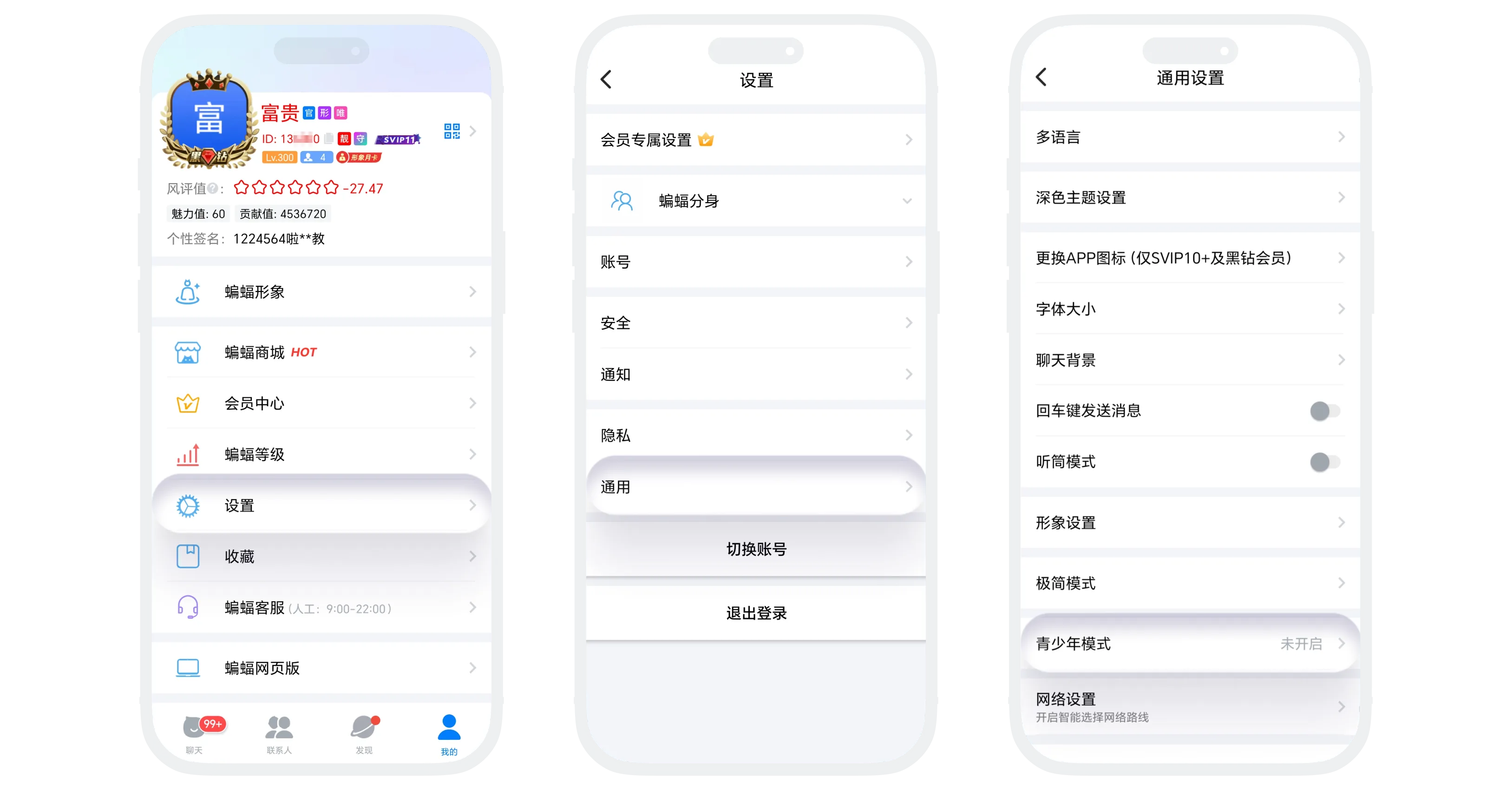
- Click 'Youth Mode' in 'My' - 'Settings' - 'General';
- Click the 'Enable Youth Mode' button to enter the password setting page, enter a 6-digit numeric password;
- Enter the same password again to confirm;
- After setting is complete, Youth Mode is automatically enabled;
Disable Process
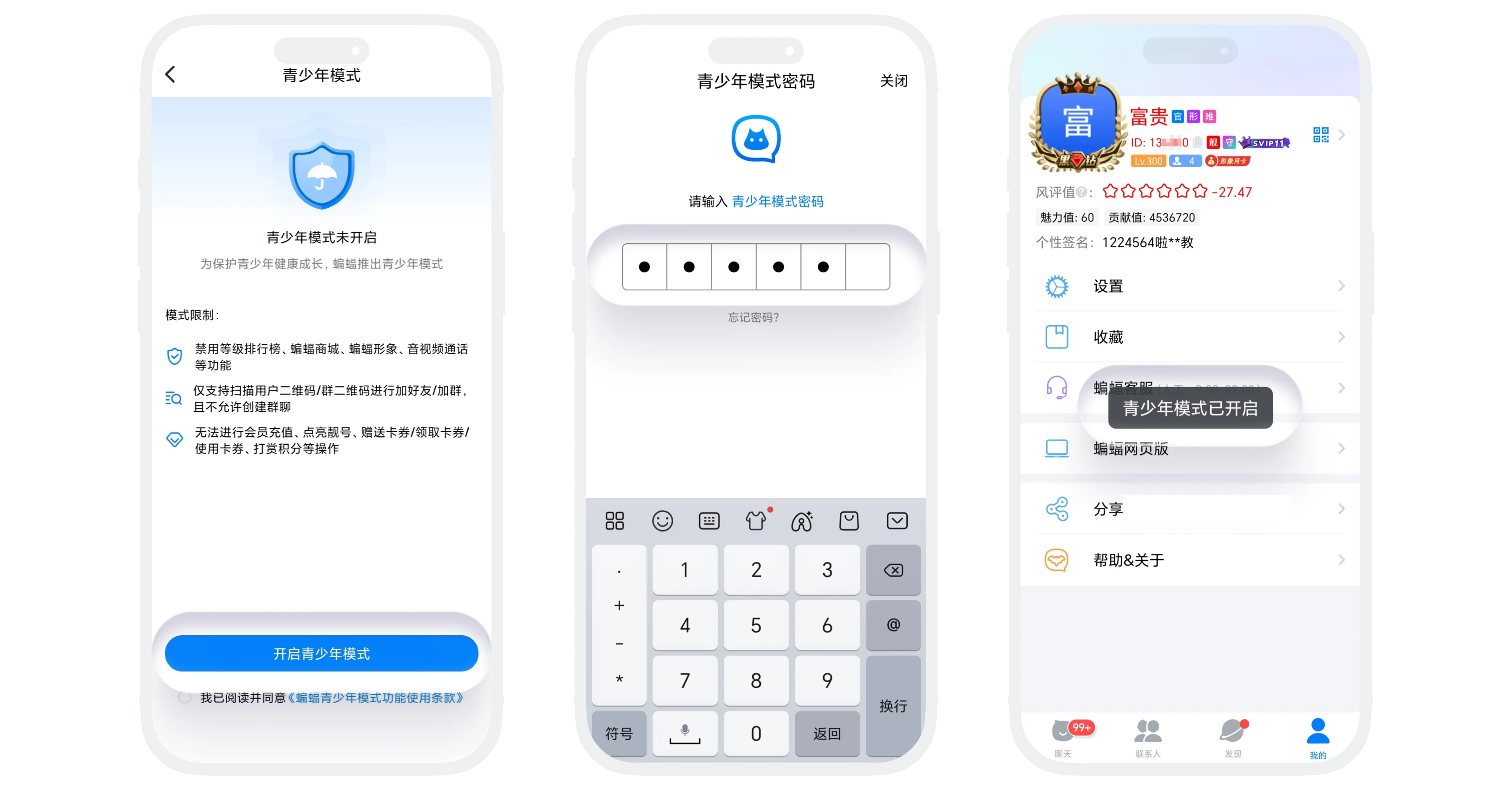
- Enter the 'Youth Mode' page, click the 'Disable Youth Mode' button;
- Enter the correct 6-digit password. After password verification passes, Youth Mode is disabled;
- After disabling, you can re-enter the page, click the 'Disable Youth Mode' button to re-enable Youth Mode.

Disabling/enabling Youth Mode requires entering the correct password and cannot be bypassed. Please remember and properly store it.
Effects After Enabling Youth Mode
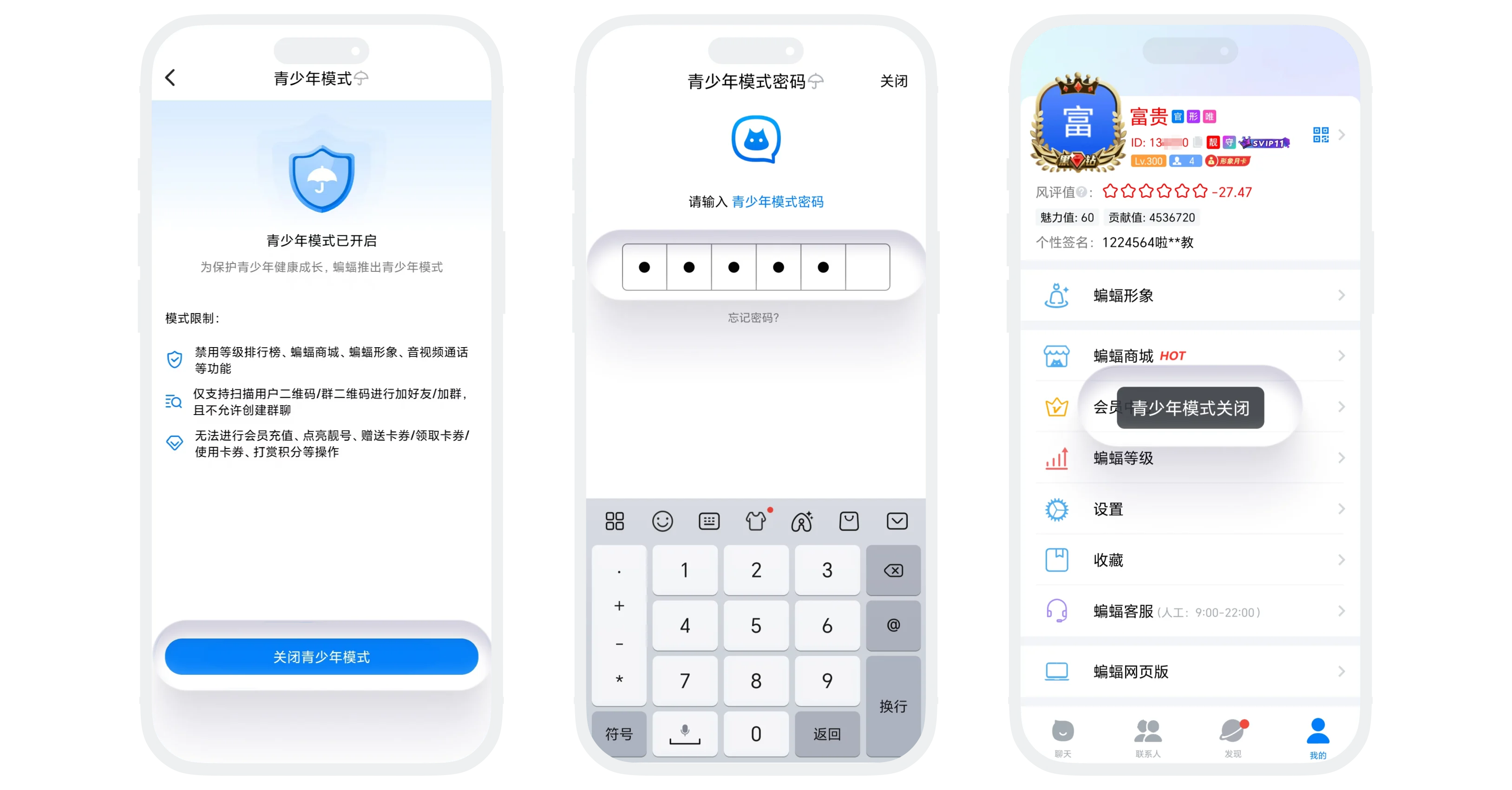
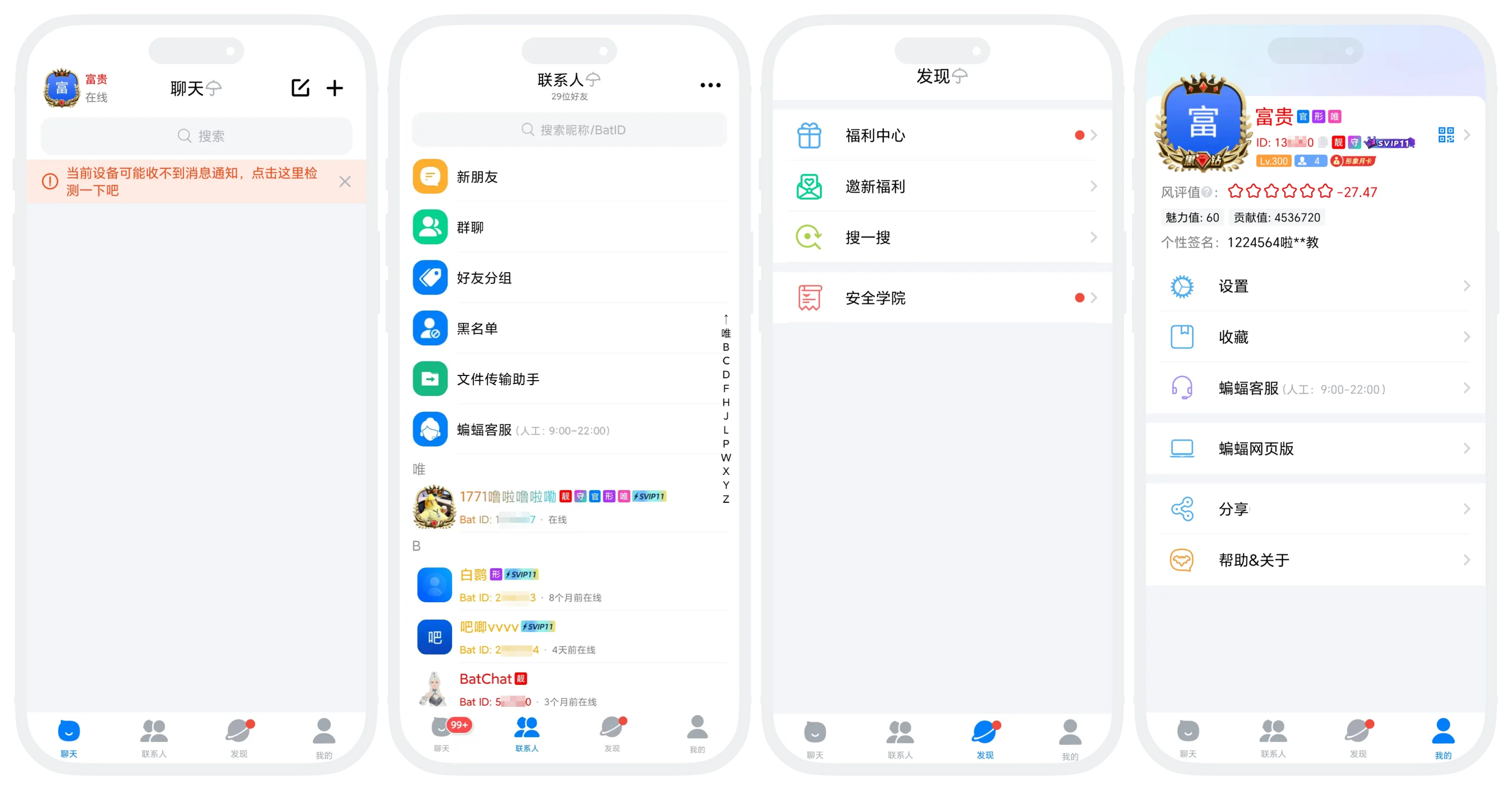
- Disabled Functions: Level Leaderboard, BatChat Mall, BatChat Avatar, Audio/Video Calls;
- Cannot perform any payment operations, including but not limited to: membership recharge, special ID related, coupon related, tip points, avatar consumption;
- Add friend/add group restrictions:
- Only allowed to add friends by scanning QR code, others cannot add you as a friend through search, recommendation, etc.;
- Only allowed to add groups through group QR code, others cannot invite you to join any groups, nor can you create new groups;
- Cannot switch accounts: After enabling Youth Mode, the account switching function is disabled. If you need to switch accounts, you must first disable Youth Mode.
Forgot Password
- On the Youth Mode page, click 'Enable Youth Mode' or 'Disable Youth Mode';
- On the password input page, click 'Forgot Password' to enter the security question verification page;
- Answer the security question you previously set. After the answer is correct, enter the password reset page;
- Enter a new 6-digit numeric password and confirm;
Was this page helpful?
