Join Group Chat
The join group chat function allows you to discover and participate in more social circles of interest, join group chats through multiple channels, and communicate and interact with like-minded users.
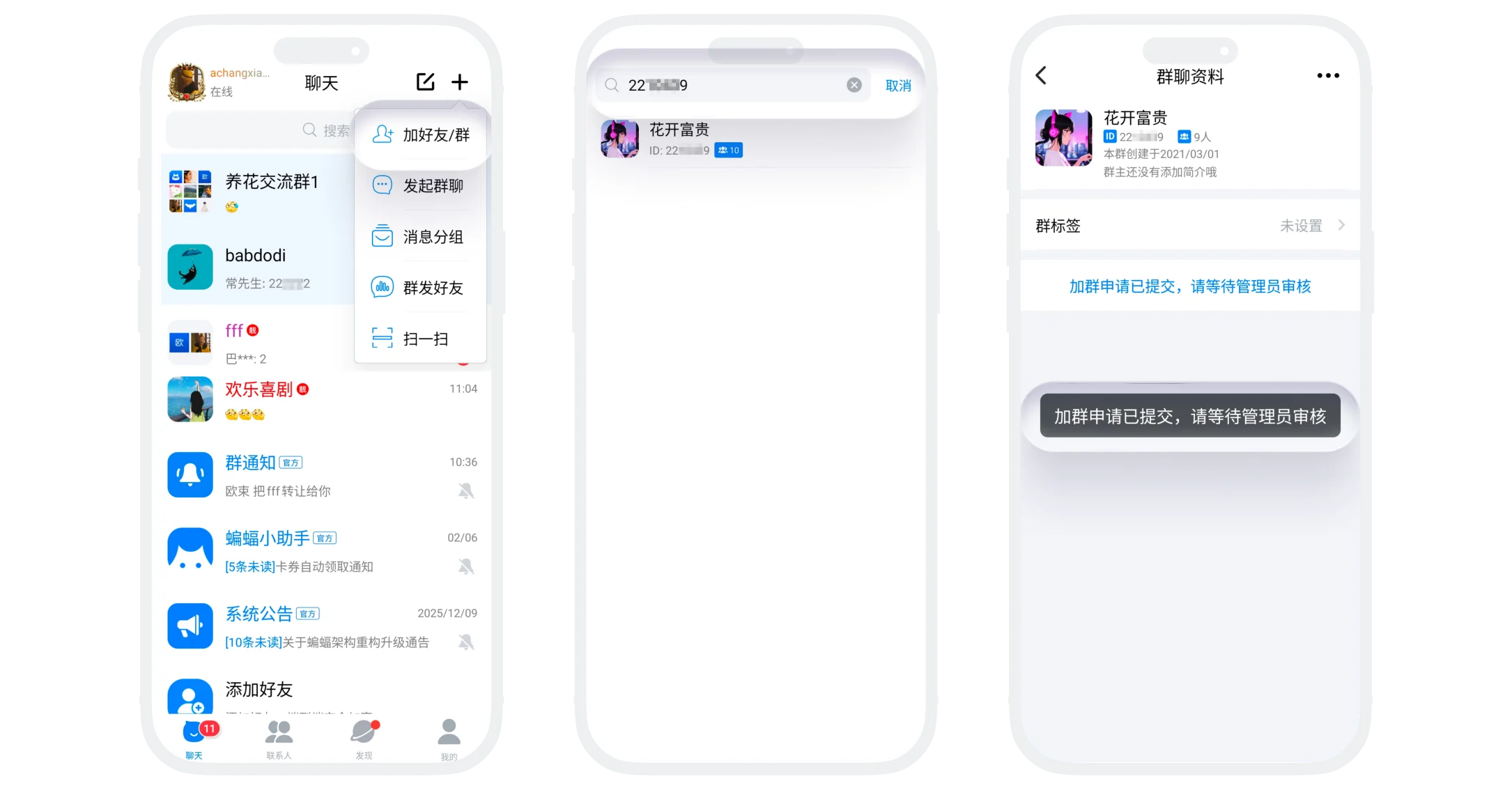
Apply to Join Group via Search
- Click '+' in the upper right corner of the 'Message List' - 'Add Friend/Group';
- Enter keywords to search:
- Group name keywords: such as 'photography', 'book club';
- Group ID/Group number: precisely search for specific group chats;
- Group chat tags: such as #gaming #fitness;
- Click search results to view group details, click 'Apply to Join Group', according to group requirements, you may need to answer questions, etc.;
- After successful application, wait for group owner review. After approval, you can enter the group chat.
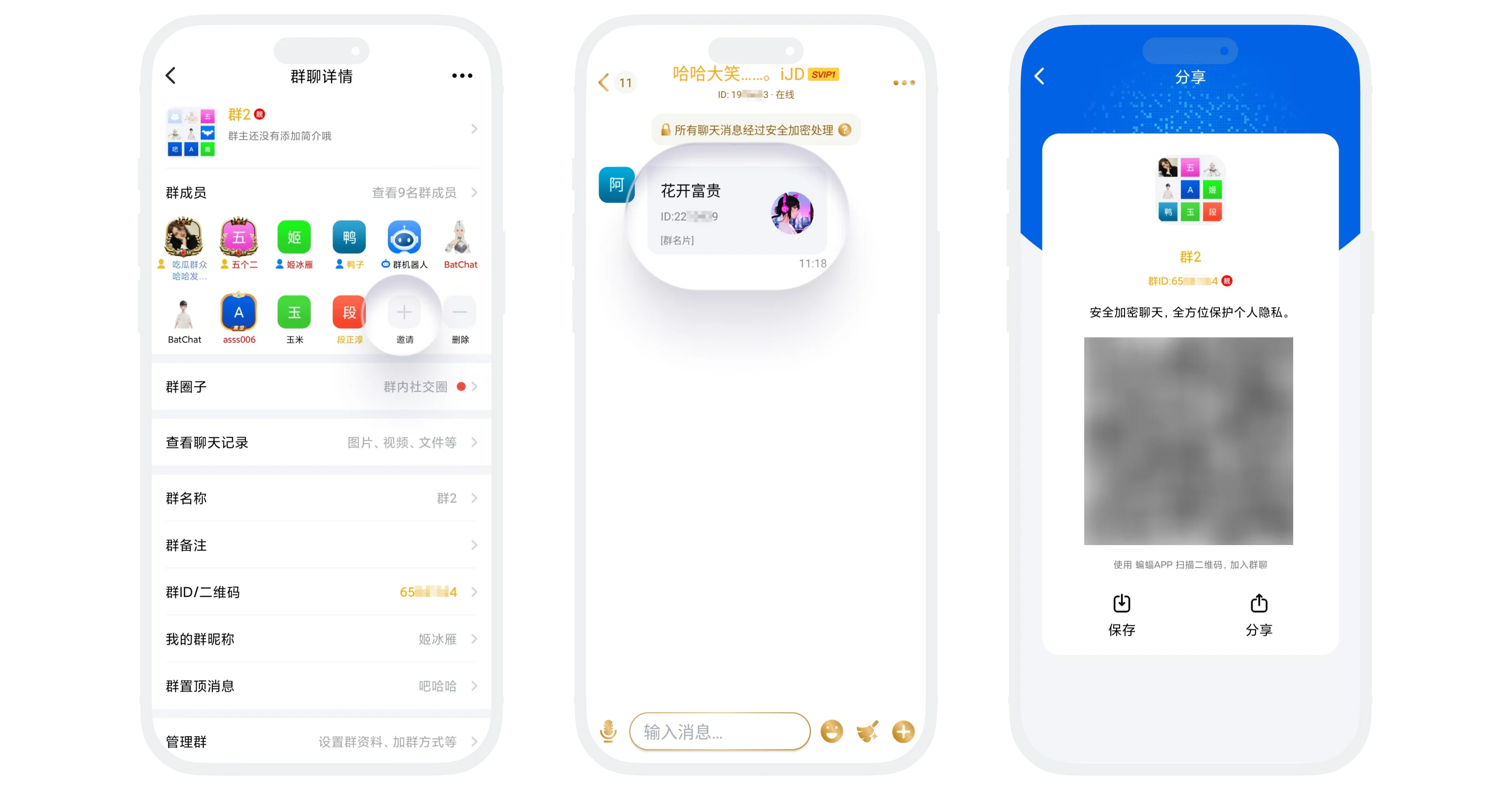
Join via Friend Invitation
- Invitation forms:
- Direct invitation by friends in the group;
- Business card sharing: Click the group chat business card shared by friends to apply to join;
- QR code invitation: Scan the group QR code shared by others to apply to join;
- If you don't want to be casually invited to a group chat by friends, you can set it in 'My' - 'Settings' - 'Privacy':
- Don't allow anyone to invite me to groups: After enabling, all friends cannot pull you into other group chats;
- Invitation to group requires confirmation: After enabling, friends pulling me into other group chats requires my manual confirmation.
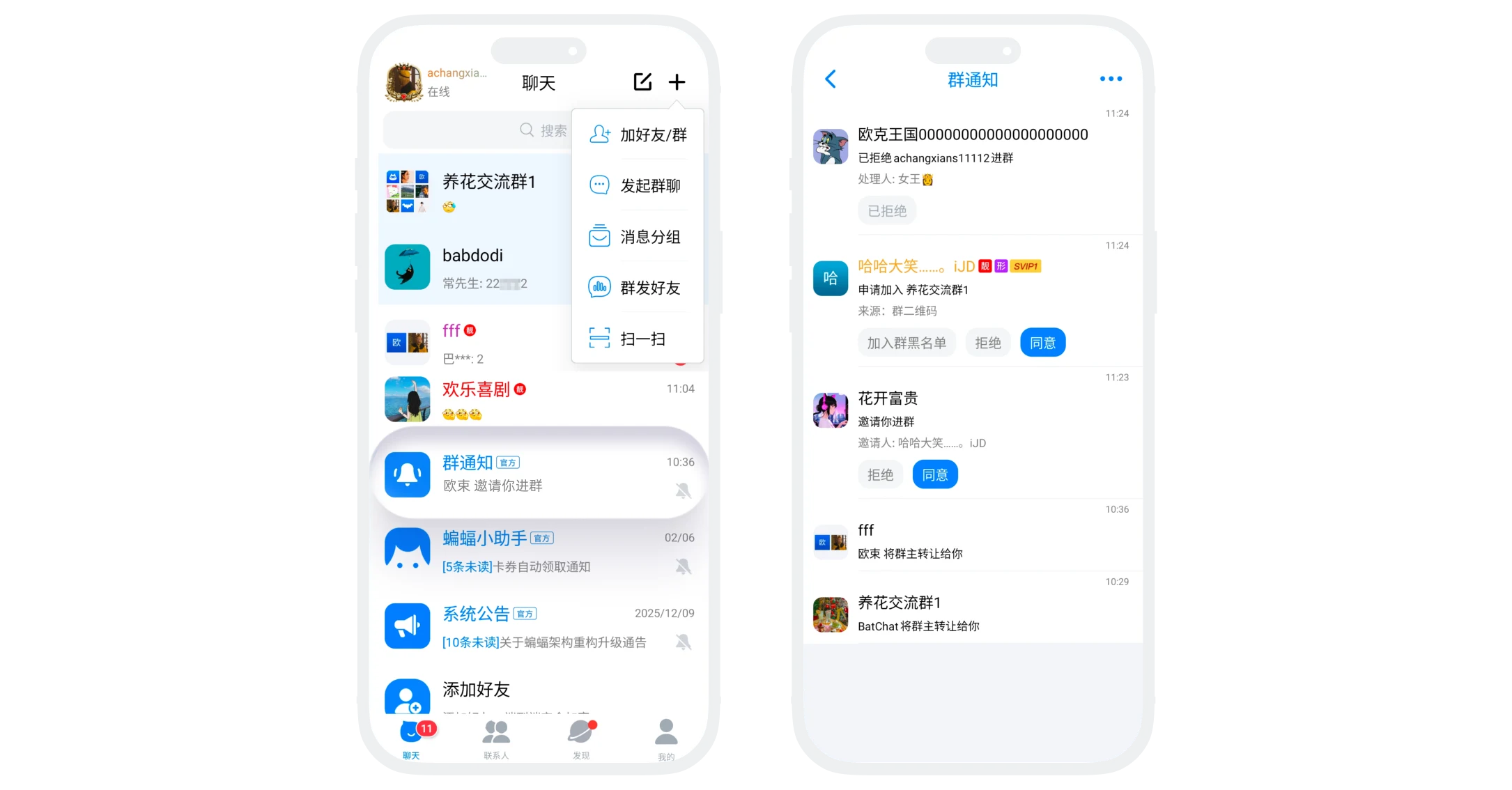
Group Join Application and Invitation Management
- All group join applications and invitation records are uniformly managed in 'Group Notifications': Find the 'Group Notifications' official account in the message list and click to view and process;
- Notification categories:
| Notification Type | Description |
|---|---|
| Pending Applications | Your group join application waiting for review |
| Received Invitations | Group chats that friends invited you to join |
| Application Result Notifications | Your application passed or was rejected |
| Management Notifications | Group join applications received as an administrator |
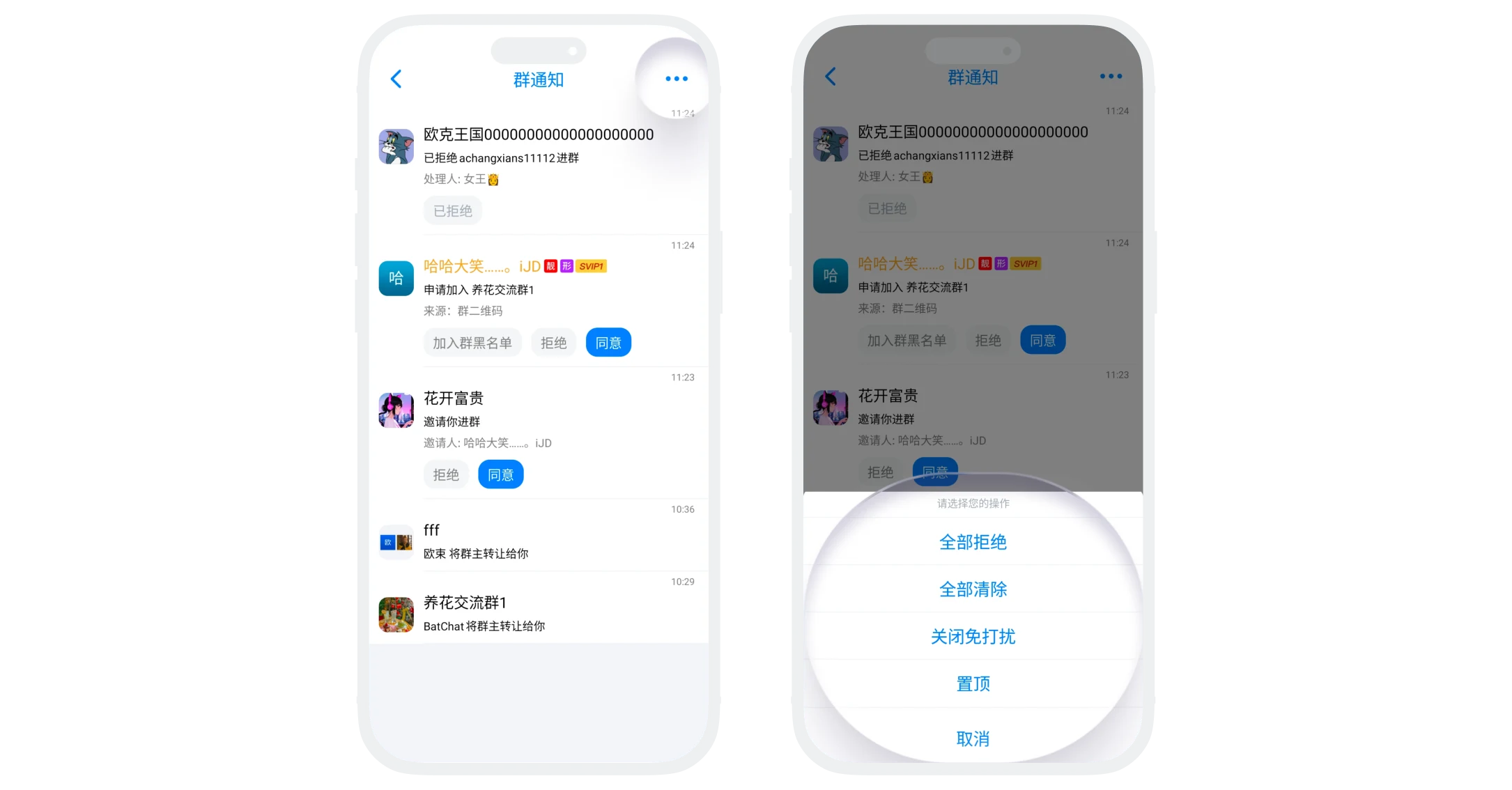
- More operations: Click 'More' in the upper right corner
- Reject All: Batch reject all group join applications and invitations;
- Clear All: Delete all data in the group notification list;
- Enable Do Not Disturb: Normally receive group notifications, but no new message reminders;
- Pin: Pin the group notification conversation to the top of the message list.
Group Join Quantity Limits
Membership level and group join limits see table below:
| Membership Level | Group Join Limit |
|---|---|
| Regular User | 50 |
| VIP | 200 |
| SVIP1 | 350 |
| SVIP2 | 400 |
| SVIP3 | 450 |
| SVIP4 | 500 |
| SVIP5 | 550 |
| SVIP6 | 600 |
| SVIP7 | 650 |
| SVIP8 | 800 |
| SVIP9 | 950 |
| SVIP10 | 1300 |
| SVIP11 | 2000 |
| Gold Member | 1200 |
| Platinum Member | 1300 |
| Diamond Member | 1400 |
| Gold Diamond Member | 1700 |
| Black Diamond Member | 2000 |
FAQ
Possible reasons:
- The group has reached its member limit;
- The group owner has not reviewed your application yet;
- Your application was rejected by the group owner;
- You are on the group's blacklist.
In 'Group Notifications' - 'Pending Applications', find the application record you want to withdraw, click to enter and select 'Withdraw Application'.
No. You can only join the same group once. If you exit the group, you need to apply again to join.
Was this page helpful?
