Group Pinned Message
The group chat pinned message feature allows group owners or administrators to pin important information for fixed display within the group, ensuring all members can see key announcements, rules, or reminders immediately upon entering the group chat. Pinned messages are displayed at the top area of the group chat interface, supporting only single content, and allowing manual input or quick message pinning.
Setting Process
Two methods are supported for setting pinned messages:
Method 1: Manual Input
- The group owner or administrator enters the group chat details and clicks "Group Pinned Message";
- Manually input or edit the pinned content (text message), which takes effect immediately after saving;
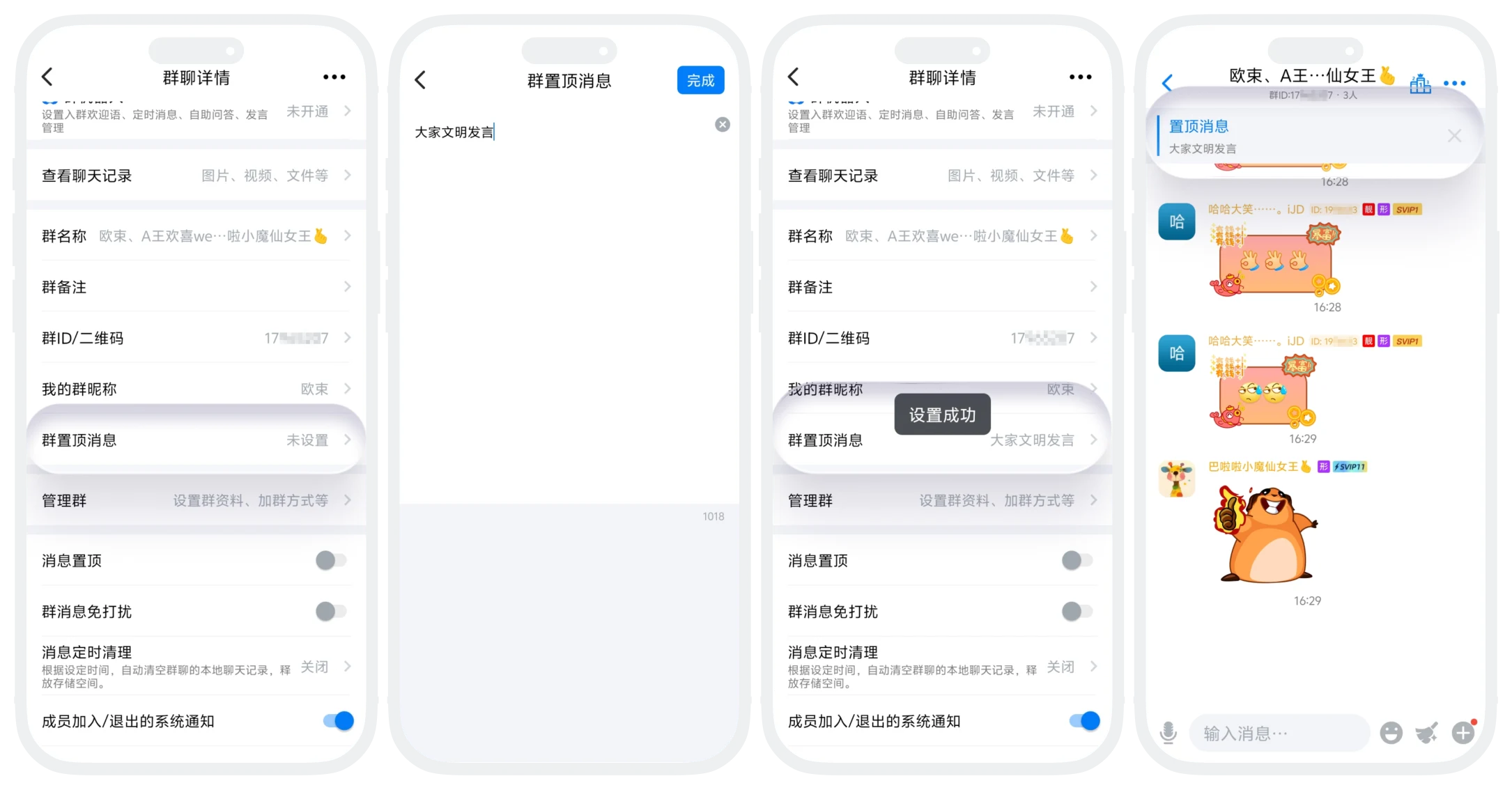
Method 2: Quick Pin via Chat Page
- The group owner or administrator long-presses a message in the chat interface (only supports quick pinning of text messages) and clicks "Pin";
- The system automatically extracts the message content as the pinned content, replacing the original pinned message.
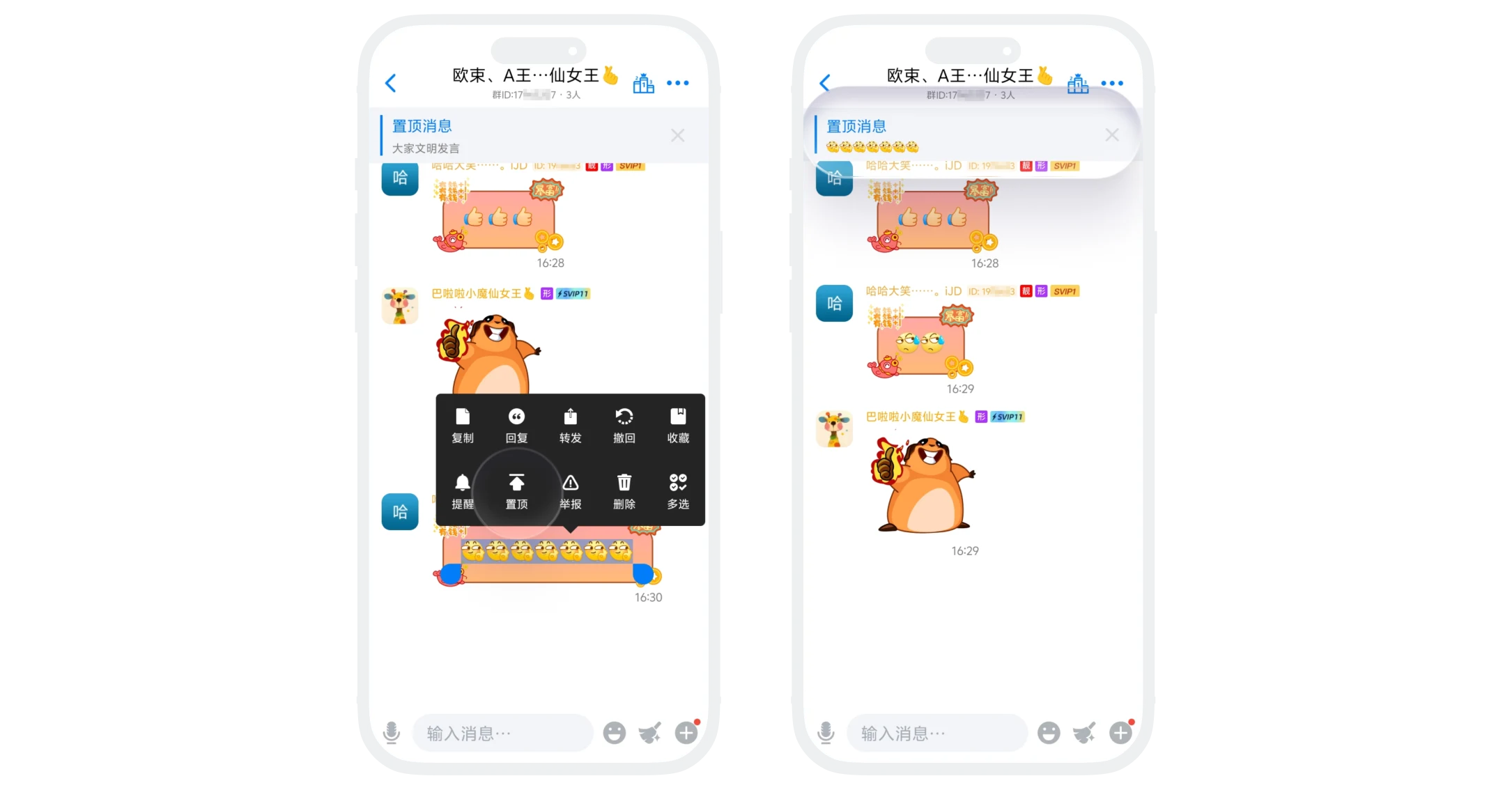

Tips:
- Pinned content should comply with platform and group rules, and must not contain违规information;
- Content should be concise and clear, avoiding excessive length that affects browsing experience.
Setting and Display Rules
- Quantity Limit: Only 1 pinned message is supported, multiple messages cannot be pinned simultaneously (setting a new pinned message will directly replace the original content);
- Display Position: Pinned messages are fixed at the top of the group chat window;
- Validity Period: Long-term valid until replaced or cleared.
Modification Record Tracking
- View path: "Group Details" - "Group Pinned Message";
- Record content:
- Operator: Who performed the pin/modify operation;
- Operation Time: Precise to the minute (e.g., 2026-01-23 14:30);
- Record retention: Only displays the most recent modification record, historical records are not saved.
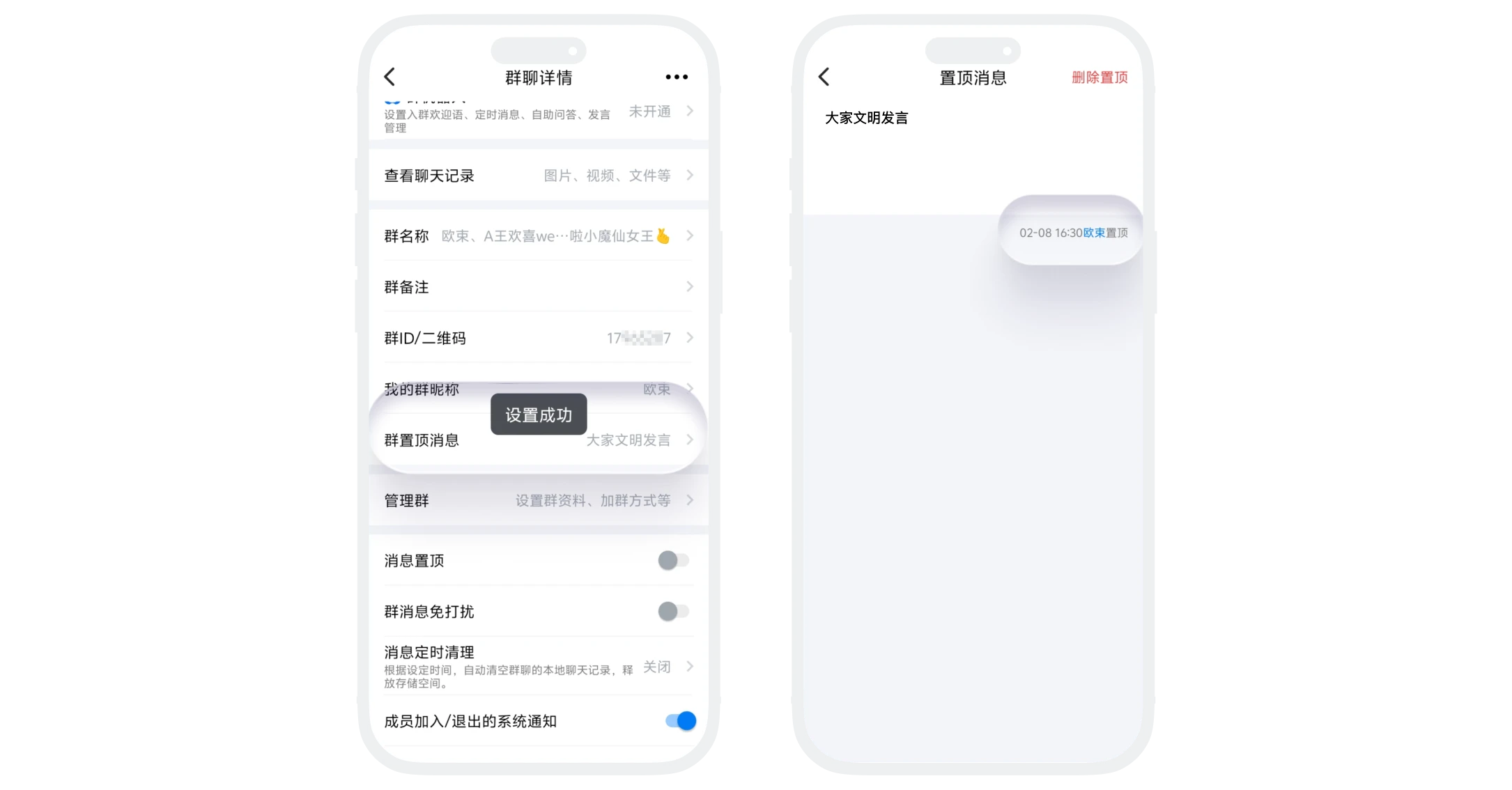
Common Messages
No. Pinning operations are silent and will not send notifications to the original sender or group members.
No. The system only retains the most recent modification record and does not provide historical record queries.
You can enter the "Pinned Message" settings page and click "Clear Pinned" to temporarily hide it. It can be reset when needed.
