Set Scheduled Messages
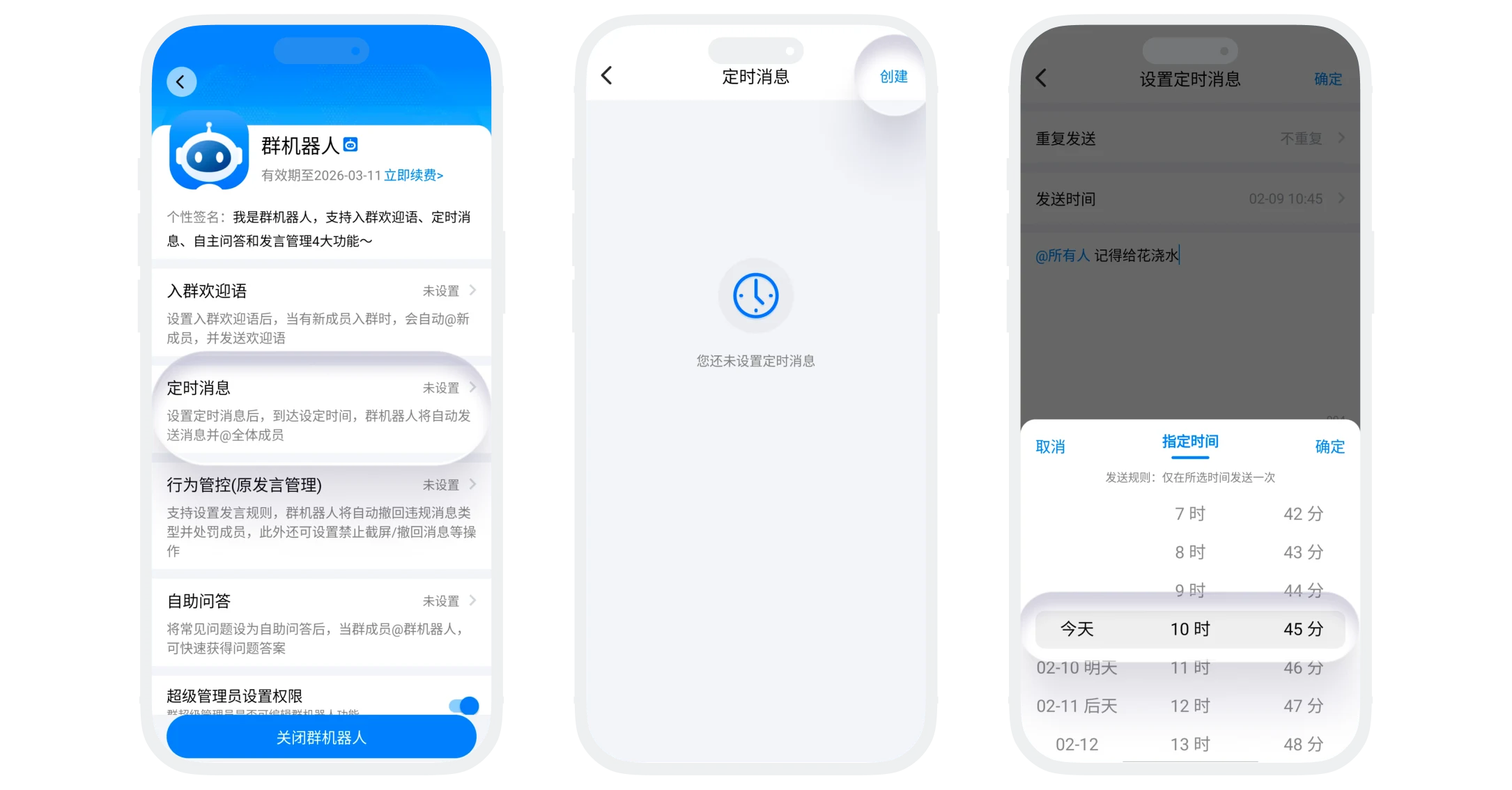
The scheduled message function allows you to preset message content, allowing the group bot to automatically send and @ all members at specified times. Supports flexible time setting modes, including single sending and multiple repeat cycles, helping you achieve automated notifications, activity reminders, daily check-ins, and other scenarios, effectively improving group management efficiency.
Scheduled Message Setting Modes
No Repeat Mode (Single Send)
- Send a message once at the specified specific date and time, the scheduled task automatically ends after sending;
- Setting parameters:
- Repeat method: Select no repeat:
- Send time: Set the message sending time (time selectable range within 1 month, precise to the minute, e.g., tomorrow 15:00);
Daily Repeat Mode
Mode A: Send at fixed time point
- Automatically send messages at the same time point every day, suitable for scenarios requiring daily fixed reminders;
- Setting parameters:
- Repeat method: Select daily:
- Send time: Select "Specified Time" and set the specific time (precise to the minute);
Mode B: Send at interval time
- Automatically send messages at interval time every day, suitable for scenarios requiring continuous reminders;
- Setting parameters:
- Repeat method: Select daily:
- Send time: Select "Interval Time" and set the interval time (e.g., send every 2 hours);
Weekly Repeat Mode
Mode A: Send on fixed weekdays
- Send at fixed time on specified weekdays every week, suitable for weekly activities, regular meetings;
- Setting parameters:
- Repeat method: Select weekly:
- Click to select weekdays (multiple selectable: Monday to Sunday);
- Send time: Select "Specified Time" and set the specific time (precise to the minute);
Mode B: Send at interval time
- Repeat at intervals within specified time periods every week, suitable for scenarios requiring multiple reminders per week;
- Setting parameters:
- Repeat method: Select weekly:
- Click to select weekdays (multiple selectable: Monday to Sunday);
- Send time: Select "Interval Time" and set the interval time (e.g., send every 2 hours).
Scheduled Message Setting and Management (Group Owner/Administrator)
- Create new scheduled message:
- In the group bot's "Scheduled Message List", click "Add" in the upper right corner to enter the new scheduled message page;
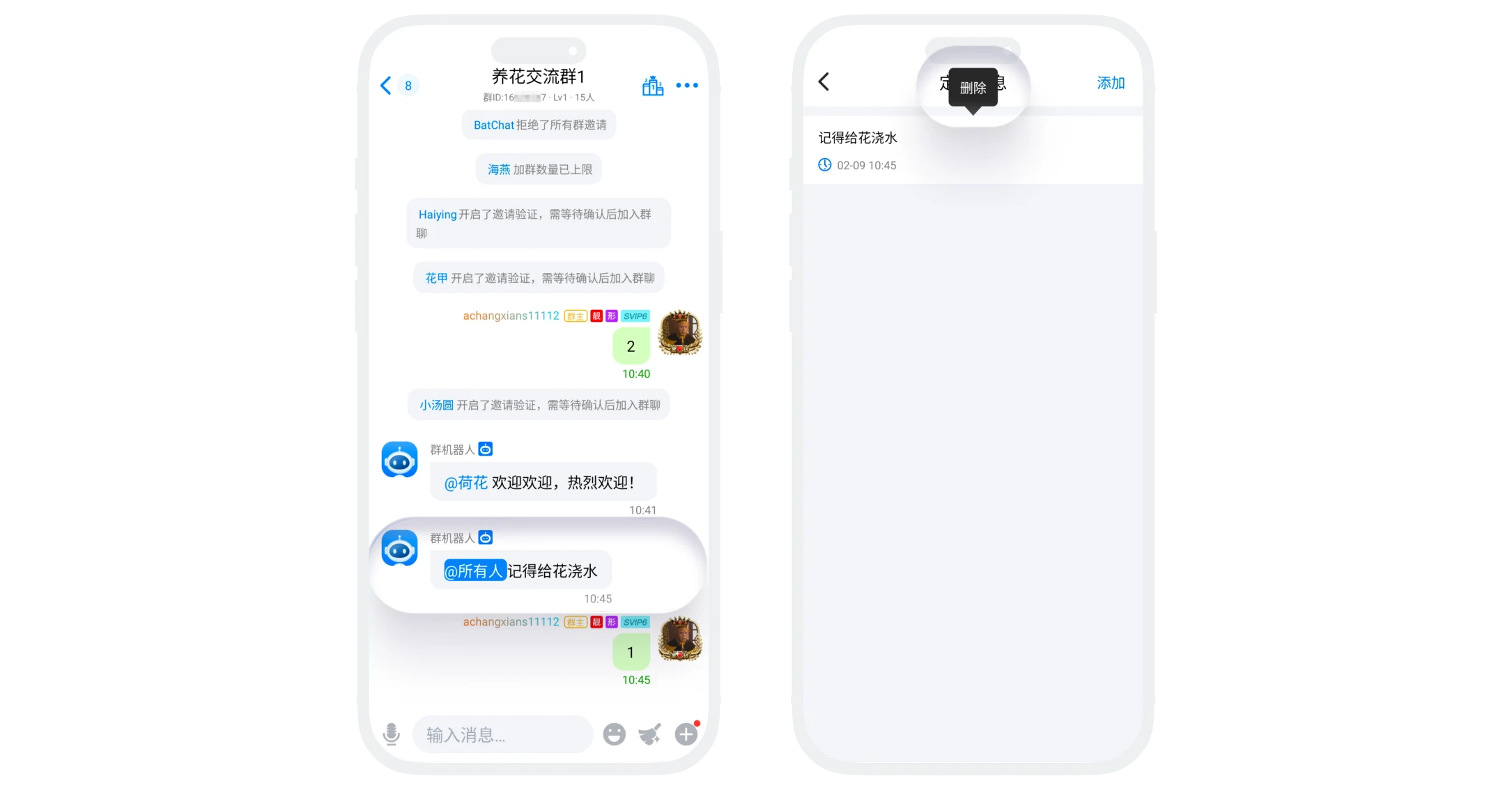
- Set sending mode, input scheduled message content (text format, supports line breaks), click "Confirm", creation successful;
- Supports creating up to 10 scheduled tasks, it is recommended to regularly clean up executed scheduled messages;
- Scheduled message management:
- Edit: Click to enter the scheduled message settings page, modify time, content, and other settings;
- Delete: Long-press or swipe to completely delete the scheduled task.
FAQ
Sorry, currently only text messages are supported.
No. Mute status will no longer send scheduled messages
Was this page helpful?
