Group Member Management
The group member management function allows group owners and administrators to conduct comprehensive management of group members, including inviting new members, removing members, cleaning inactive accounts, and other operations to ensure group chat health and activity.
Invite New Members
Method 1: Direct Invitation
- Operation permissions: Group owners and administrators can invite, ordinary group members depend on the group's join settings;
- Invitation process: Enter the group details page, click '+' in the group member module, select the friends to invite, click 'Confirm'.
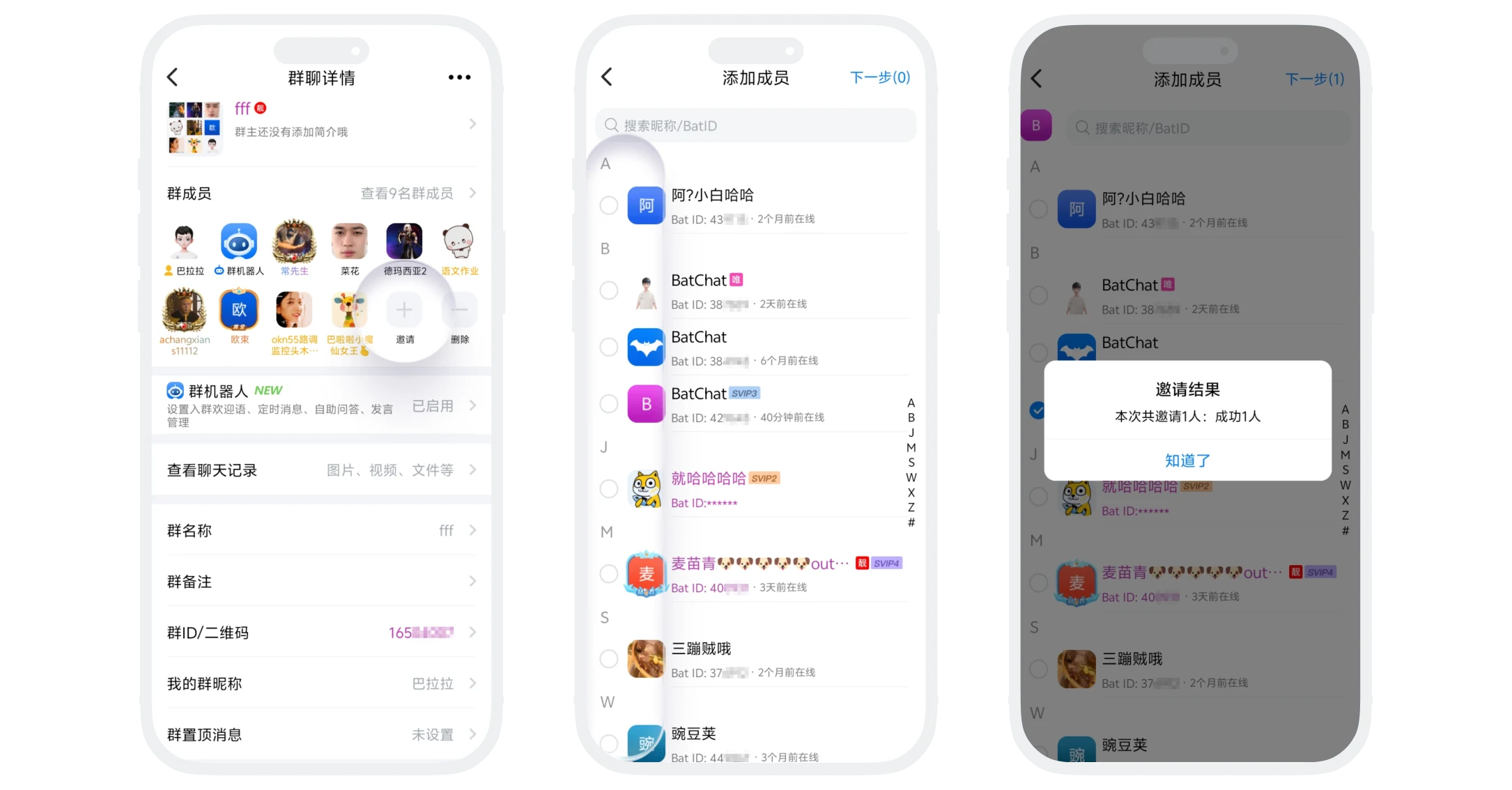
Method 2: Share Group QR Code Invitation
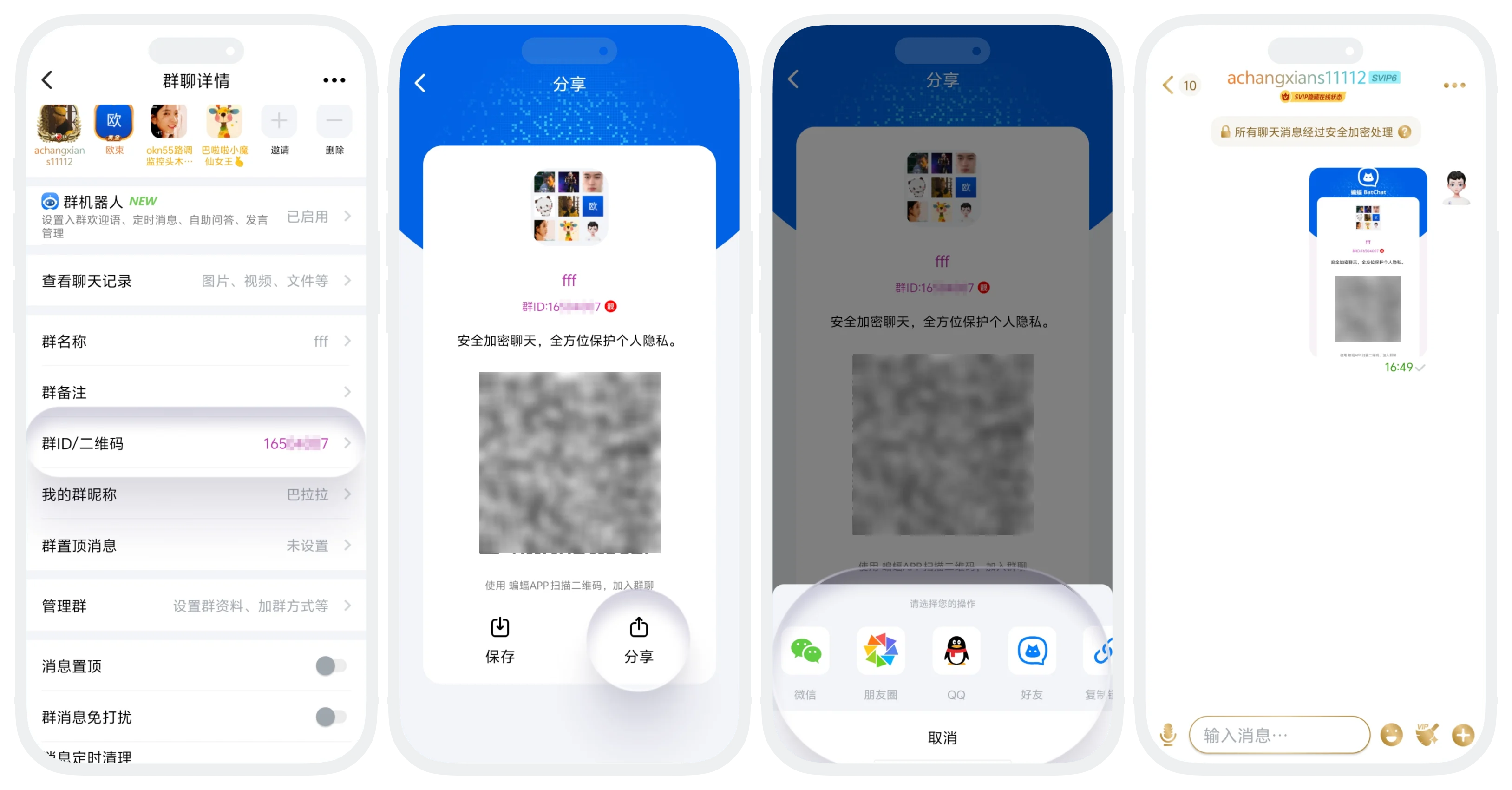
- Operation permissions: All group members can share;
- Invitation process: All group members enter the group details page, click 'Group QR Code/ID', select 'Share', share the group QR code image to friends/group chats in BatChat or other applications. The other party uses the BatChat APP to scan the code to apply to join the group chat.
Method 3: Share Group Business Card Invitation
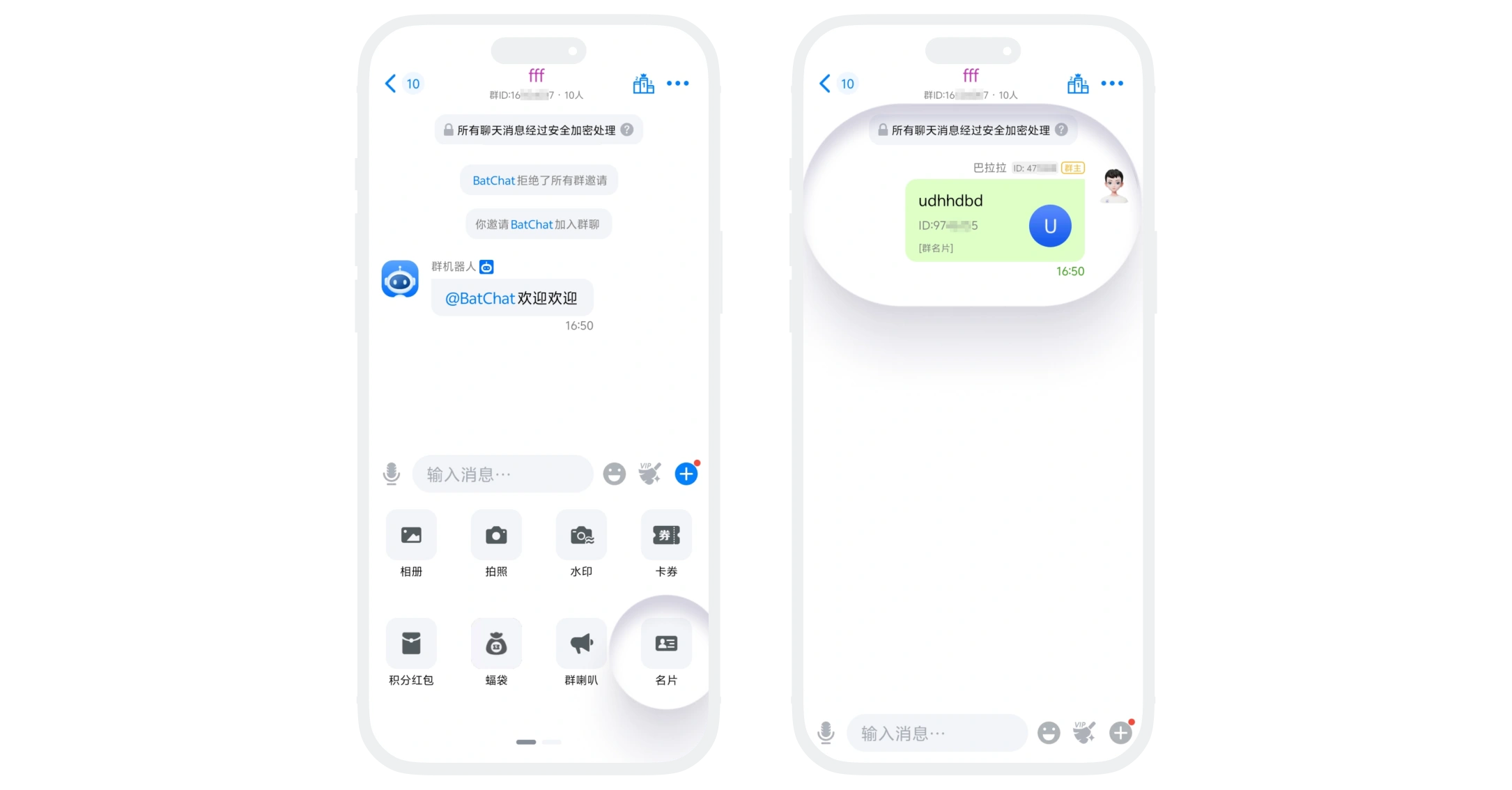
- Operation permissions: All group members can share;
- Invitation process: Enter the session page to be shared, click '+' at the bottom of the page, select 'Business Card', select the group chat you want to share and send to the session. The other party clicks the group business card to apply to join the group chat.

Common reasons for failing to invite friends to the group:
- The other party has reached the limit of group joins;
- The other party has been added to the group blacklist;
- The other party prohibits anyone from inviting them to groups;
- Does not meet join conditions (reputation value, membership level, etc.);
- Not friends with the other party;
- This group has prohibited group members from inviting friends to join.
Remove Members
- Operation permissions: Only group owners and administrators can remove;
- Removal types and operation steps:
- Single removal: On the chat page or group member list, click the member's avatar, click 'Remove from Group';
- Batch removal: Enter the group chat details page, click to enter the group member list, click 'More' in the upper right corner - 'Delete Members', select the members to remove, click 'Next';
- Remove and blacklist: On the chat page or group member list, click the member's avatar, click 'Add to Blacklist';
- Effects after removal:
- Member automatically exits the group chat;
