Mute Management
The group chat mute function is a core management tool for maintaining group chat order, supporting flexible mute settings for different members and conditions, helping administrators effectively manage the speaking order within the group and reduce干扰and违规behavior. Mute types include:
- All Members Mute: Mute all members in the group, but excluding administrators. Can be manually enabled or set to automatically mute all members during specified time periods;
- Conditional Mute: Set mute conditions, members meeting these conditions are automatically muted (e.g., members with reputation value below 0);
- Single Member Mute: Set mute status for a single member and set mute duration.
All Members Mute
- Setting permission: Only group owner can operate;
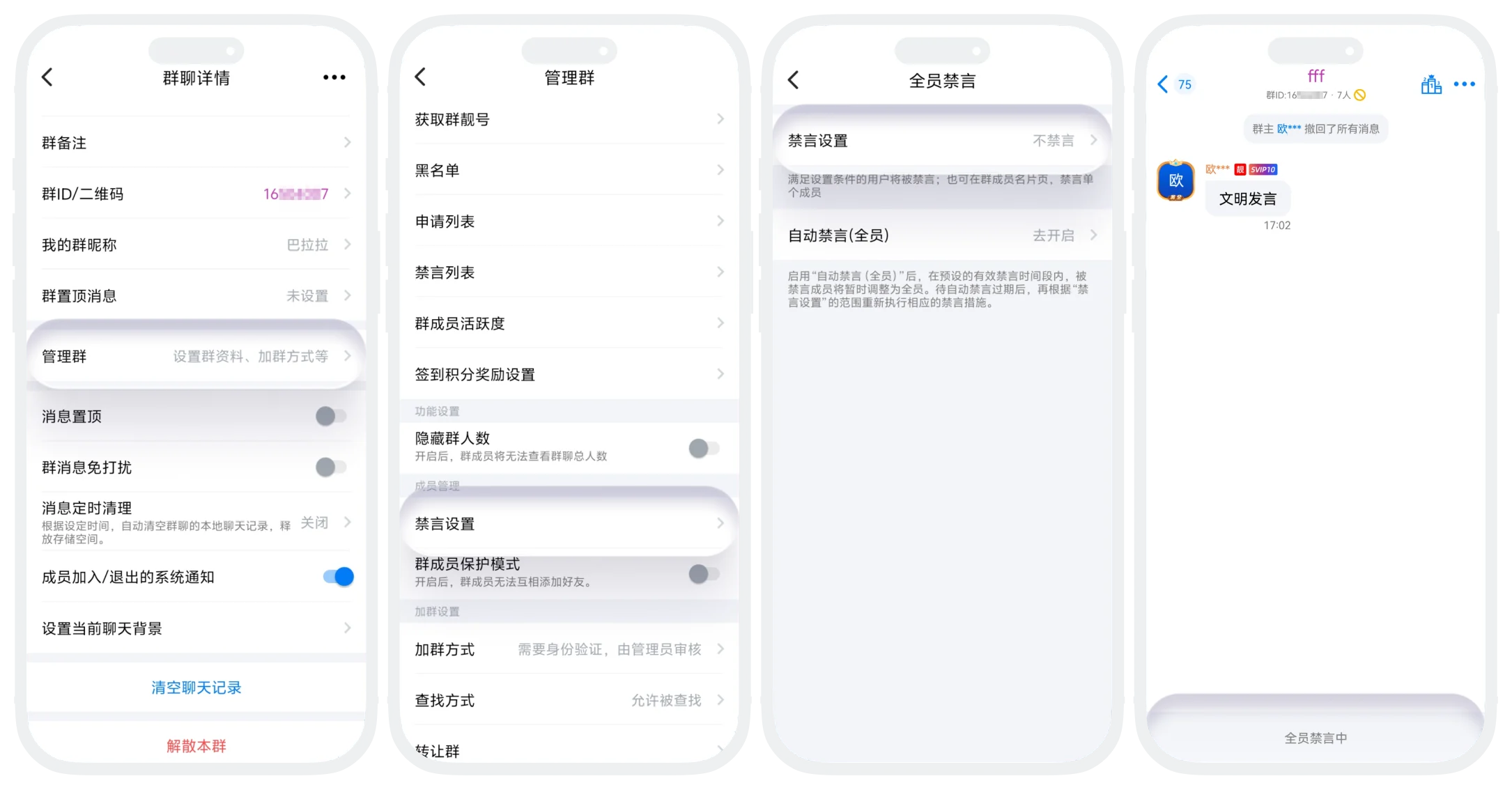
- Immediately Enable All Members Mute:
- Enter the group details page, click "Manage Group", enter the "Mute Settings" page, click "Mute Settings", select "All Members Mute", click "Confirm";
- All members in the group will be unable to send messages, but administrators are excluded and can send messages normally.
- Set Automatic All Members Mute:
- Enter the group details page, click "Manage Group", enter the "Mute Settings" page, click "Automatic Mute (All Members)";
- Set mute start time and end time, precise to the minute;
- Advanced settings:
- Recall All Messages: When automatic mute time arrives, the system automatically recalls all messages in the group (messages on all members' devices are recalled);
- Automatically Send Group Message: Can set a custom message (text message) that will be automatically sent by the system after automatic mute is enabled;
- After setting is complete, click "Enable Automatic Mute", the system will start all members mute within the set time.
Conditional Mute
- Setting permission: Only group owner can operate;
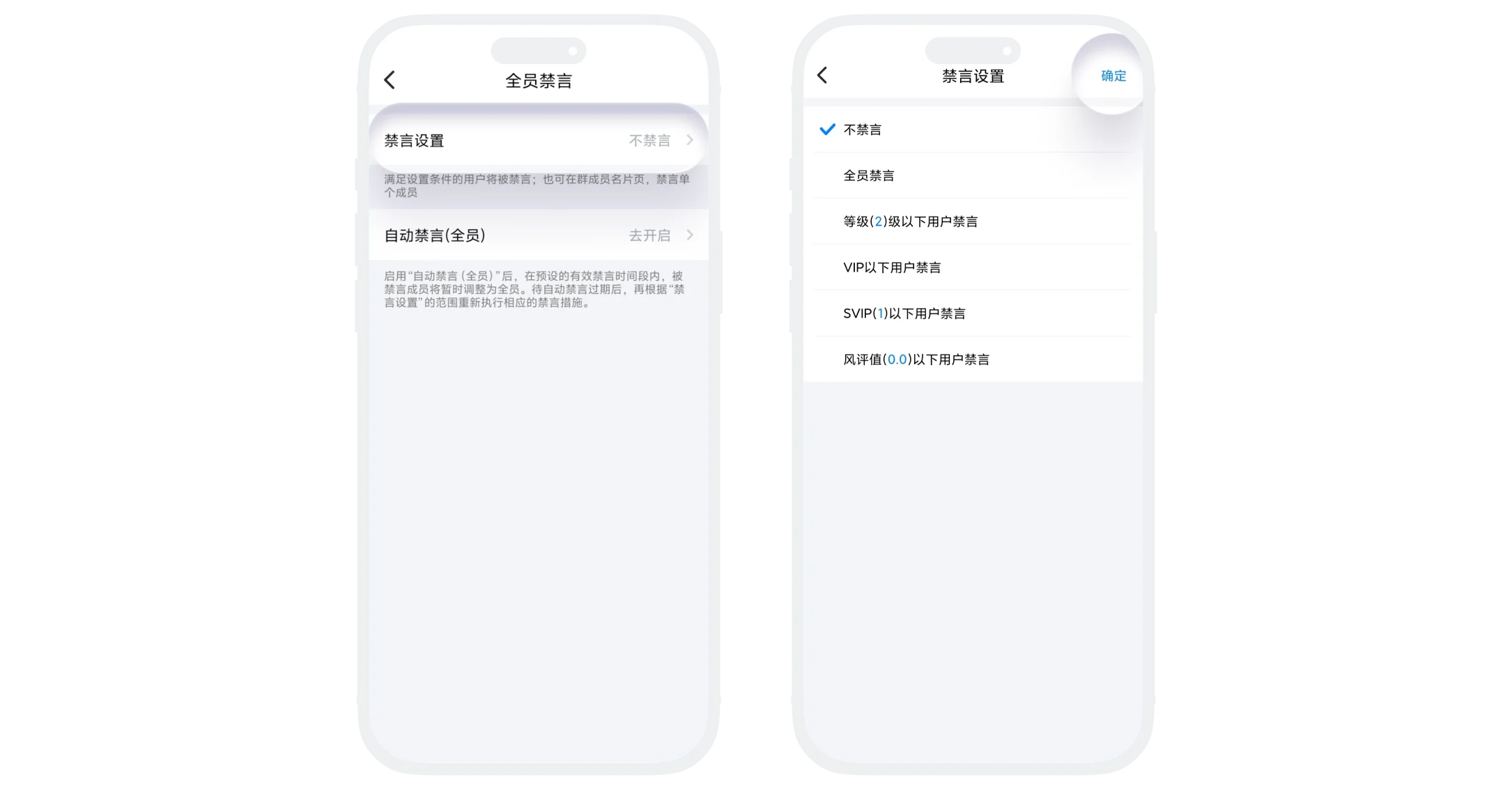
- Enter the group details page, click "Manage Group", enter the "Mute Settings" page, click "Mute Settings", select and set mute conditions;
- No Mute: Turn off mute, all members can speak normally;
- All Members Mute: Except for group owner and administrators, all members cannot speak;
- Mute Users Below Level(X): x is the user's BatChat level, members below the set level cannot speak;
- Mute Users Below VIP: Non-VIP members cannot speak;
- Mute Users Below SVIP(x): x is SVIP level (range: 1-11), users below the set level cannot speak;
- Mute Users Below Reputation Value(x): x is the user's BatChat reputation value, users below the set value cannot speak;
- After setting is complete, click "Confirm", the system will automatically mute members meeting the mute conditions.
Single Member Mute
- Setting permission: Both group owner and administrators can operate;
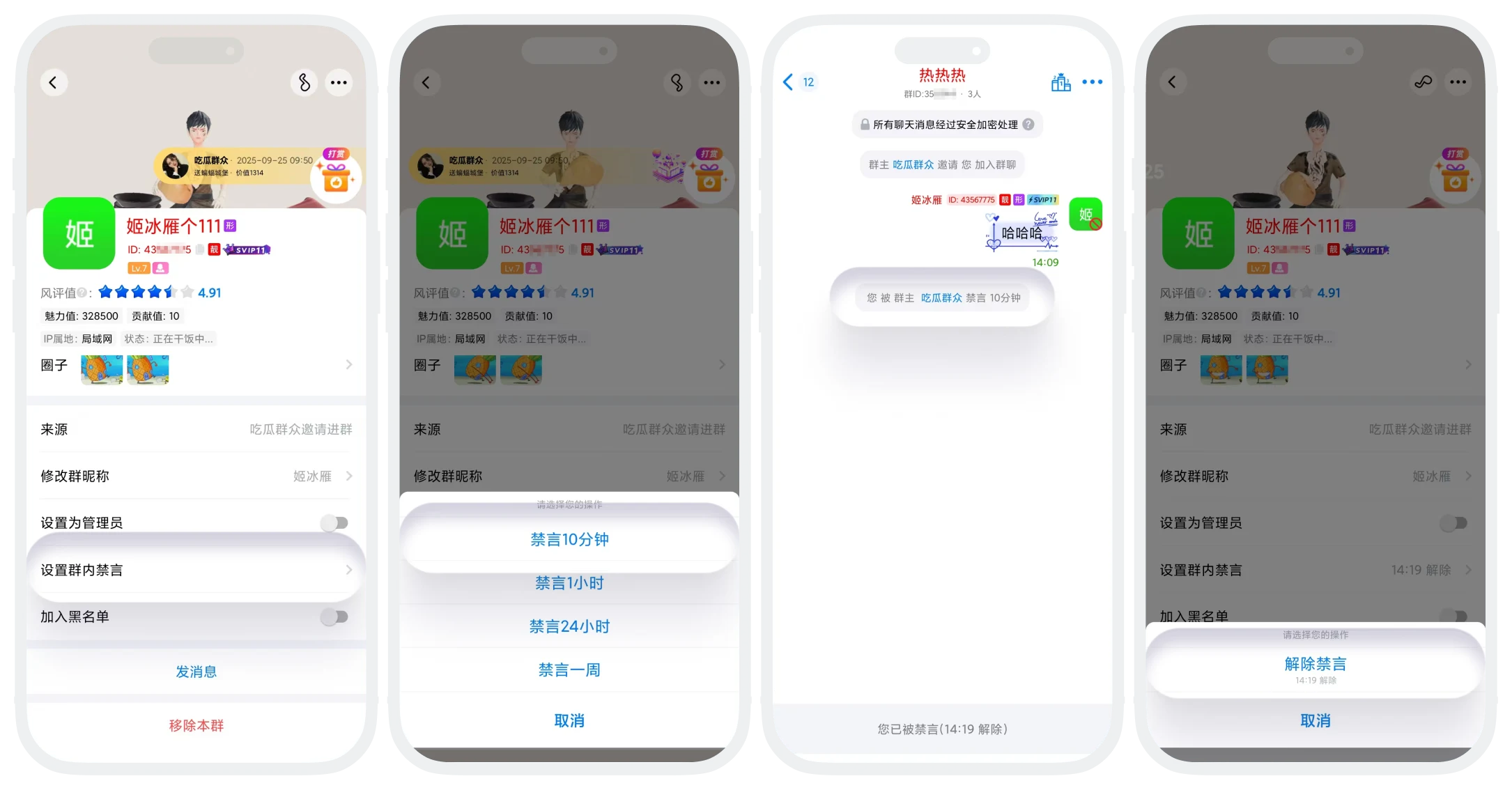
- Enable Single Member Mute:
- On the group chat page or group member list, click the member's avatar to enter the member details page, click the "Set Group Mute" button;
- Select mute duration: 10 minutes, 1 hour, 24 hours, 1 week;
- After selecting the duration, mute takes effect immediately. This member cannot speak in the group within the specified time;
- Disable Single Member Mute:
- Method 1: When the set mute time arrives, the system automatically lifts the member's mute status;
- Method 2: Enter the member's profile page, the "Set Group Mute" row will display the user's mute lift time, click this row, select "Lift Mute", to immediately lift the member's mute status;
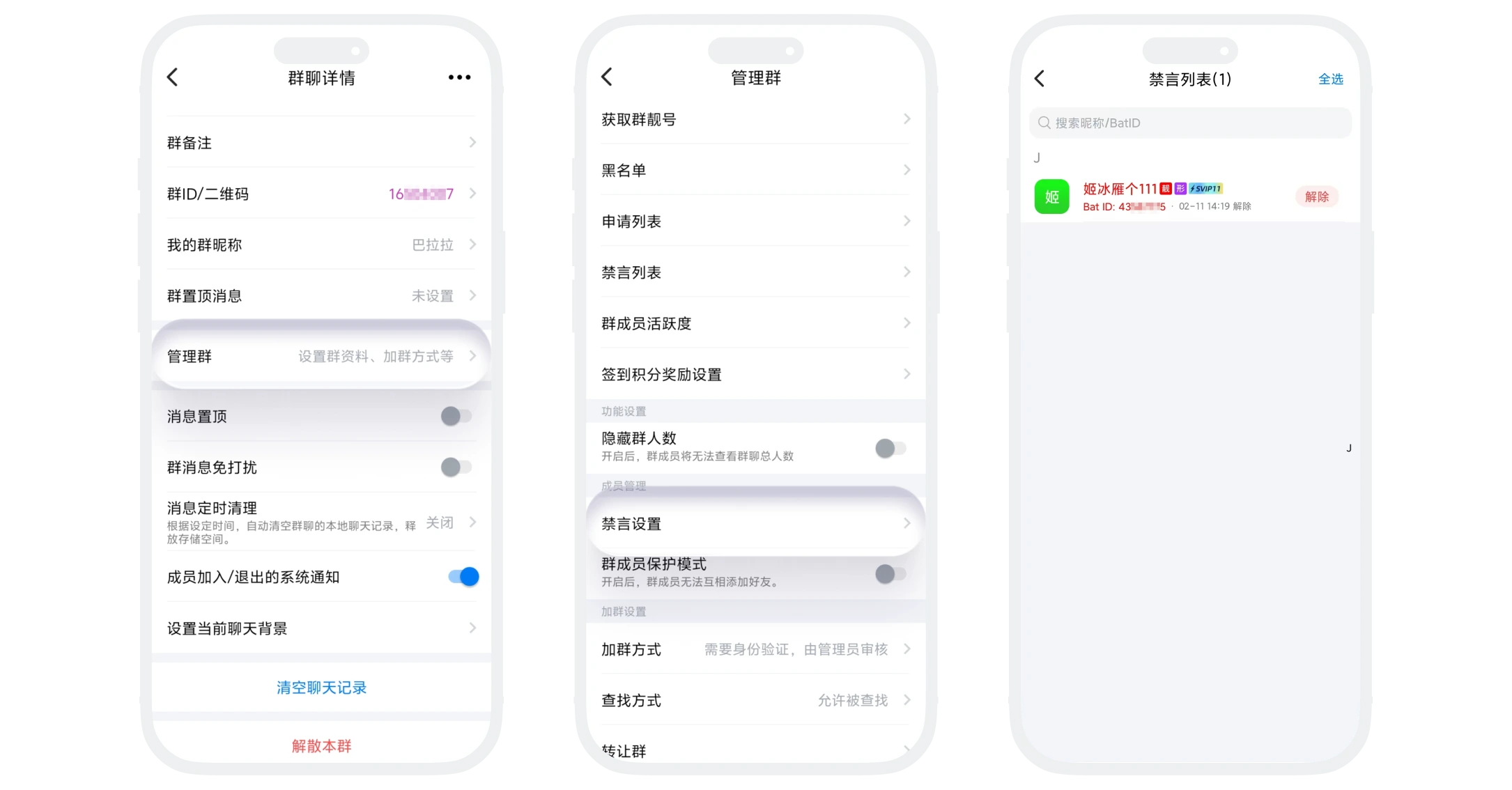
- Method 3: In "Group Details" - "Manage Group" - "Mute List", can view all muted members in this group and batch lift mute status.

Tip: Members muted due to违规speech by the group bot can also have their mute lifted through the above methods.
FAQ
Yes. Except for not being able to speak normally, other functions can be used normally.
Was this page helpful?
