Group Settings
The group chat general settings function provides all group members with personalized group chat management options, covering commonly used settings such as nickname modification, message notifications, and chat history management, helping members optimize their group chat usage experience according to their own needs.
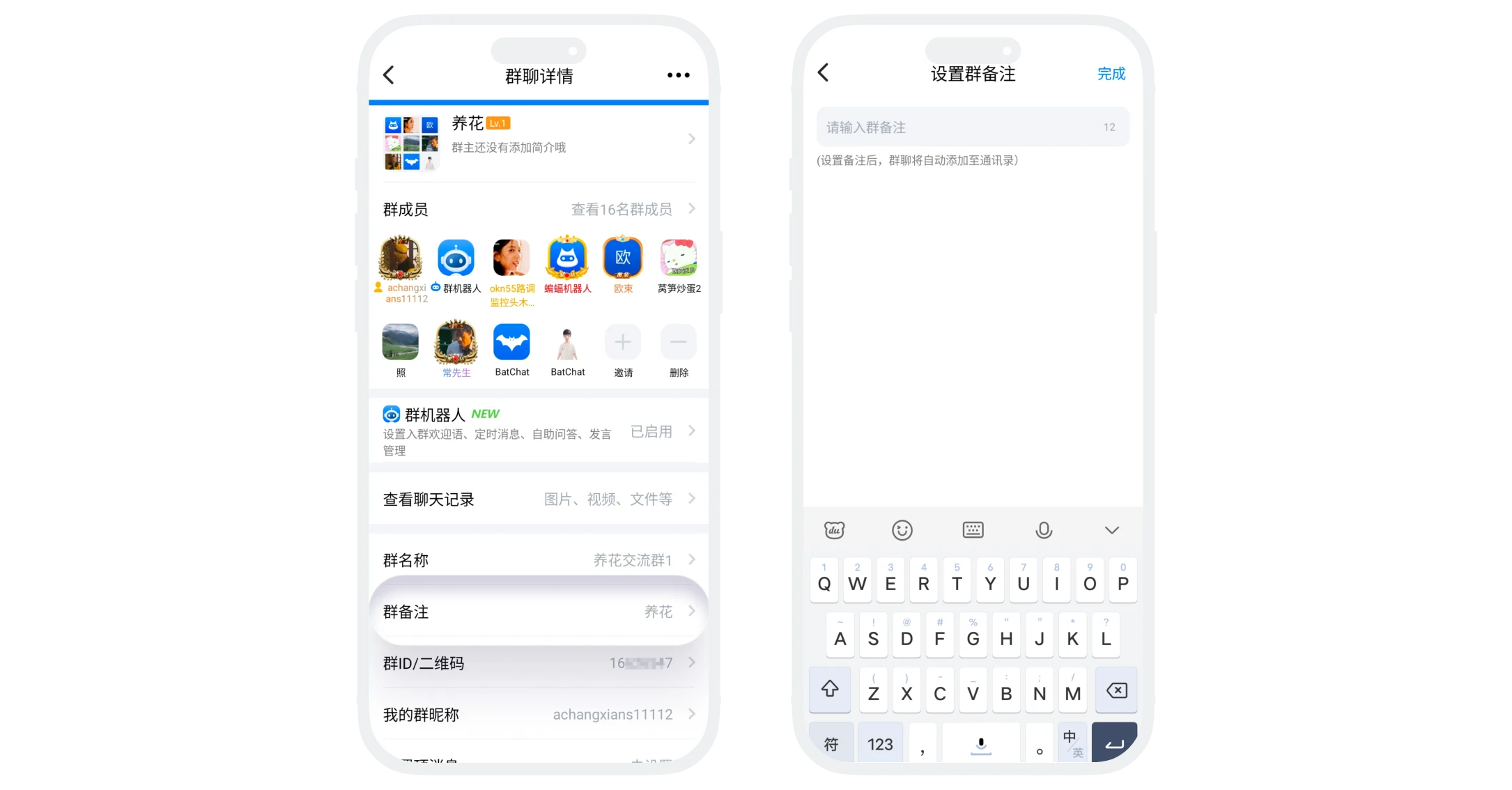
Set Group Note
- Function Description: Set a note name for the current group chat that is only visible to yourself, facilitating quick identification in multi-group environments;
- Setting Entry: Click "Group Note" on the group chat details page to enter the setting page;
- Rule Restrictions:
- Maximum 12 characters;
- Only visible to yourself, does not affect the actual group chat name and other members;
- Can be modified or cleared at any time.
Set My Group Nickname
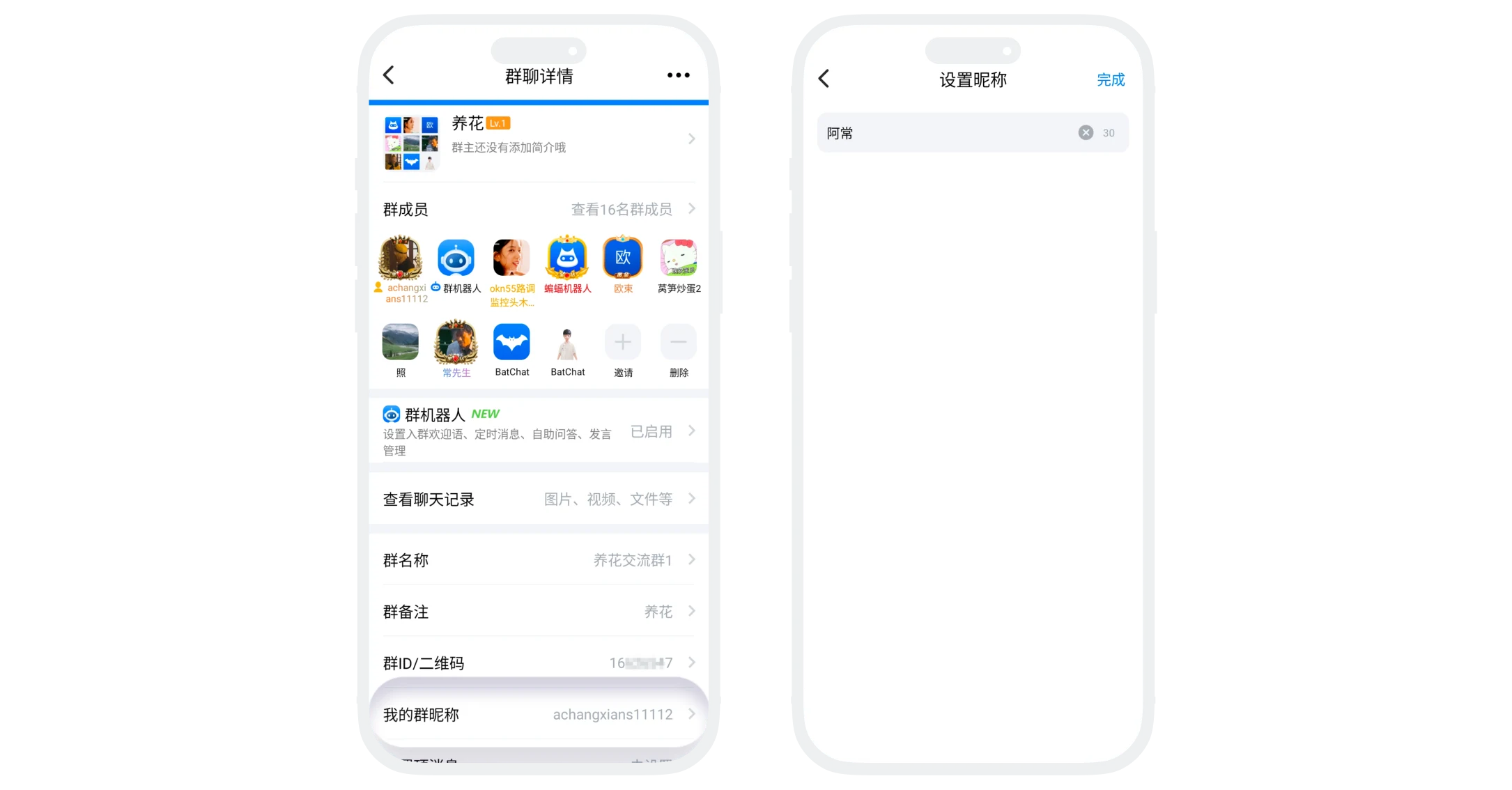
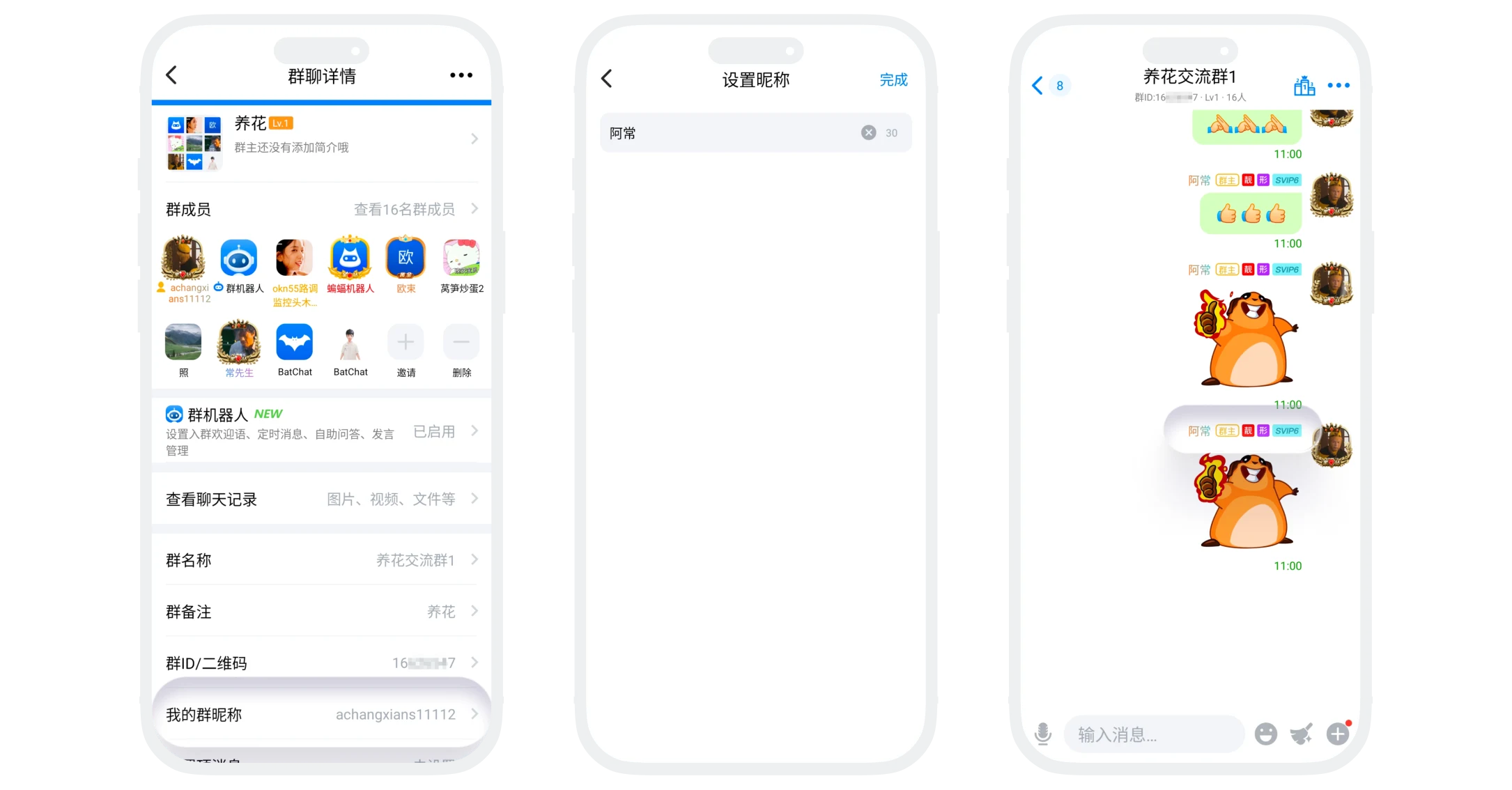
- Function Description: Set the nickname you display in this group, which can be different from your user nickname;
- Setting Entry: Click "My Group Nickname" on the group chat details page to enter the setting page;
- Rule Restrictions:
- Self-modification: All members can modify their group nickname at any time;
- Administrator modification: Group owners and administrators can modify any regular member's group nickname;
- Nickname rules: Supports Chinese, English, numbers, and common symbols, no more than 32 characters;
- Display Effect: After modification, all messages, lists, @ mentions, etc. in this group will display this nickname.
Pin Group Message
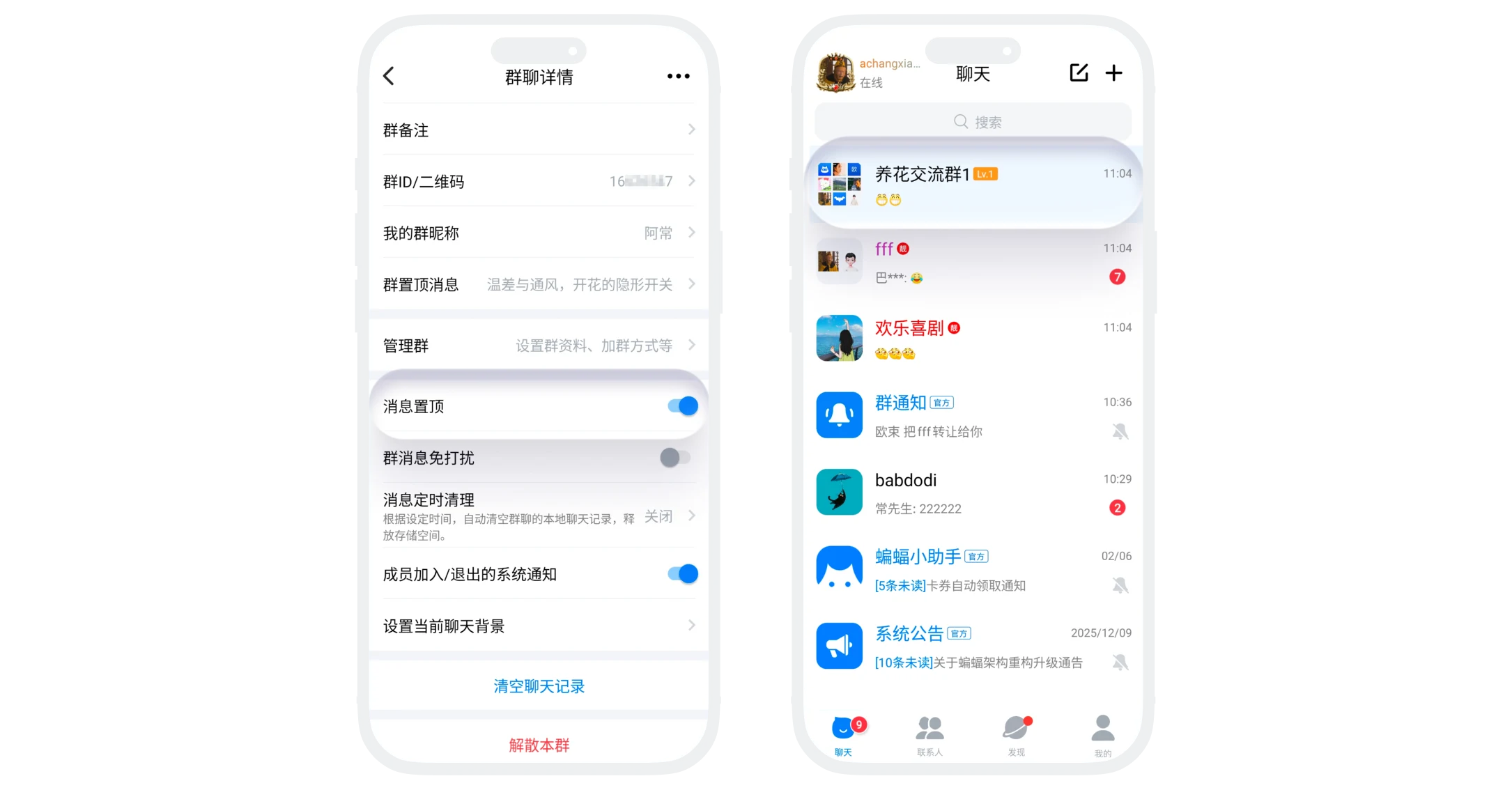
- Function Description: Pin this group conversation to the top of the message list for quick access;
- Setting Entry: Enable the "Pin Message" switch on the group chat details page, turn off the switch to cancel pinning;
- Rule Restrictions: Can pin multiple group chats simultaneously, arranged in reverse order of pinning time.
Group Message Do Not Disturb
- Function Description: After enabling, new messages in this group will not alert, ring, or vibrate, but can still be received normally;
- Setting Entry: Enable the "Group Message Do Not Disturb" switch on the group chat details page, turn off the switch to cancel do not disturb;
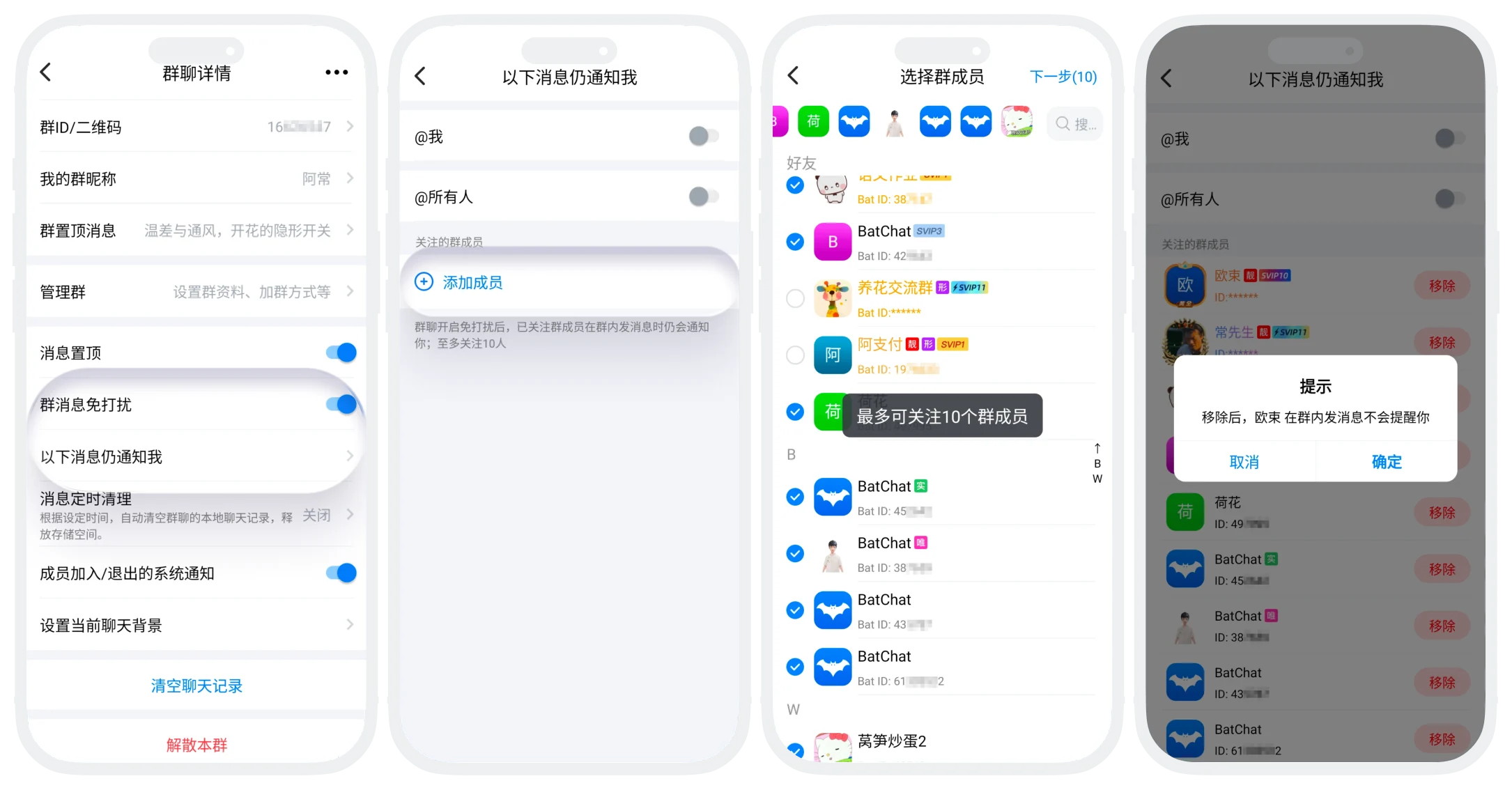
- Special Notification Settings (can be set after enabling do not disturb to still notify for the following messages):
- @Me: When a member @s you, still send notification;
- @Everyone: When there is @all members, still send notification;
- Followed Member Speech: Can follow up to 10 members, still send notification when they speak (add/remove followed members in "Group Details" - "Still Notify Me for the Following Messages" page, limit 10 people).
Member Change Notification Switch
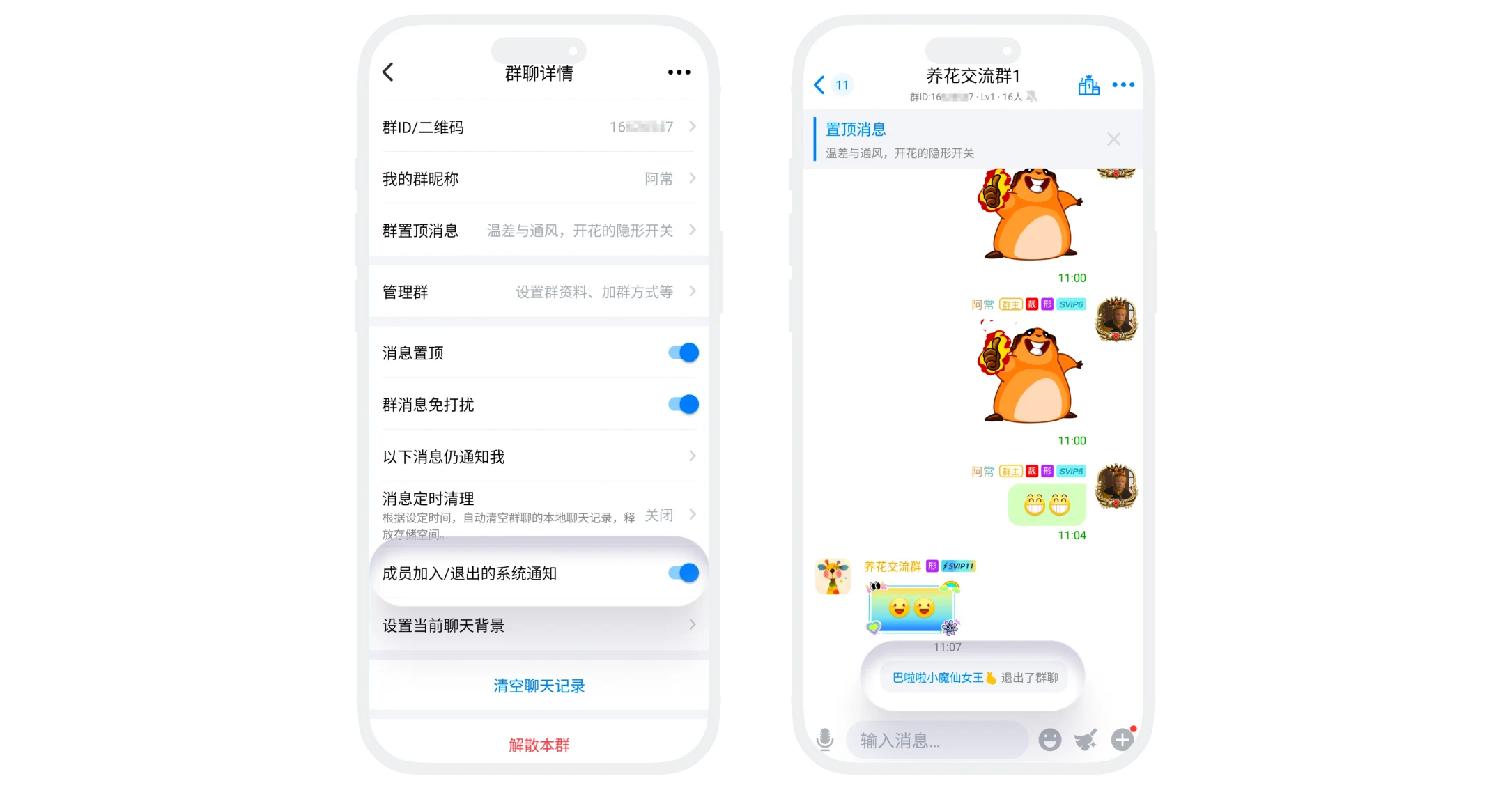
- Function Description: Control whether to receive system prompt messages for "member joined/left group chat";
- Setting Entry: On the group chat details page, enable the "System Notification for Member Join/Exit" switch;
- Enable: Normally receive system prompts for member entry and exit from group chat;
- Disable: No longer display such system messages, chat interface is more concise;
- Note: This setting only affects the display of prompt messages, does not affect actual member changes.
Set Group Chat Background
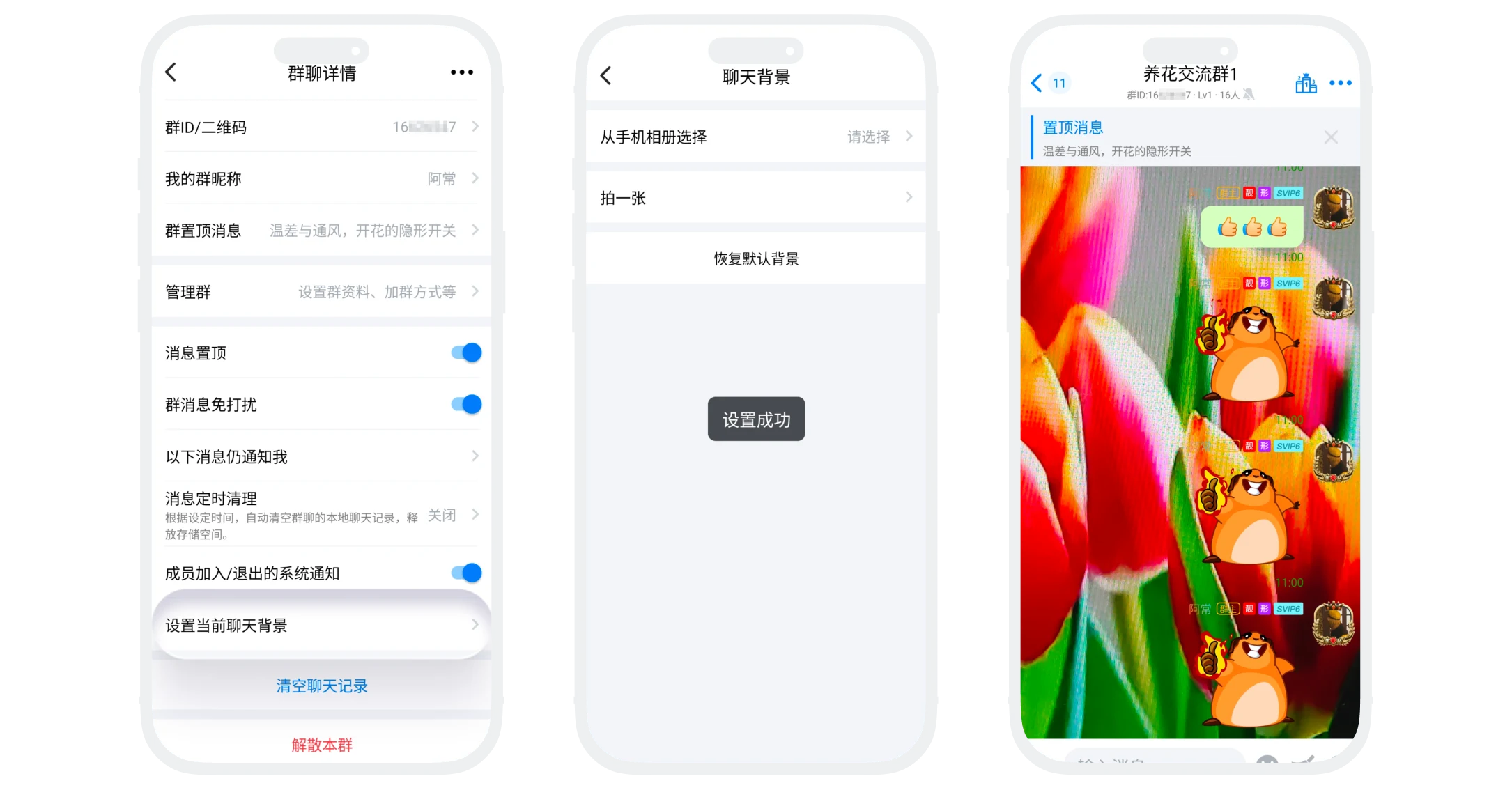
- Function Description: Customize the chat background image for the current group chat;
- Setting Entry: On the group chat details page, click "Set Current Chat Background" to set, supporting the following setting methods:
- Select custom image from phone album;
- Take a photo in real-time and set as background;
- Restore to system-provided default background;
- Display Scope: Only effective for yourself, does not affect other members' interfaces.
Clear Group Chat History
- Function Description: Delete all local chat history of this group chat;
- Setting Entry: On the group chat details page, click "Clear Chat History" at the bottom of the page;
- Notes:
- Only deletes local records, does not affect server and other members' chat history;
- Cannot be recovered, please confirm before operation;
- After clearing, the group chat is still retained, can continue to receive new messages.
