Membership Function Settings
Membership function settings is a personalized function setting module specially provided for VIP, SVIP, and Honor Members. Users can enable or configure a series of exclusive privileges according to their membership level, covering identity identification, privacy protection, interactive experience, service priority, and other aspects, creating a safer, more comfortable, and more identity-showcasing usage environment.
Function Entry
Entry 1: "BatChat Mall" - "Member Center", click "Membership Function Settings" at the bottom;
Entry 2: "My" - "Settings" - "Membership Function Settings";
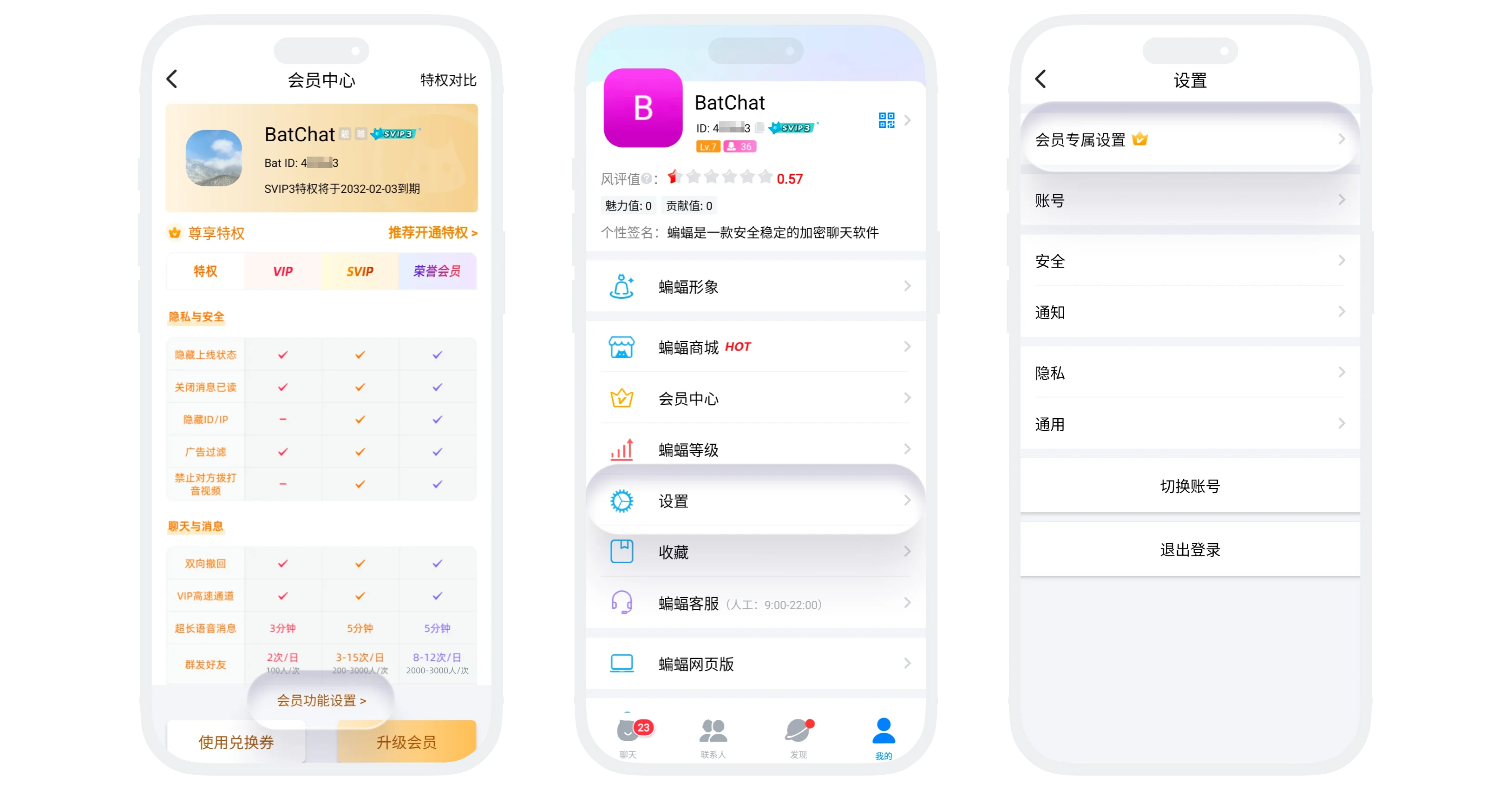
Identity Identification and Personalization Settings
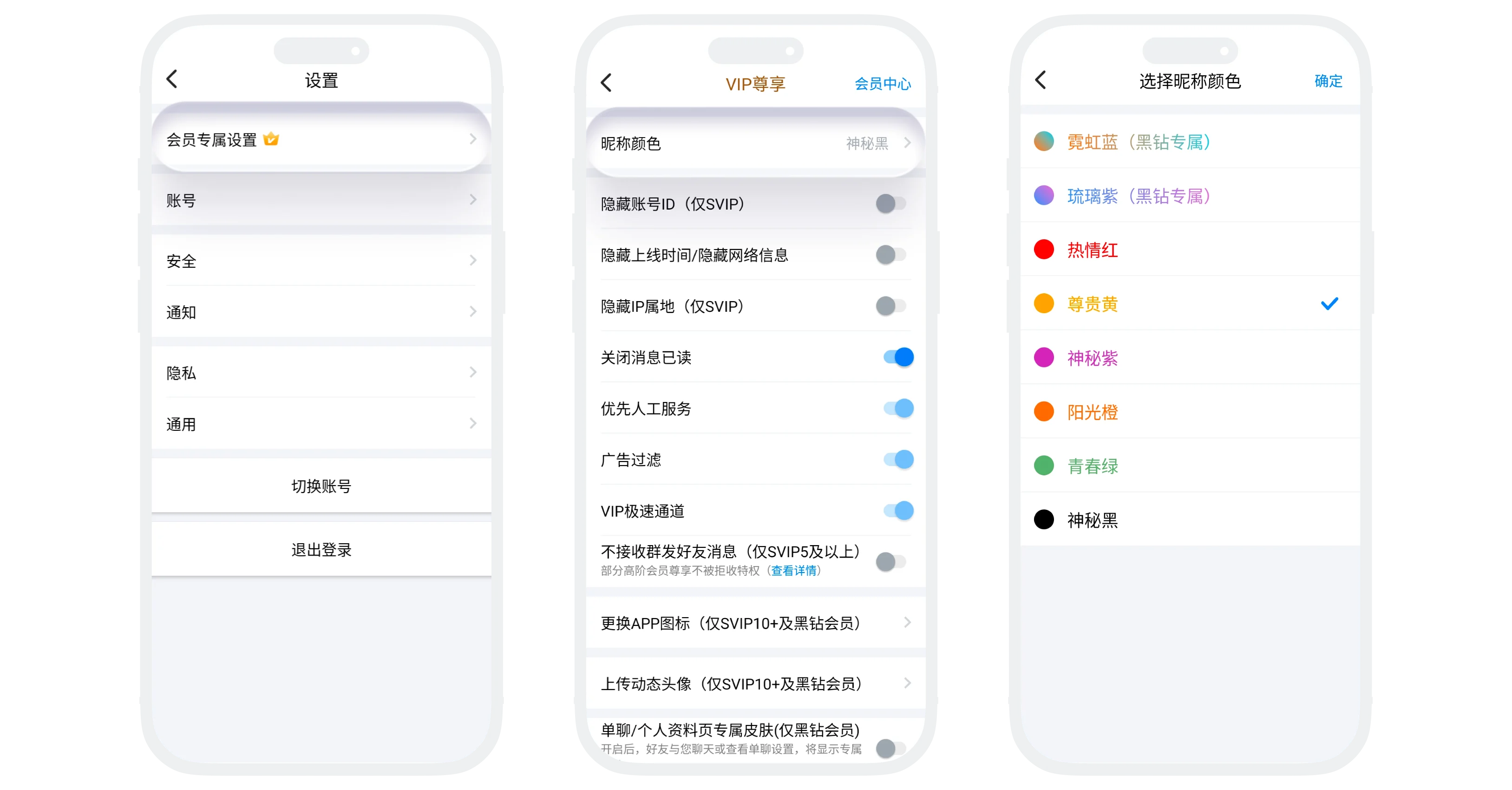
Nickname Color
- Function Introduction: Can customize nickname color. After setting, user nickname and ID will display this color;
- Usage Restrictions: VIP, SVIP1-11, Honor Members can all use, but some colors are exclusive to Black Diamond Members;
- Setting Process:
- Click "Nickname Color" on the membership function settings page;
- Select the color to use, click "Confirm".
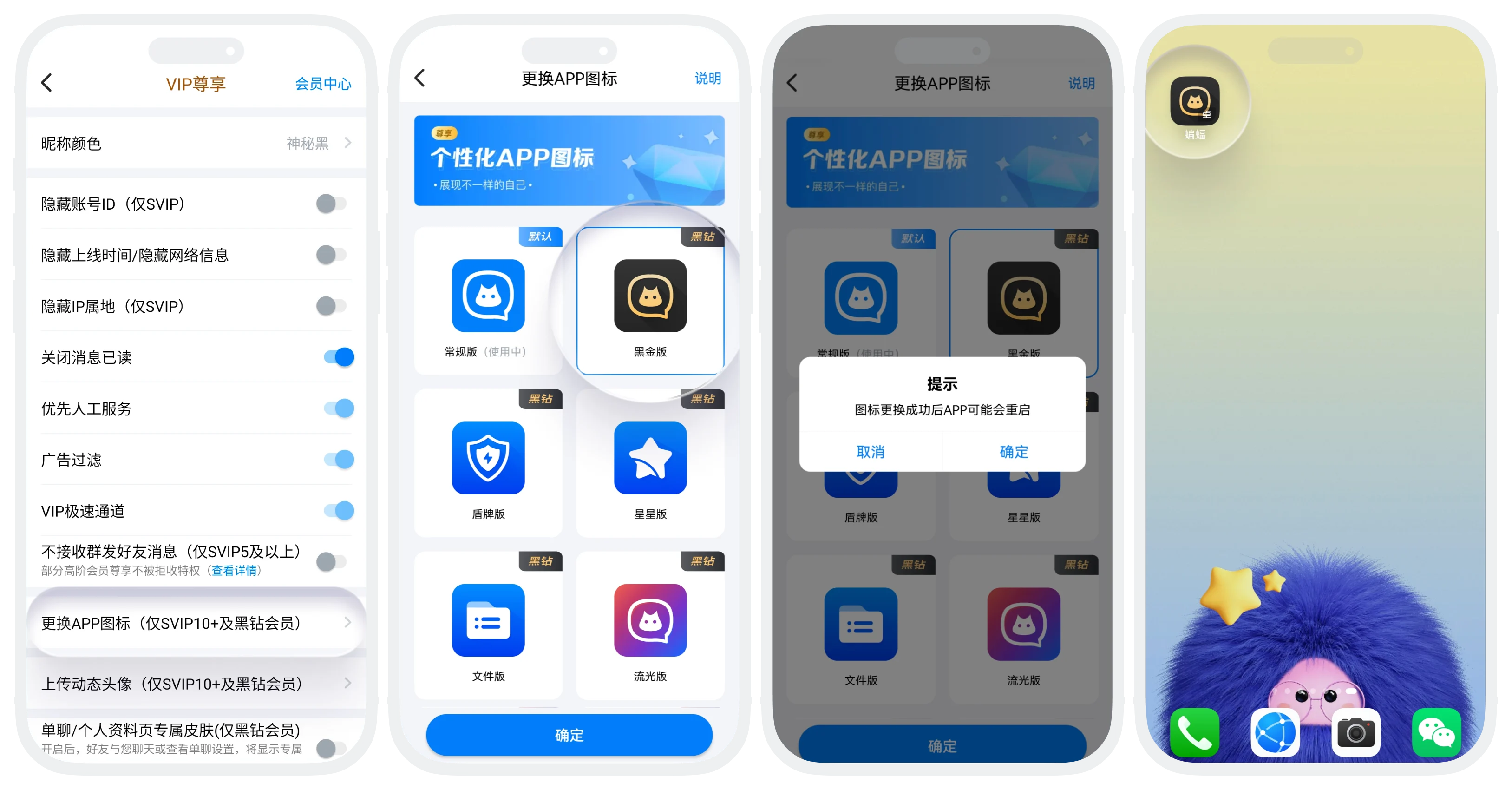
Change APP Icon
- Function Introduction: Can change the BatChat app icon on the phone desktop;
- Usage Restrictions: Only SVIP10+ and Black Diamond Members available;
- Setting Process:
- Click "Change APP Icon" on the membership function settings page;
- Select the icon to use, click "Confirm". After changing, some devices may restart the APP.
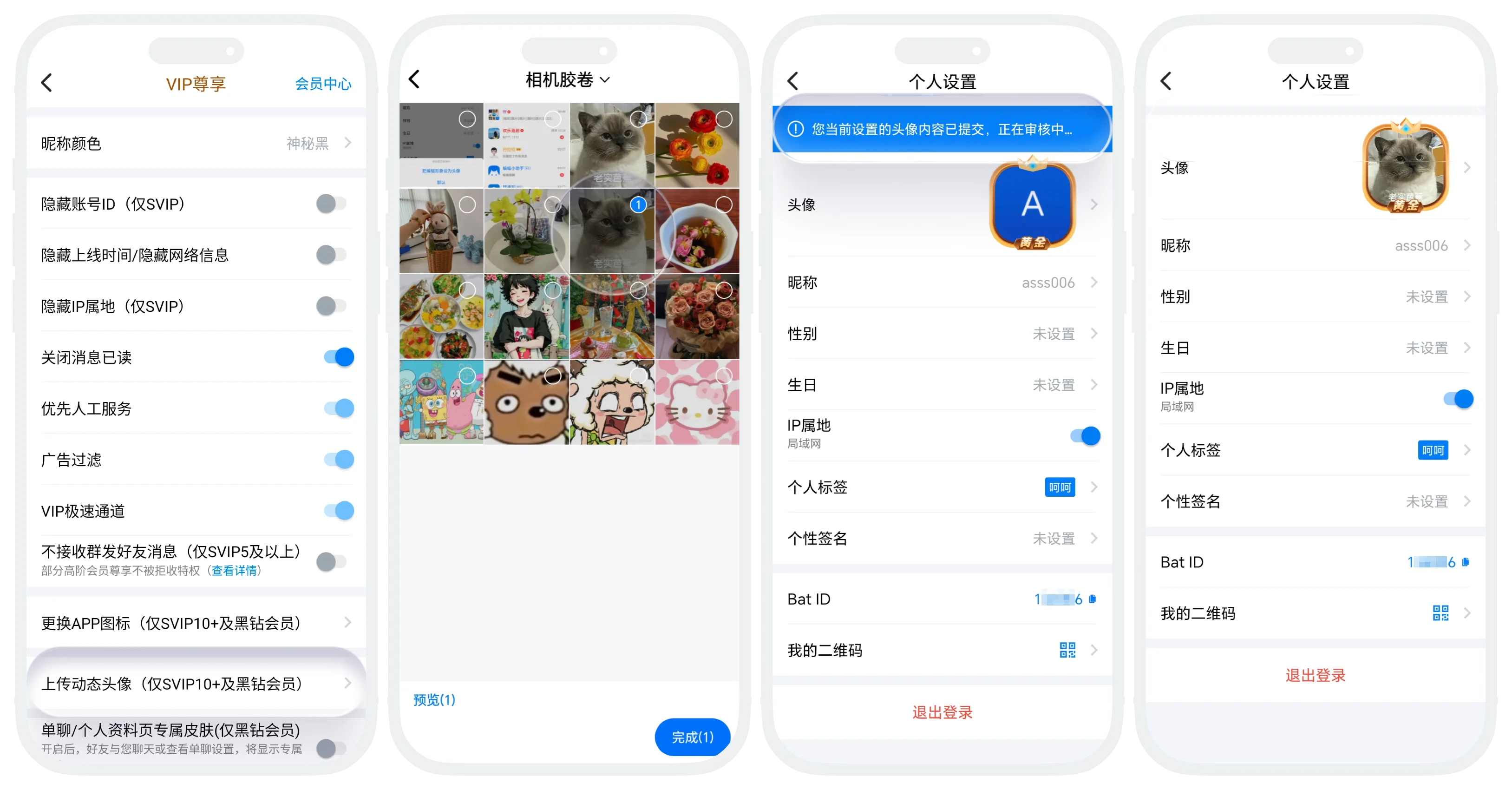
Upload Animated Avatar
- Usage Restrictions: Only SVIP10+ and Black Diamond Members available;
- Setting Process:
- Click "Upload Animated Avatar" on the membership function settings page;
- Select avatar image from local album (note image size does not exceed 5M), click "Complete";
- Uploaded avatar will take effect immediately after passing review.
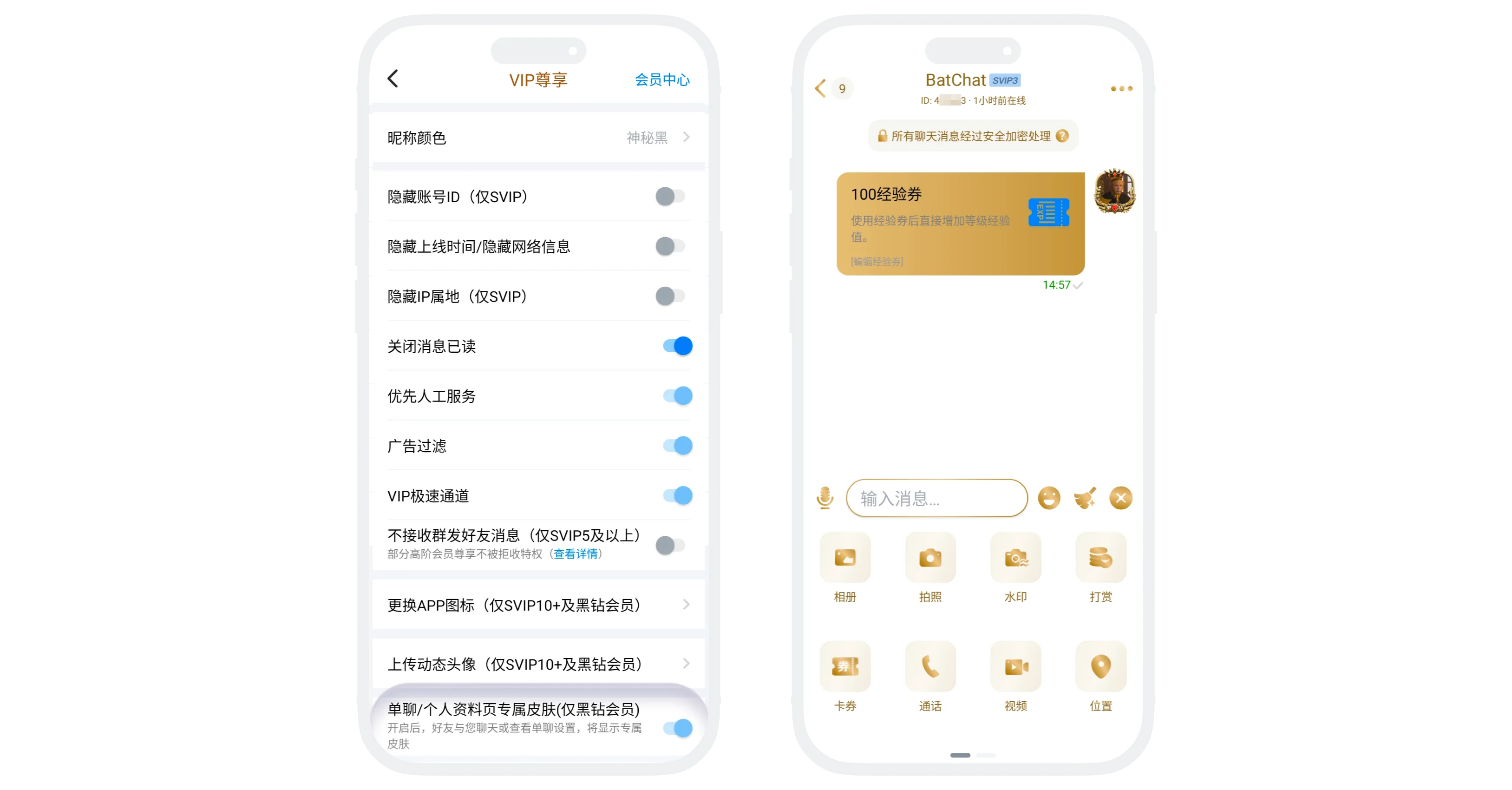
Exclusive Chat Skin
- Function Introduction: Can use exclusive skin in one-on-one chats and personal profile pages. Friends will see this unique interface when interacting with you;
- Usage Restrictions: Only Black Diamond Members;
- Setting Process: After activating Black Diamond Member, exclusive skin is enabled by default. Can find "One-on-One Chat/Personal Profile Page Exclusive Skin" on the membership function settings page to turn off exclusive skin.
Privacy and Information Security Settings
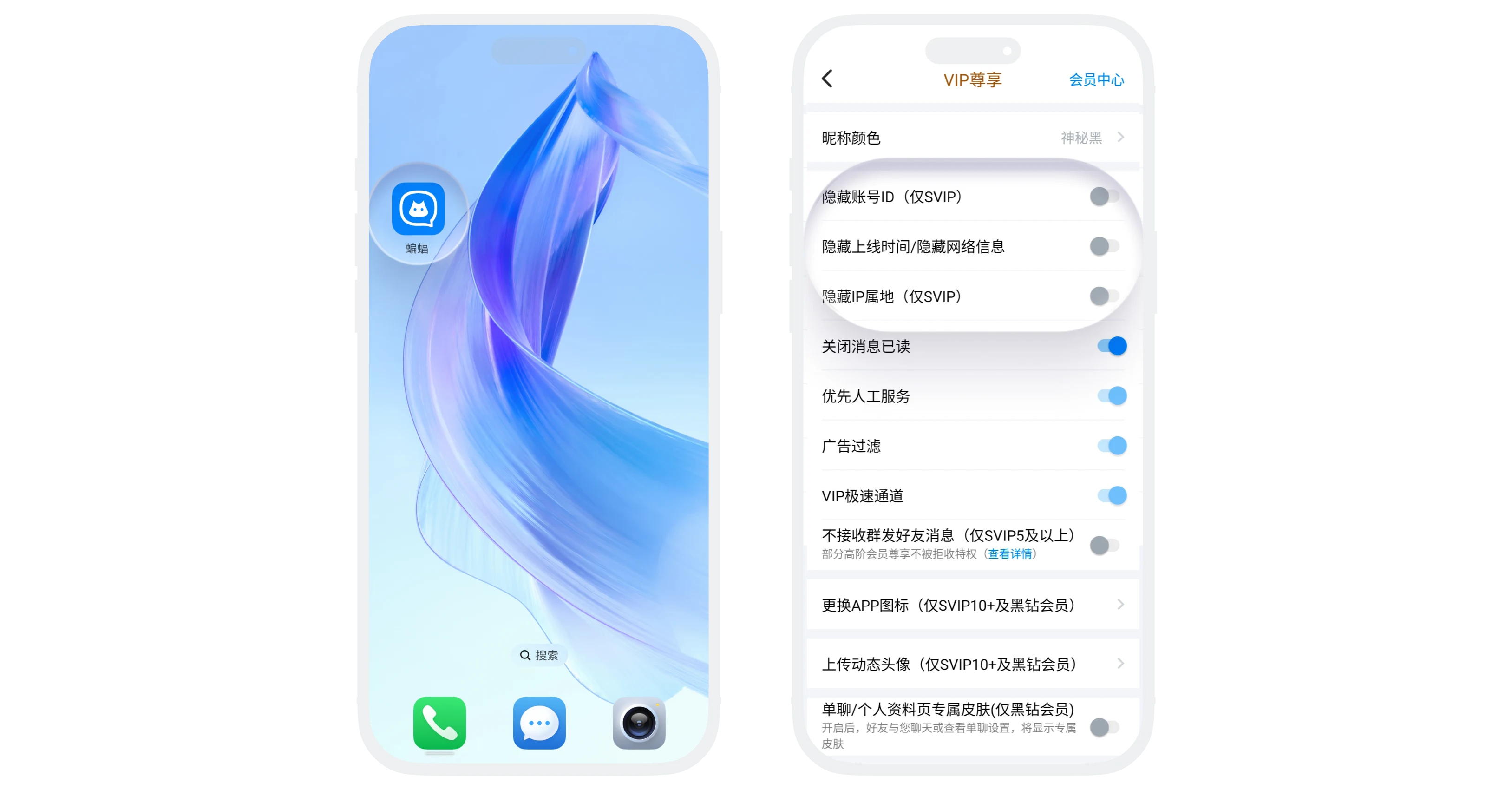
Hide Account ID/Online Time/IP and Other Information
- Function Introduction: Hide your ID, last online time, IP, and other information from other users;
- Usage Restrictions: SVIP and above members available;
- Setting Process: Find "Hide Account ID", "Hide Online Time", "Hide IP", and other functions on the membership function settings page, turn on the switch.
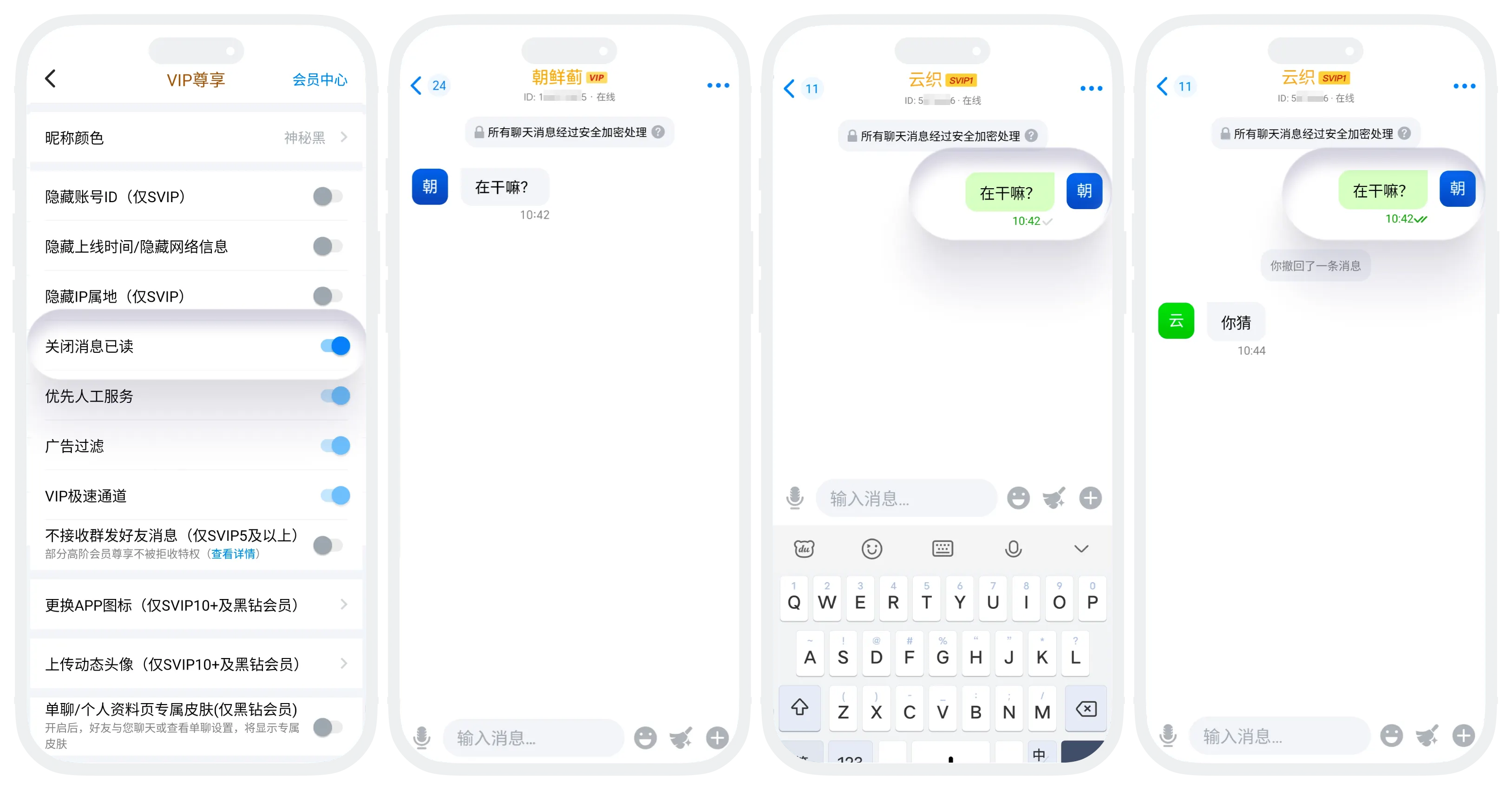
Turn Off Message Read Receipt
- Function Introduction: Can independently choose whether to display your message reading status to chat partners;
- Usage Restrictions: VIP and above members;
- Setting Process: Find "Turn Off Message Read Receipt" on the membership function settings page, turn on the switch;
- Enable Effect: Messages sent to me by the other party will always display as unread until I reply to the other party, then the message will automatically change to read.
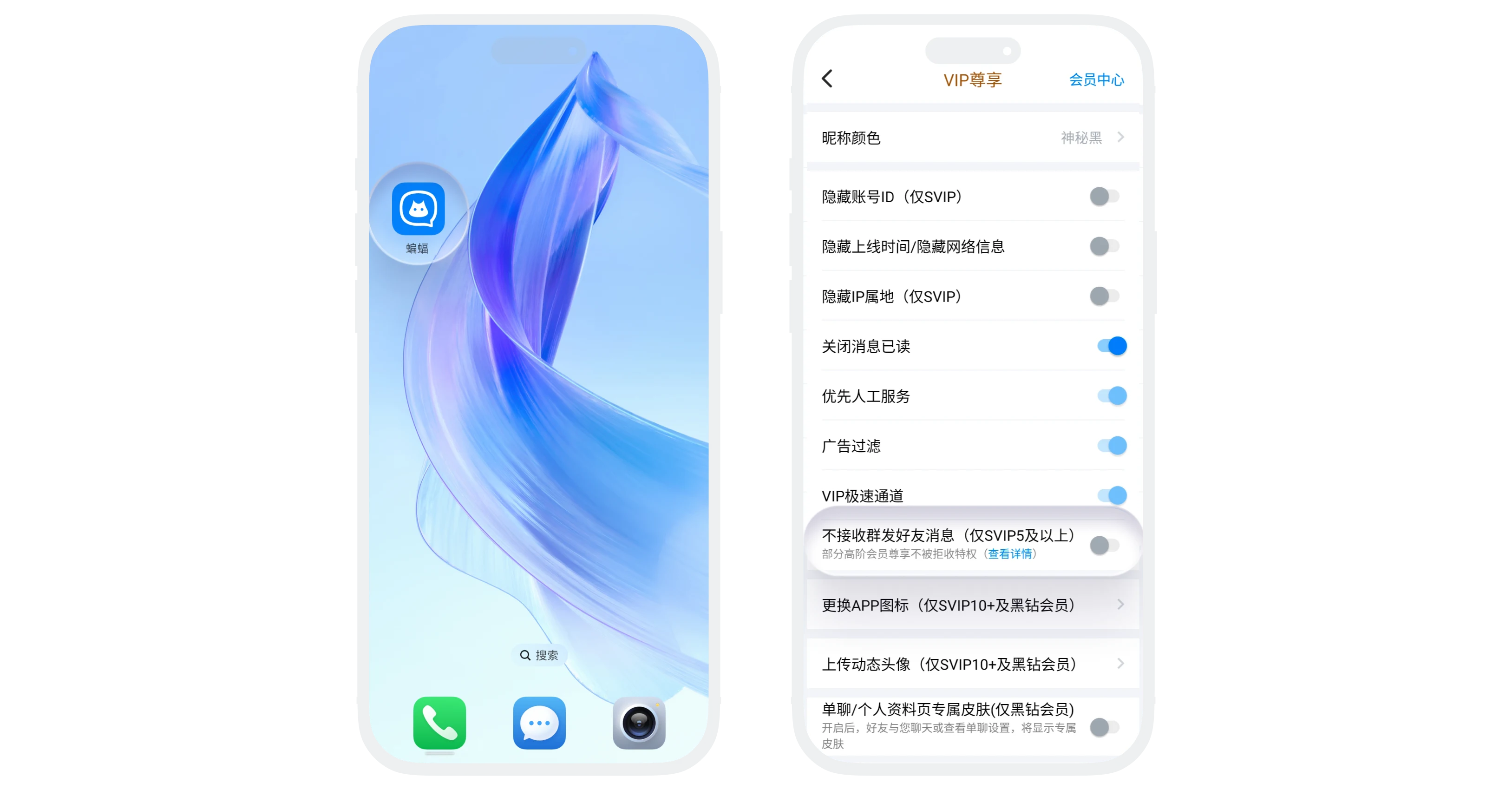
Do Not Receive Mass Friend Messages
- Function Introduction: After enabling, will no longer receive mass messages from friends (does not affect normal private chat message reception);
- Usage Restrictions: SVIP5 and above members (including all Honor Members);
- Setting Process: Find "Do Not Receive Mass Friend Messages" on the membership function settings page, turn on the switch;
- Note: Black Diamond Members enjoy the privilege of mass messages not being rejected (can still send mass messages to users who have enabled the rejection function):
- If the other party is not a Black Diamond Member -> The other party cannot reject;
- If the other party is a Black Diamond Member:
- Their SVIP level ≤ Your SVIP level -> The other party cannot reject;
- Their SVIP level > Your SVIP level -> The other party can reject.
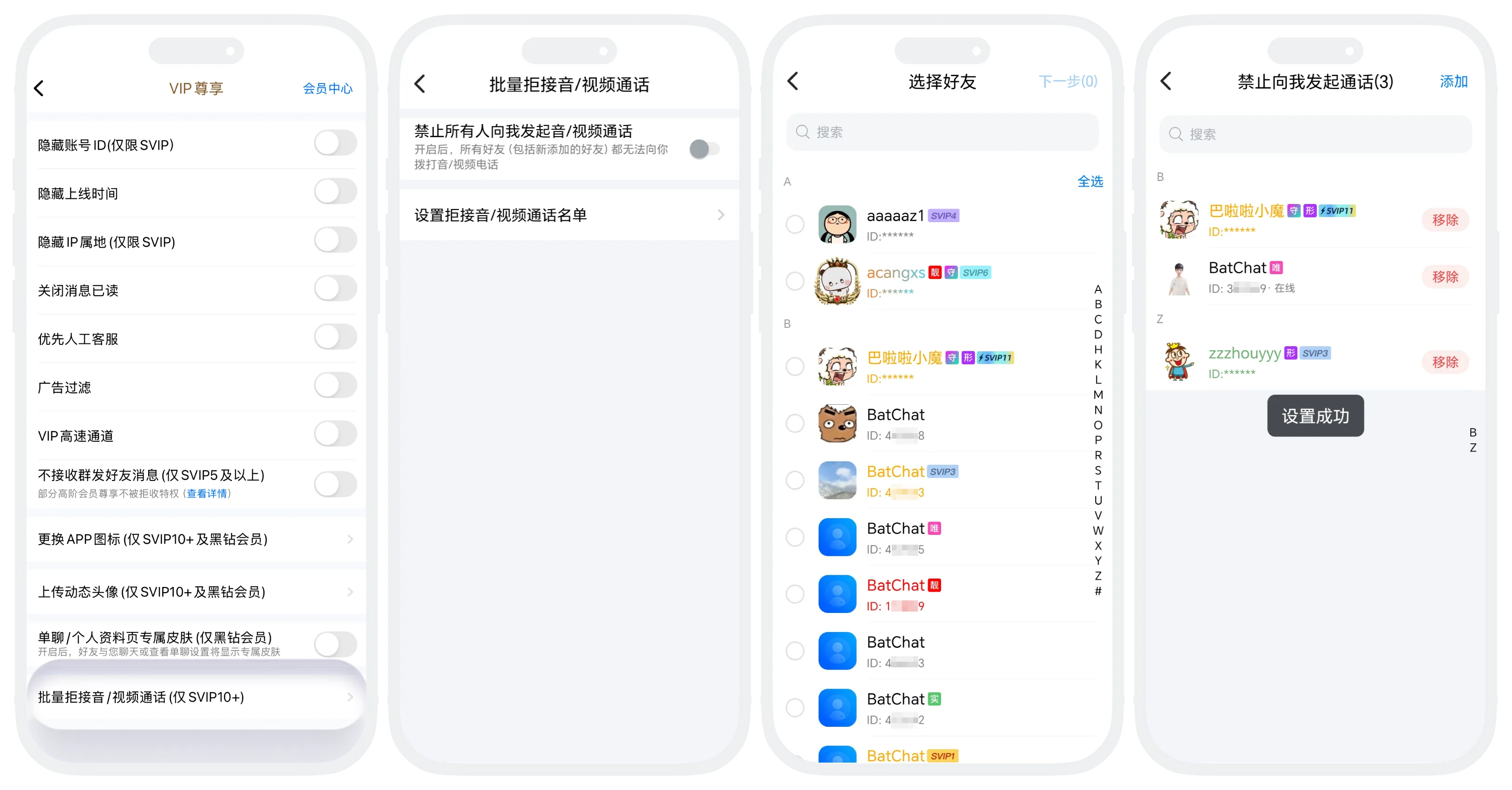
Batch Reject Audio/Video Calls
- Function Introduction: Allows restricting certain friends from initiating audio/video calls to you;
- Usage Restrictions: SVIP and above members;
- Setting Process: Click "Batch Reject Audio/Video Calls" on the membership function settings page
- Method 1: Turn on the "Prohibit all people from initiating audio/video calls to me" switch, all friends will be unable to initiate calls to you;
- Method 2: Click "Set Reject Audio/Video Call List", select friends to be restricted from the contact list. After successful setting, only friends on the list will be restricted.
Service and Experience Optimization
The following functions are automatically enabled after activating VIP, no manual management needed:
- Priority Human Service: Members enjoy priority access to human customer service when contacting support;
- VIP Express Channel: Enjoy accelerated experience in network services, resource loading, etc.;
- Ad Filtering: Turn off splash screen ads within the app, providing a cleaner browsing environment.
FAQ
No. After enabling, messages you send will not display "Read" status on the other party's device, and the system will not notify the other party that you have enabled this function.
When membership level expires or decreases, you will no longer be able to continue using or setting privileges beyond your current level. Some enabled functions (such as exclusive skins) may be automatically turned off or restored to default status.
