BatChat App Notification Settings
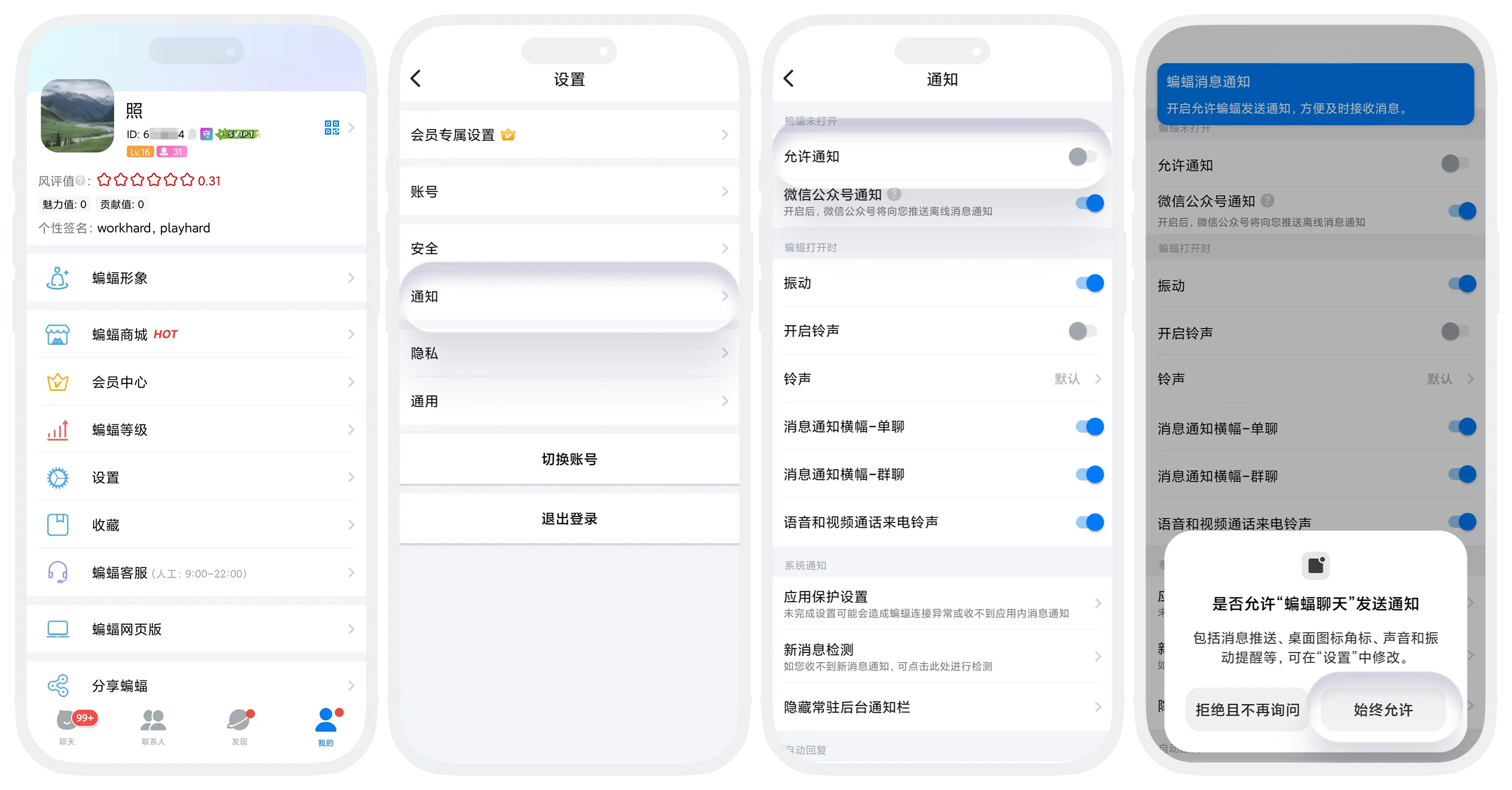
Setup path: Enter the notification settings page through "My" - "Settings" - "Notifications" to configure BatChat's message notifications.
Step 1: Enable Mobile System Notification Permissions
The notification switch within the BatChat app depends on authorization from the mobile system. If system permissions are not enabled, the "Allow Notifications" switch within the app cannot be turned on.
- Quick operation: On the "Notifications" settings page of the BatChat APP, click the "Allow Notifications" switch, and the system will directly guide you to jump to the phone's notification settings page.
- Manual setup: You can also manually enter your phone's "Settings" > "Notifications" (or "App Management"), find the BatChat app, and enable the "Allow Notifications" permission.
Step 2: Enable In-App Notification Switch
Under the premise that system permissions have been enabled in Step 1, toggle the "Allow Notifications" switch to the on state.
Step 3: Set Reminder Methods for Receiving Messages or Calls
Set notification reminder methods according to personal preferences, such as "Ringtone", "Vibration", etc.

Operation paths may differ for different mobile phone systems. If you cannot find the corresponding settings, please contact customer service for assistance.