Storage Space
"Storage Space" is used to centrally view and clean chat data, media cache, and temporary files generated by the BatChat app on the current device. If your phone storage is tight, images and videos take up too much space, or chat search is lagging, you can clean data here as needed.
Entry
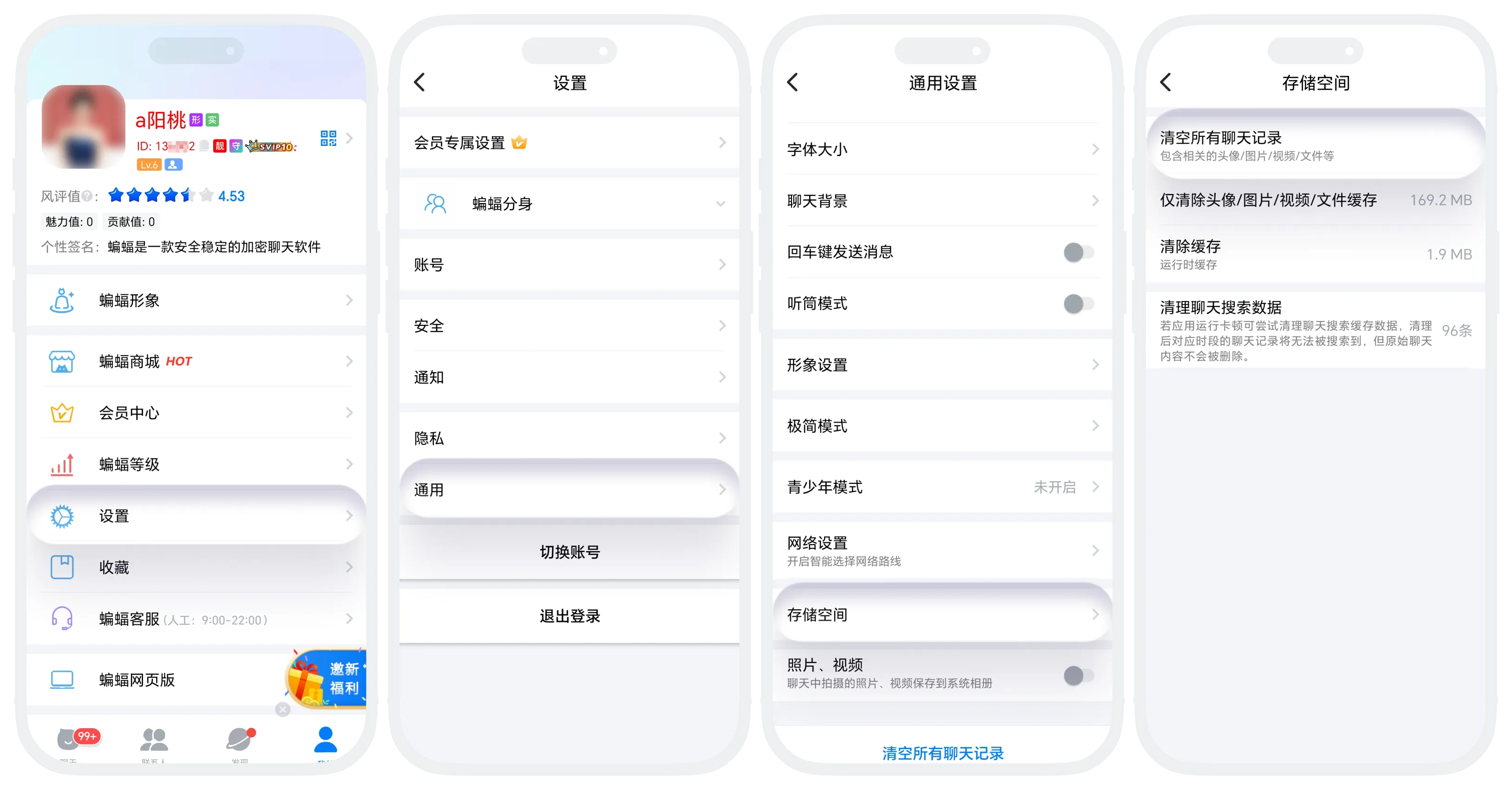
- Enter 'My' - 'Settings' - 'Storage Space';
- Select different cleanup methods as needed.
Content That Can Be Cleaned
- Clear All Chat History: Delete all chat messages, images, videos, files, and other data on the current device;
- Only Clear Avatar/Image/Video/File Cache: Clean media cache while keeping text chat history;
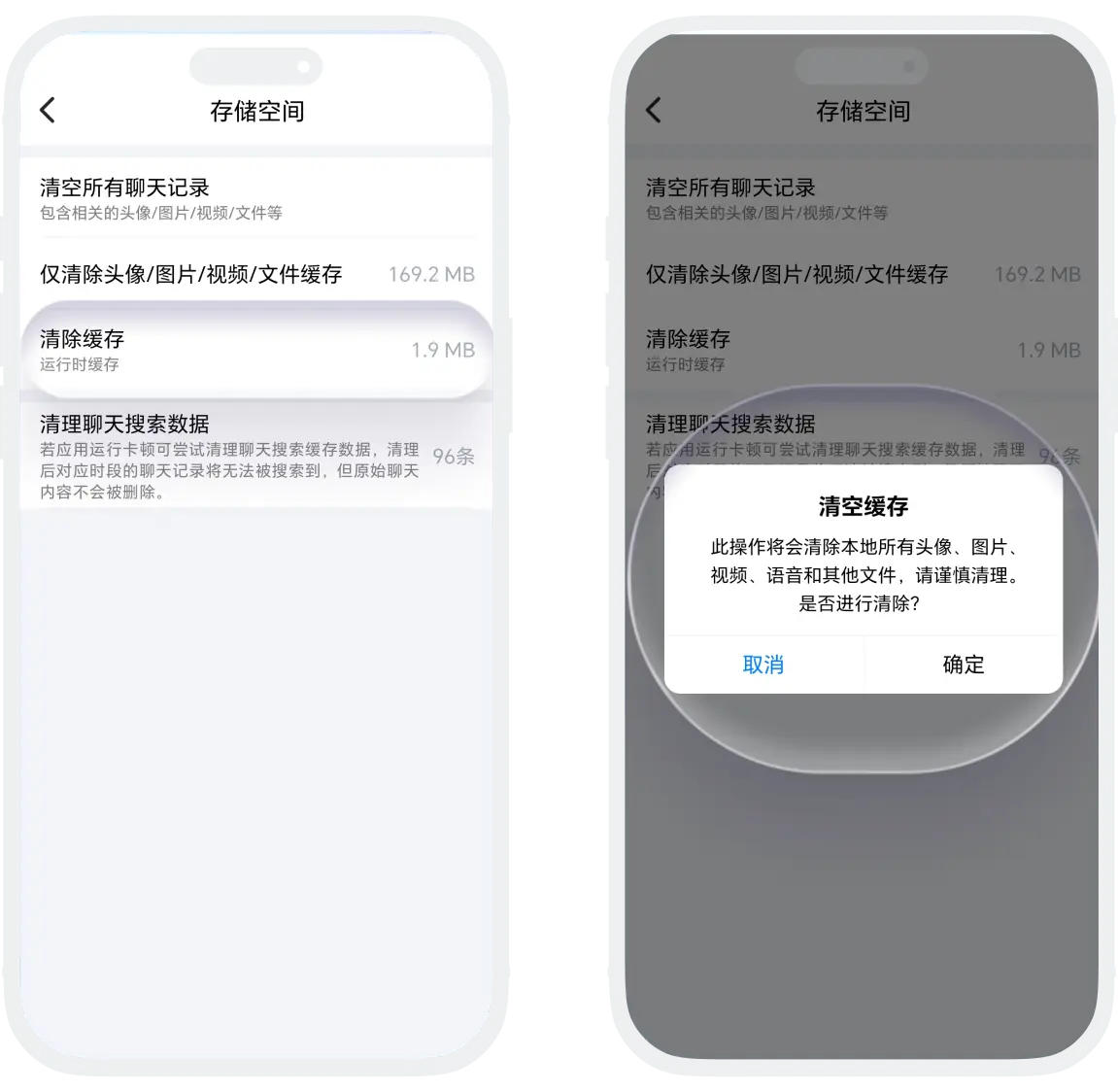
- Clear Cache: Delete temporary files generated while the app is running. This does not affect your account or chat content;
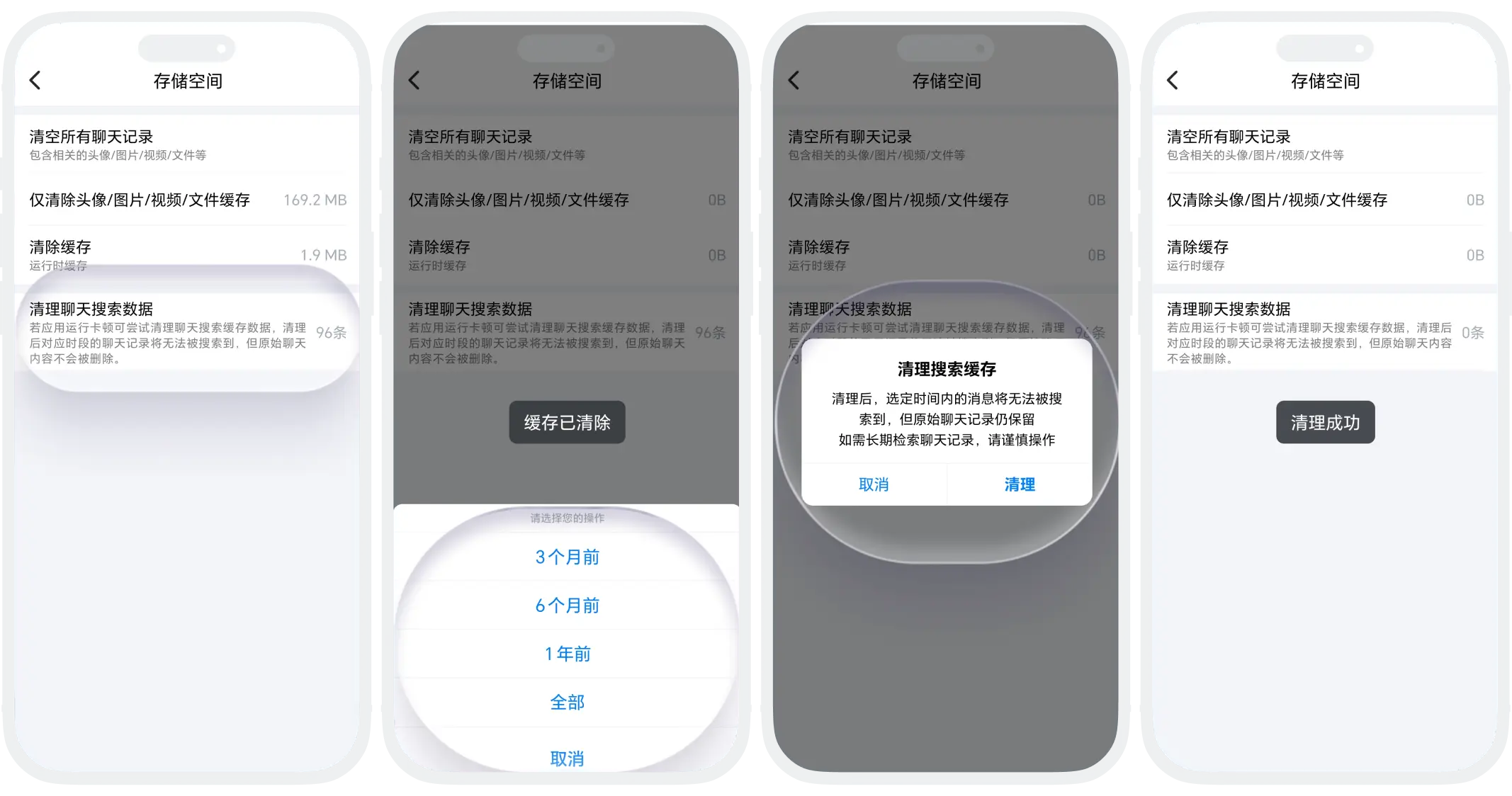
- Clean Chat Search Data: Rebuild local index data related to chat search to improve search lag or abnormal results.
Selection Suggestions
- To quickly free up a large amount of space: prioritize cleaning image, video, and file cache;
- If searching chat history is obviously laggy: prioritize cleaning chat search data;
- If you want to completely clear local chat content: use "Clear All Chat History";
- If the app's temporary usage is too high: try "Clear Cache" first.
FAQ
No. Clearing cache only deletes temporary files and generally does not affect chat messages, friend relationships, or account information.
Because this only cleans local media cache and does not affect normal account messaging. New chat content can still be received and viewed.
No. This operation mainly clears local search index data to optimize search performance. The original chat content itself is not deleted.
Was this page helpful?