Enabling Super Groups
Enabling Super Groups
"Super Group" is a management tool that can contain multiple group chats. All group chats under the group set can be managed and configured together. This document describes how to enable and dissolve a Super Group.
Enable Super Group Process
- Requirements:
| Requirement | Description |
|---|---|
| Identity | Only the group owner can enable a Super Group |
| Membership Level | Only SVIP and above users can enable it |
| Real-Name Verification | Real-name verification must be completed first |
- Enable process:
- Enter the profile page of a group chat you created, then tap "Super Group";
- Tap "Enable Super Group" at the bottom. If you do not meet the requirements, follow the prompts to upgrade to SVIP or complete real-name verification first;
- After enabling succeeds, the group set's basic information (avatar, name, description, and more) uses this group as the source. This group becomes the first group chat in the group set;
- When Group 1 is full, the system automatically creates Group 2 and Group 3. See Automated Group Creation and Joining Rules.
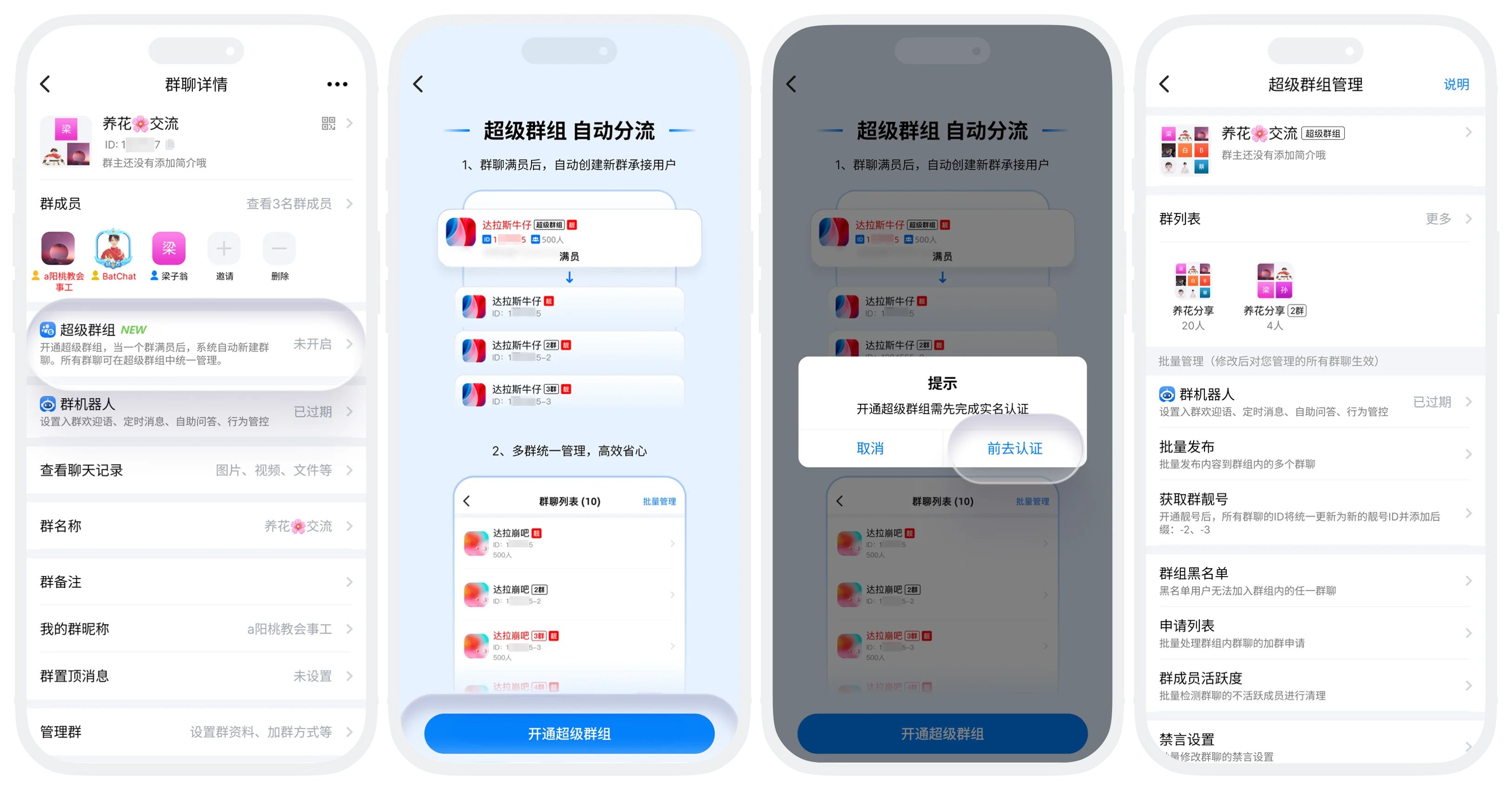

If SVIP expires or real-name verification is canceled, the system will no longer automatically create new groups for the group set. Existing group chats are not affected.
Dissolve the Entire Group Set
- Steps:
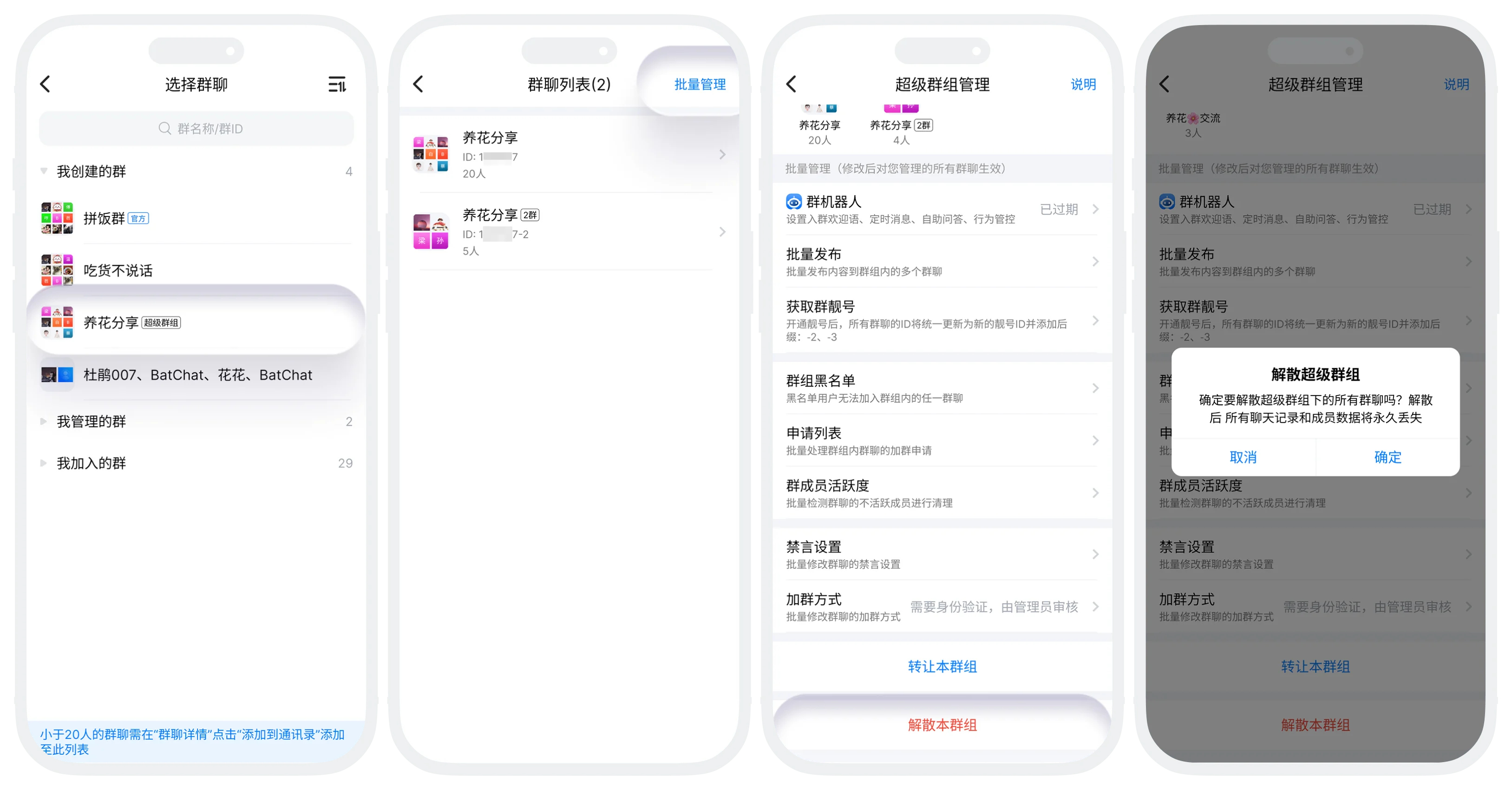
- In "Contacts" - "Groups" - "Created by Me", find and tap this Super Group;
- Tap "Batch Manage" in the upper-right corner, then tap "Dissolve This Group Set" at the bottom;
- Confirm dissolution.
- Effects of dissolving the group set:
- All group chats under the group set will be dissolved;
- All chat history and member data will be permanently lost;
- Occupied group IDs are released, including IDs for Group 2, Group 3, Group 4, such as 123456-2, 123456-3, 123456-4, and so on.
Dissolve a Single Group Chat in the Group Set
- In addition to dissolving the entire group set, you can also dissolve a single group chat under the group set: enter the group chat details page, tap "Dissolve This Group" at the bottom, and confirm;
- Dissolving one group chat does not affect other group chats under the same group set.
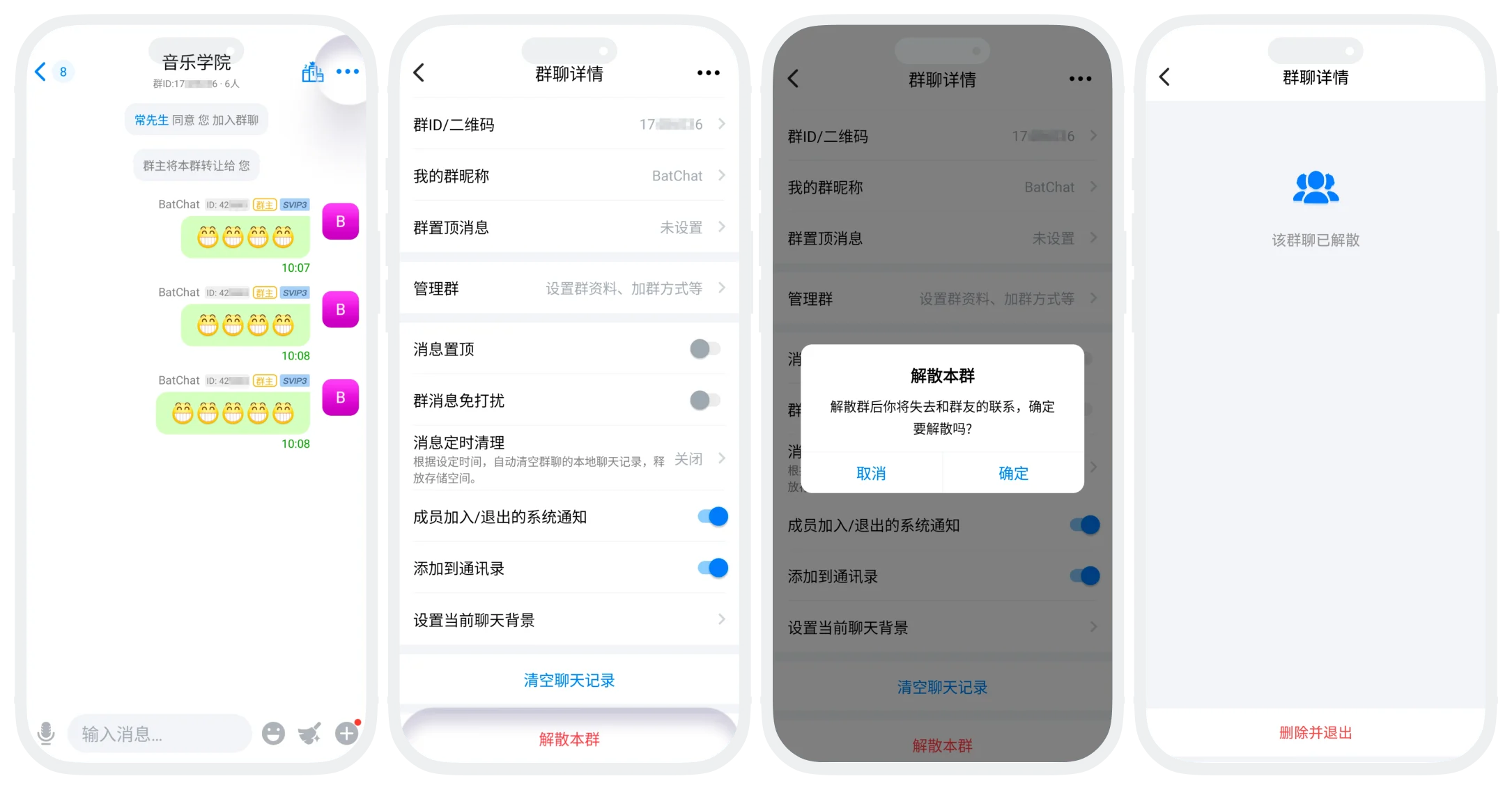

Warning: Dissolution cannot be restored. Please proceed with caution.
FAQ
No. After dissolution, all group chats under the group set are permanently deleted, and chat history and member data cannot be restored.
Turning it off is not currently supported. If you need to remove the group set, use "Dissolve This Group Set".
Was this page helpful?