Managing Super Groups
Managing Super Groups
After a Super Group is enabled, the group owner, super administrators, and administrators can manage the group set centrally from the management page.
Entry
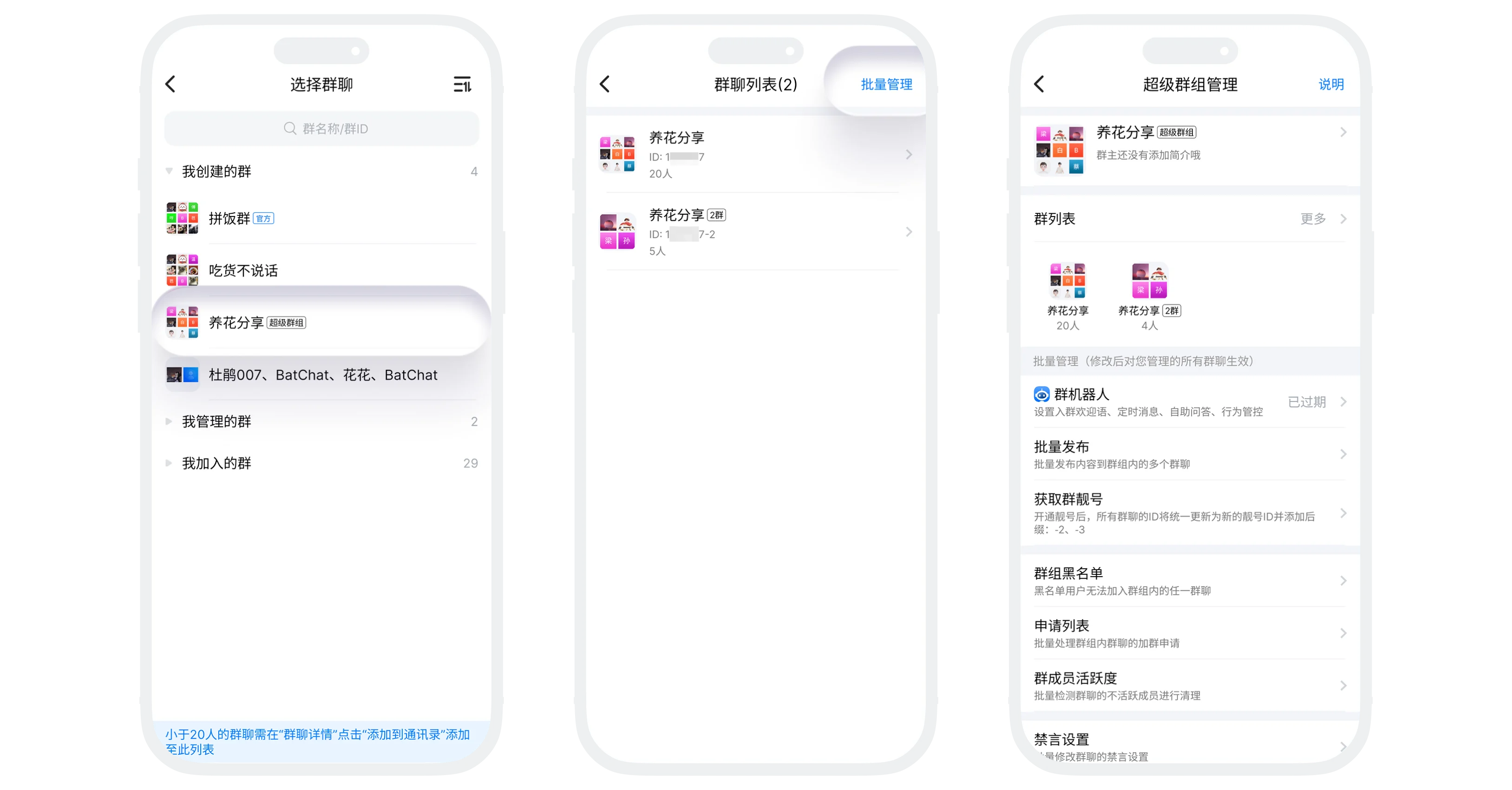
Go to "Contacts" - "Groups". In the "Created by Me" or "Managed by Me" section, tap a Super Group, then tap "Batch Manage" in the upper-right corner to enter the group set management page.
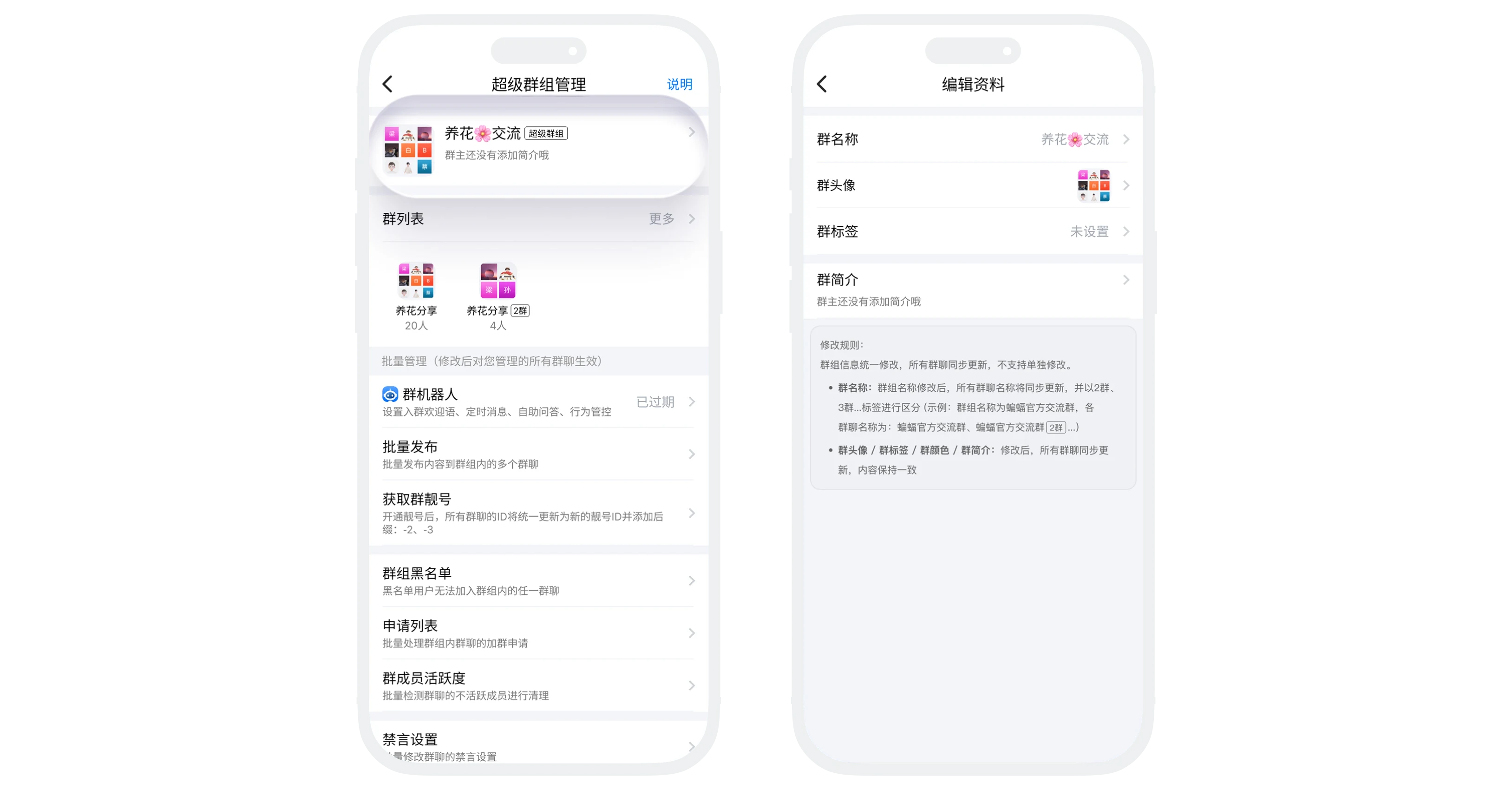
Edit Basic Profile
- Editable content: group set avatar, name, label, and description;
- Edit permission: Only the group owner can edit;
- Group set information is updated uniformly and synchronized to all group chats. Separate changes are not supported:
- Group name: After the group set name is changed, all group chat names are updated together and distinguished by Group 2, Group 3, and so on. Example: if the group set name is changed to BatChat Official Community, the group chat names become BatChat Official Community, BatChat Official Community Group 2, and so on;
- Group avatar/group label/group color/group description: After changes, all group chats are synchronized and keep the same content.
Group Special ID
After the group owner purchases a group special ID for the Super Group, all group chat IDs under the group set are updated together. The system automatically adds suffixes to distinguish different group chats. For example, if the purchased special ID is 123456, the group chat IDs under the group set will be 123456, 123456-2, 123456-3, and so on, all using the special ID identifier.
Group Bot
- Modifying group bot configuration here synchronizes that configuration to all group chats where you have management permission. For example, if the group owner modifies the welcome message here, the welcome message for bots in all group chats under the group set is synchronized;
- If you only want to modify the bot configuration for a single group chat, it is recommended to enter that group chat's details page and modify it separately;
- The group set's group bot must be renewed here centrally. You do not need to activate or renew the group bot separately for each group chat.
Batch Publish
- The group owner and super administrators can batch publish messages to multiple group chats in the Super Group;
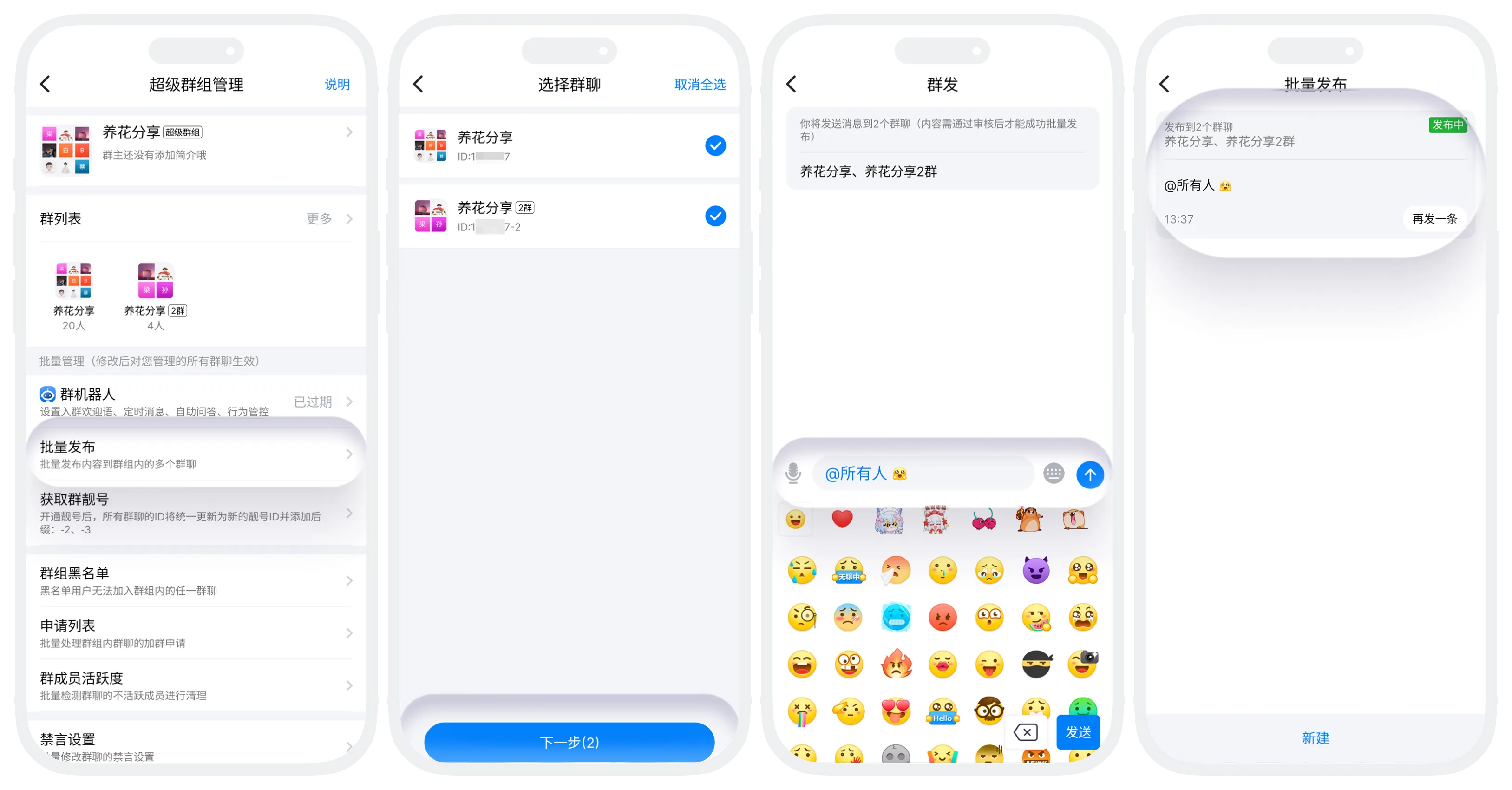
- Publishing process:
- Tap "Batch Publish" - "New";
- Select the group chats to publish to (all selected by default);
- Edit the publish content. Text, images, emojis, and points red packets are supported;
- After editing, tap "Publish".
- Publishing rules:
- Up to 10 posts per day (batch red packets are not counted);
- Batch published content, except points red packets, must pass review before it can be published.

Published content must comply with platform rules and must not contain illegal or violating information. Violating content will be deleted, and serious violations may result in account bans or group set bans.
Other Management Features
| Feature | Permission | Description |
|---|---|---|
| Blacklist | Group owner/super admin/admin | Shared by all group chats under the group set. Blacklisted users cannot join any group chat in this group set |
| Application List | Group owner/super admin/admin | Displays pending join requests for group chats you manage |
| Group Member Activity | Group owner/super admin/admin | Detects inactive members in group chats you manage and supports batch removal |
| Mute Settings | Group owner/super admin | Batch modifies mute methods for group chats you manage |
| Join Method | Group owner/super admin | Batch modifies join methods for group chats you manage |

"Mute Settings" and "Join Method" are permissions for group owners/super administrators. If you are also a regular administrator of some groups, changes to these items only take effect for group chats where you are a super administrator.
Transfer Group Set
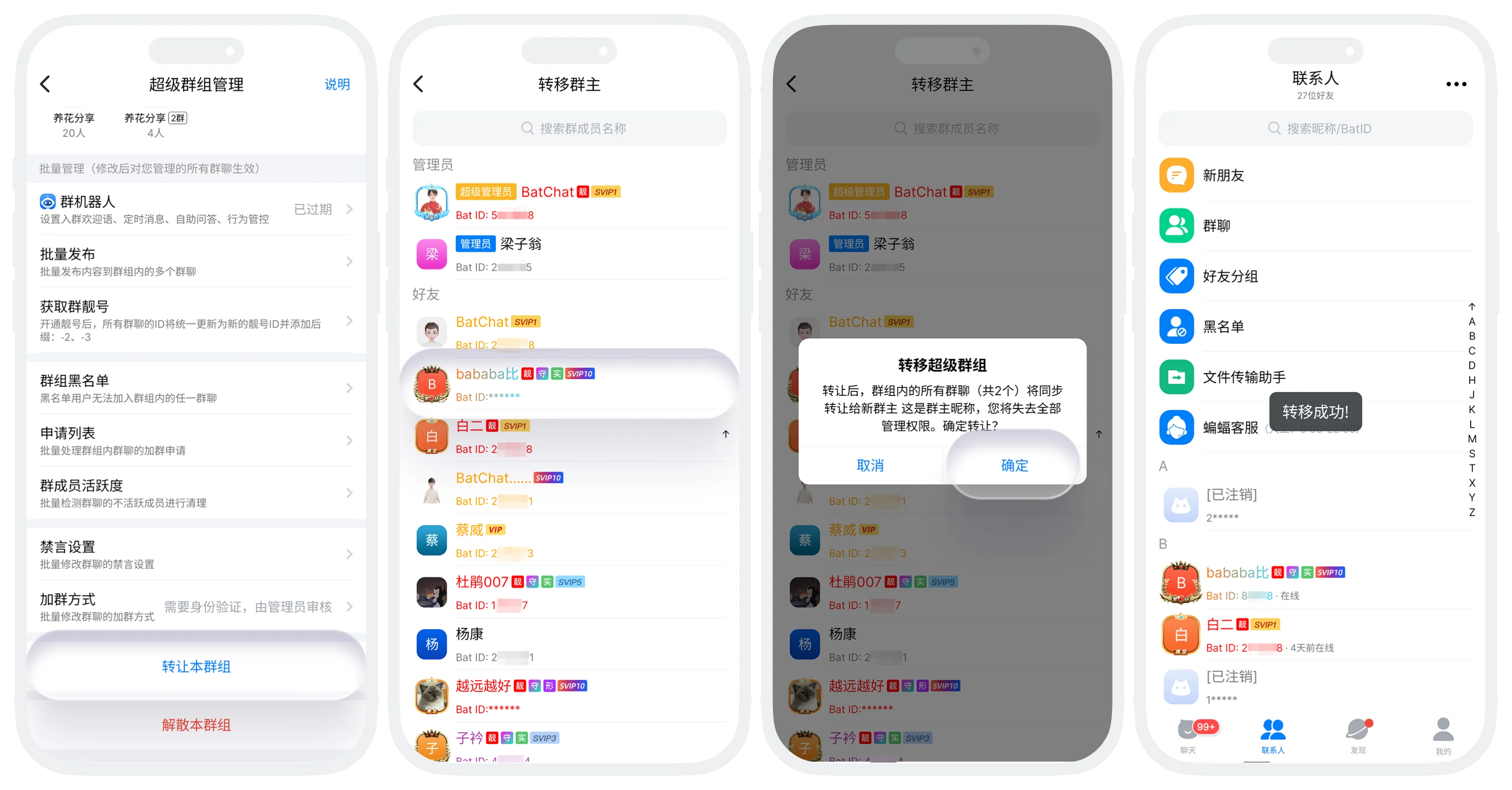
- Steps:
- In "Contacts" - "Groups" - "Created by Me", find and tap this Super Group;
- Tap "Batch Manage" in the upper-right corner, then tap "Transfer This Group Set" at the bottom;
- Select the transfer recipient (limited to members of Group 1) and confirm the transfer.
- Effects after transfer:
- The new group owner receives all management permissions for the group set;
- The new group owner automatically joins every group chat under the group set;
- The original group owner becomes a regular member.
- Only the group owner can transfer the group set.
- Only the entire group set can be transferred. Transferring a single group chat within the group set is not supported.
FAQ
No. Administrators can only manage group chats where they have management permission.
Yes. Text, images, and similar content must pass backend review before being sent to each group. Points red packets do not require review and are published directly.
No. The member can still chat normally in other groups. However, if the member voluntarily leaves, they will no longer be able to apply to join any group chat in the group set.
No. All group set configurations, such as blacklist and group bot settings, are retained, and the new group owner can continue managing them.