Reorder Groups
Reorder Groups
The group list supports custom sorting. You can adjust the display order of groups based on usage frequency or personal preference. After saving the order, it will also apply to scenarios where you need to select a group, such as forwarding messages or sending contact cards, making frequently used groups easier to find.
Steps
- Enter the group list and tap "Edit" in the upper-right corner;
- All groups enter edit mode, and a sort button (≡) appears on the right side of each group;
- Press and hold the sort button, then drag up or down to adjust the group's position;
- After adjustment, tap "Save" for the order to take effect.
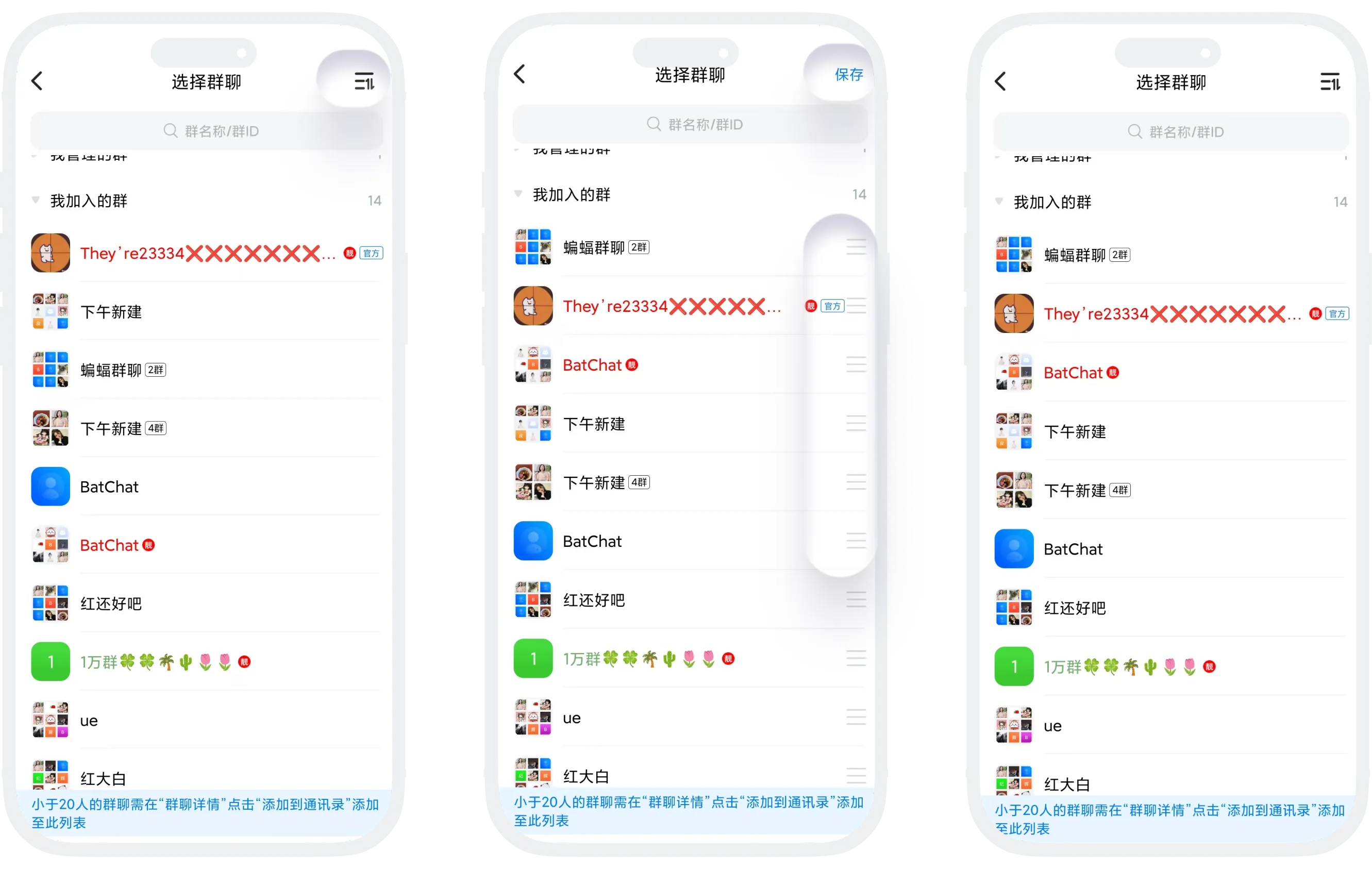

Sorting only works within the current category. You cannot sort across sections; for example, a group under "Created by Me" cannot be dragged to "Managed by Me" or "Joined by Me".
Where Sorting Applies
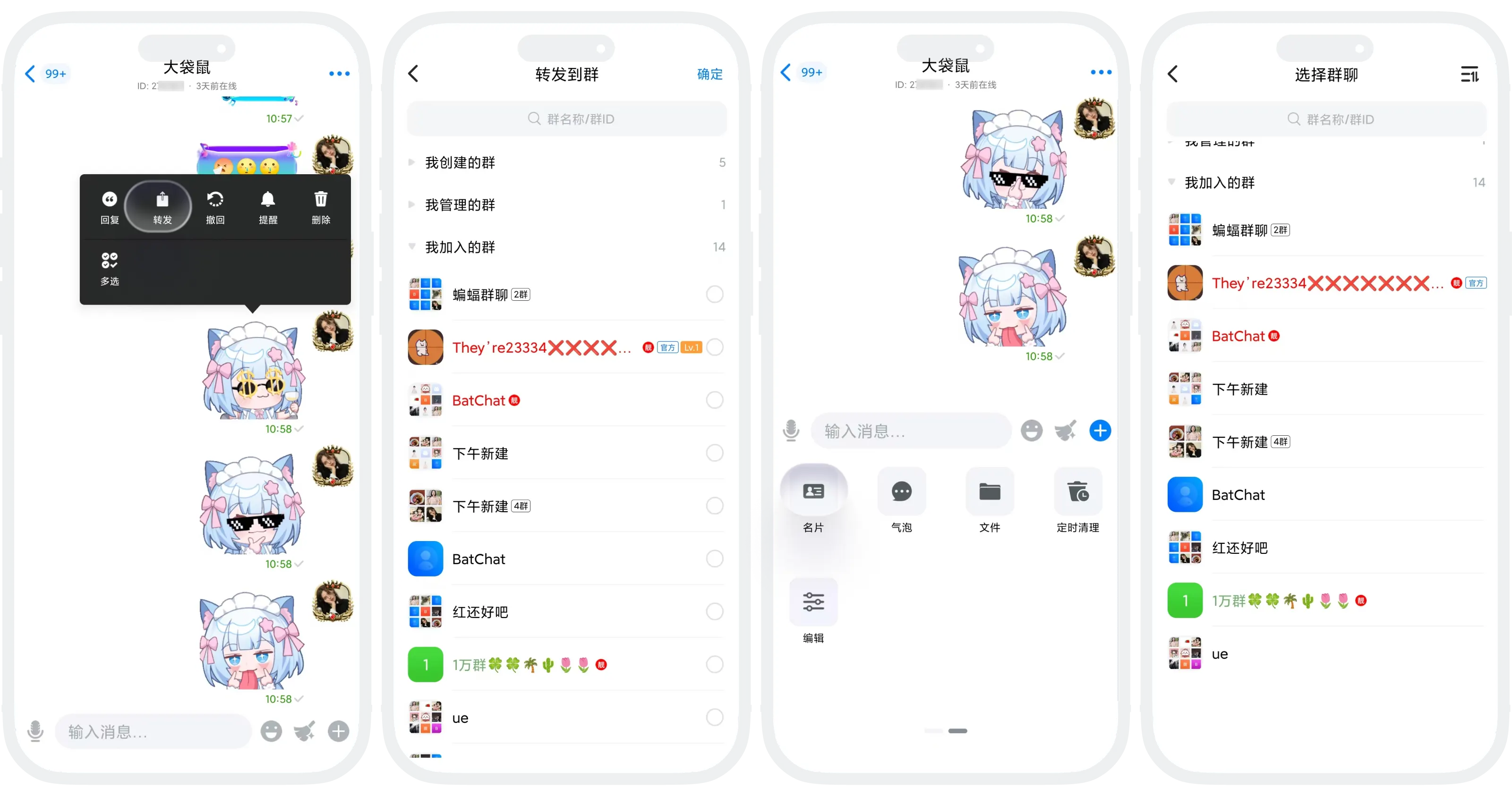
After custom sorting is saved, it applies to:
- Forward Messages: When choosing a target group, groups are listed in your custom order;
- Send Contact Cards: When choosing a target group, groups are listed in your custom order;
- Other Group Selection Pages: Any feature that requires selecting a group uses the same order.
FAQ
Yes. Sorting settings sync to your account and are restored automatically after you log in on another device.
Newly joined groups appear at the top of the corresponding category by default. You can enter edit mode again to adjust their positions.
One-tap restore to default is not currently supported.
Edit mode only supports sorting. To delete or leave a group, open the group details page and use "Leave Group".