Encrypt/Decrypt Function
"Encrypt/Decrypt Files" is an advanced file security protection feature provided by BatChat for users. You can encrypt important files in your favorites using AES encryption, generate encrypted archives and save them in the exclusive "Encrypted Files" area. Encrypted files require the correct password to decrypt and view, effectively preventing privacy leaks. This feature requires purchasing a favorites storage expansion package to unlock.

You need to purchase a "Favorites Storage Expansion Package" to unlock the encrypt/decrypt function. Purchase path: "My" - "Favorites" - "More" - "Favorites Storage Expansion". See Storage Expansion for details.
Encryption Process
- Supported file types for encryption: Documents (txt, pdf, doc, etc.), Images (jpg, png, etc.), Videos (mp4, mov, etc.), Audio (mp3, m4a, etc.), Archives (zip, rar, etc.);
- Encryption entry points:
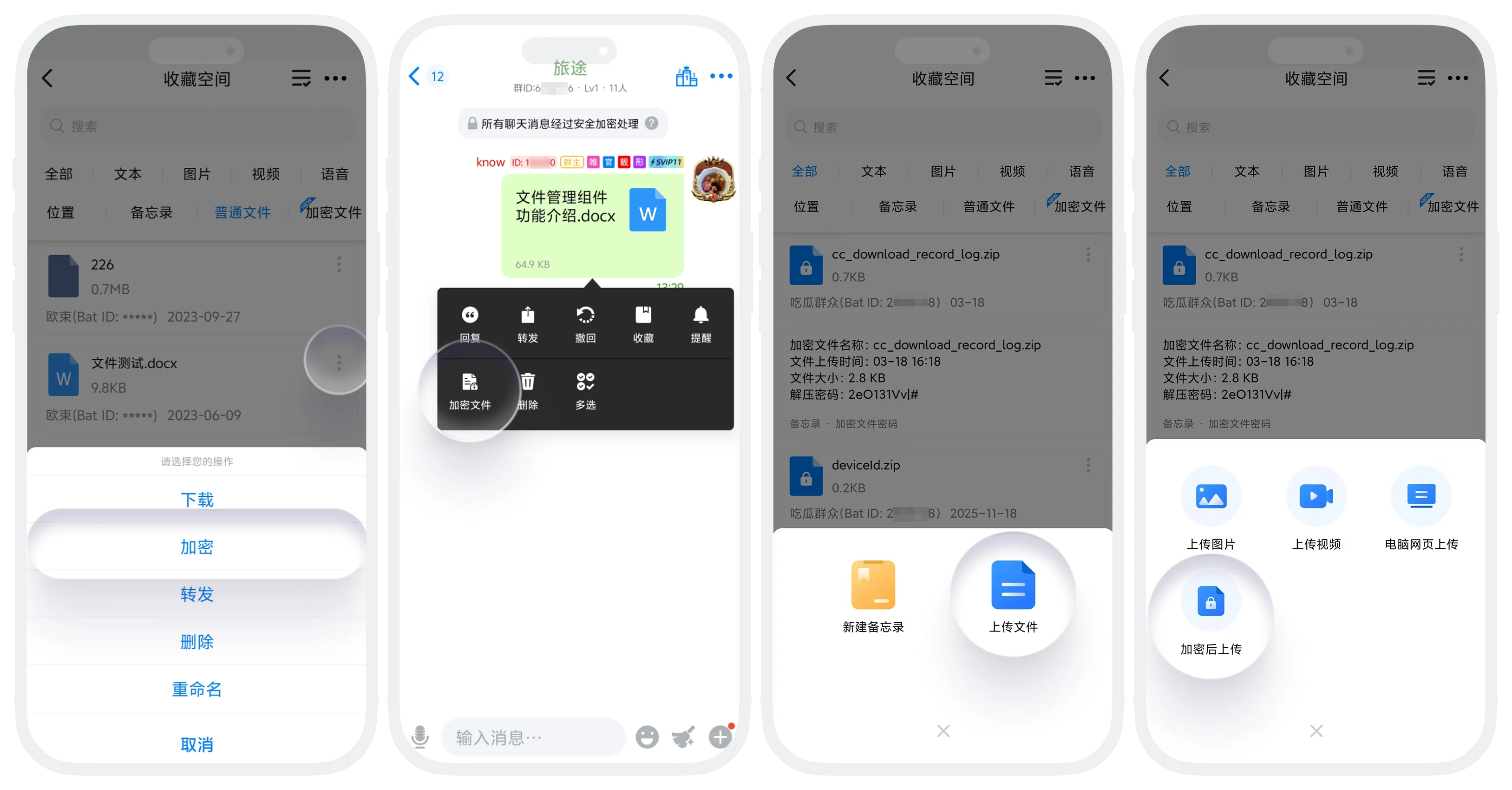
- Encrypt from Favorites List: In the favorites list, find the regular file you want to encrypt, click the "More" button in the upper right corner of the file, and select "Encrypt";
- Encrypt Directly from Chat: In a one-on-one or group chat session, find the file message you want to encrypt and favorite, long press the file message, and select "Encrypt";
- Upload and Encrypt New File: In "My" - "Favorites", click the "Upload" button at the bottom of the list, and select "Upload After Encryption";
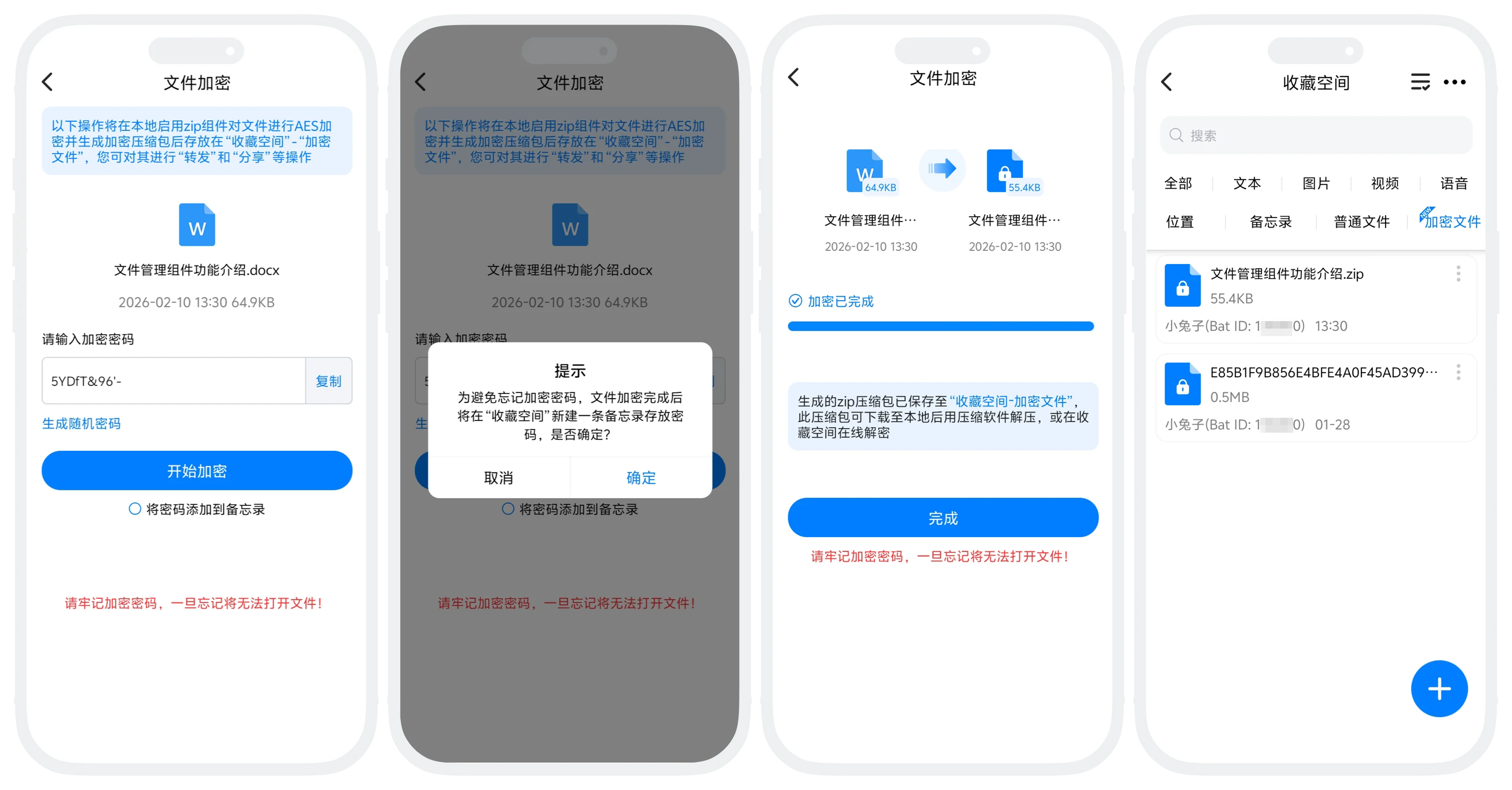
- Enter the encryption settings page through any of the above entry points, set the encryption password yourself (8 characters or more, must contain a combination of numbers + letters + special characters) or let the system generate a random password;
- Add to Memo (optional):
- After checking, the system will automatically generate a password memo file and save it in the favorites list. This file will store: file name, file upload time, file size, extraction password and other information;
- The memo file itself is not encrypted. Please keep it safe. If you are concerned about password security, you can manually record the password or use other password management tools;
- After setting the password, click "Start Encryption". After waiting for the encryption to complete, the encrypted file will be automatically saved to Favorites List - Encrypted Files.
Share Encrypted Files
- Feature Introduction: Encrypted files support generating share links and can set access restrictions to protect privacy and security;
- Sharing Process:
- Find the encrypted file in favorites, click "More" - "Share";
- Set sharing restrictions:
- Limit Access IP Count: Set the maximum number of IPs that can access (e.g., 1, 3, etc.);
- Link Validity Period: Set the link validity duration (e.g., 3 hours, 12 hours, etc.);
- Click "Generate Link", select the sharing method (WeChat, QQ, Copy Link, etc.). When the recipient clicks the link, they can view the encrypted file you shared (still requires password to decrypt the encrypted file).
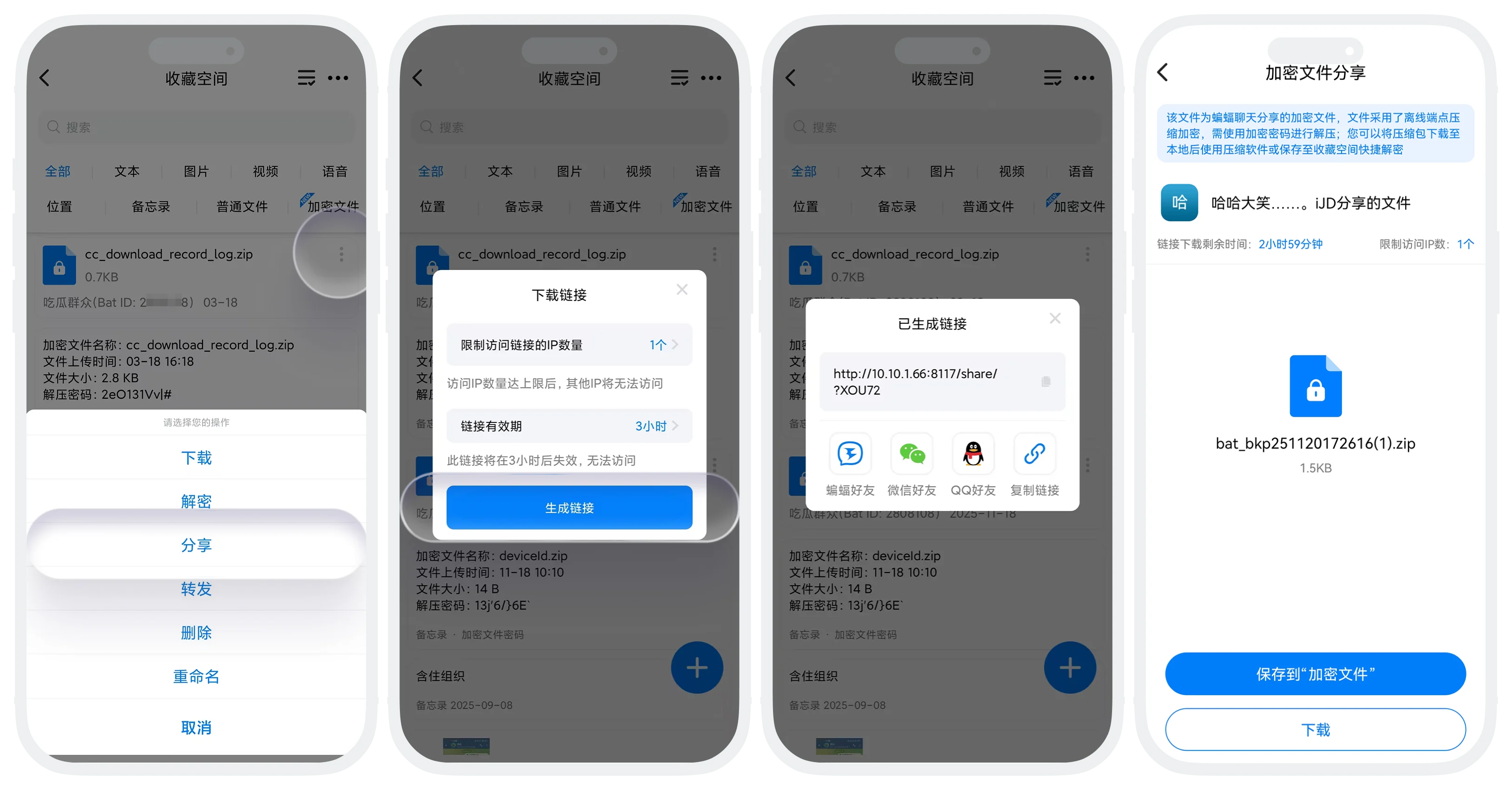

When either the access IP count reaches the limit or the link validity period expires, the link becomes invalid immediately.
Decryption Process
- Decryption Prerequisites: Have purchased an expansion package, the file must be encrypted and saved in the favorites list, and you must know the correct decryption password;
- Operation Process:
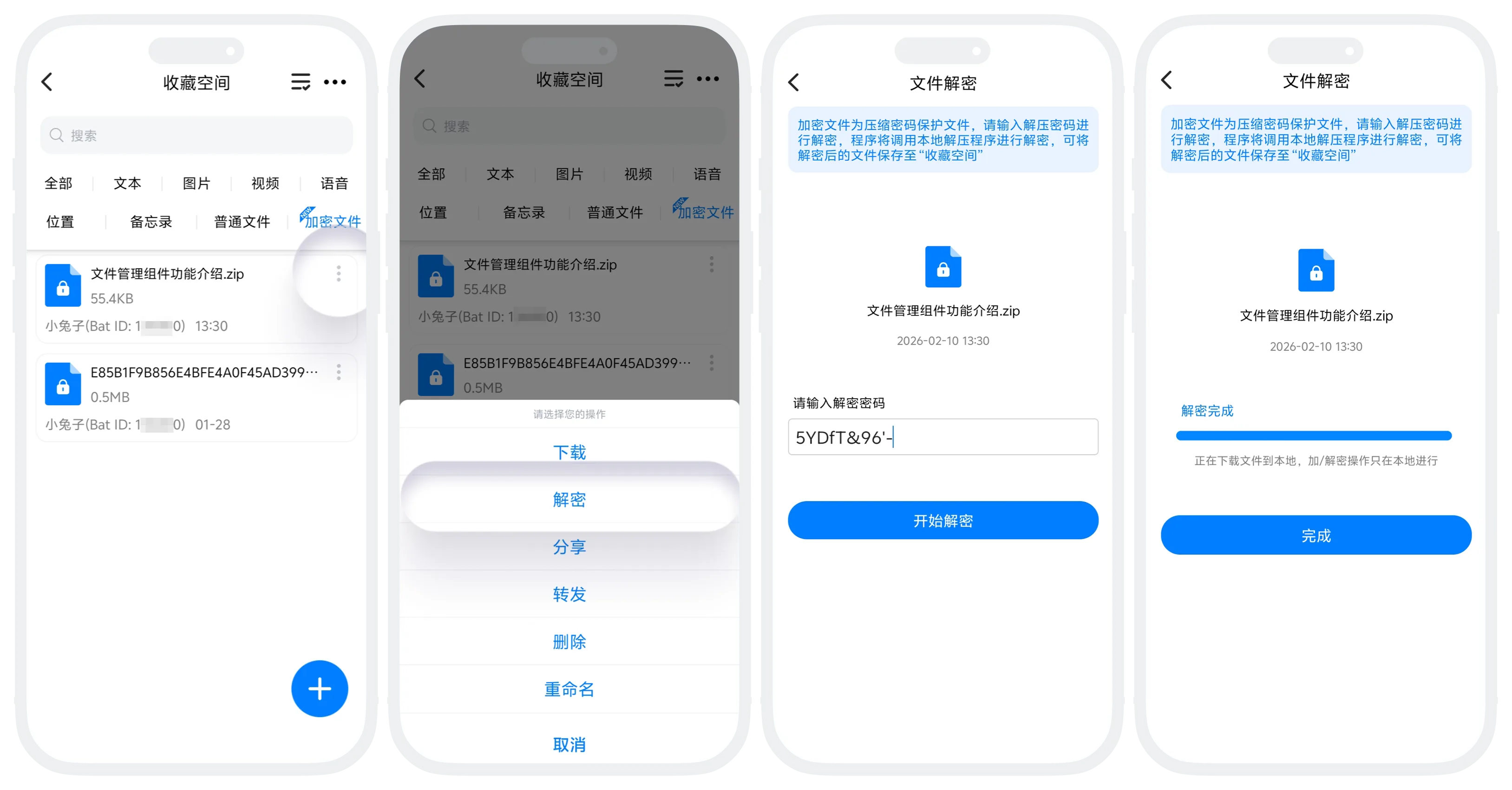
- In "My" - "Favorites", find the encrypted file, click the "More" button in the upper right corner of the file, and select "Decrypt";
- Enter the decryption page and input the decryption password;
- After the password is correct, decryption begins. The decryption process is completed locally, and the file will not be uploaded to the server;
- After decryption is complete, you can perform the following operations on the file:
| Operation | Description |
|---|---|
| Forward | Forward the decrypted file to friends or group chats |
| Upload to Favorites | Save the decrypted file as regular favorites |
| Open with Other Apps | Select other apps on your phone to open the file |

Be sure to remember the password! If you forget the password and have no memo file, you will not be able to decrypt the file.
Frequently Asked Questions
Yes. Encrypted files are in standard zip format (AES encryption) and can be opened on any device using tools that support AES decompression. However, decrypting within BatChat is most convenient.
Yes. Encrypted files can be forwarded as regular files. However, the recipient needs to know the password to decrypt and view the content.
The original file remains (unencrypted state), and an encrypted file is generated simultaneously.
Encrypted files themselves do not support direct preview and must be decrypted first. Decrypted files can be previewed normally.